
How to Create PDF Forms That Automate Your Workflow
Fast navigation
Chances are, you think creating a fillable PDF form is a complicated headache. But what if I told you it's actually pretty simple? You can use a no-code platform to build a user-friendly web form and then automatically map all that collected data right onto your existing PDF template. It's a modern way to skip the complex software and create interactive, automated forms in just a few minutes.
Why Smart PDF Forms Are a Business Essential
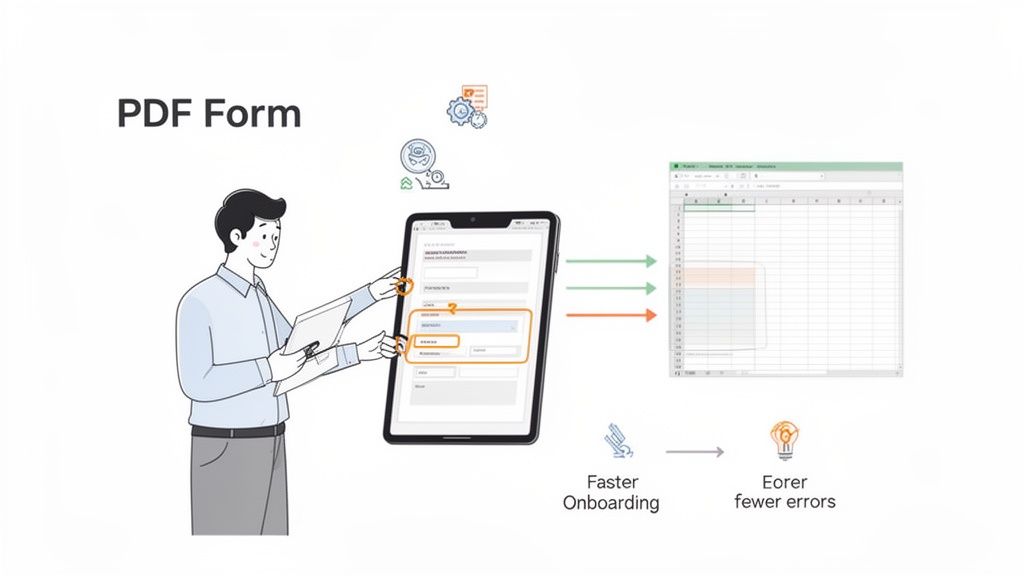
This is a huge deal, especially for small and mid-sized businesses. Interactive forms are a golden opportunity to get time back, slash costly human errors, and give clients a much better experience. Instead of sending them a clunky, uneditable document, you can offer a clean, simple web form that does all the heavy lifting behind the scenes.
The Shift From Static Document To Dynamic System
The real magic here isn't just making a PDF fillable—it's turning it into a fully automated system. When you use a no-code tool to create a PDF form, you're building a workflow, not just a document. This unlocks some serious advantages for your business operations:
- No More Manual Data Entry: When someone fills out your web form, their answers are instantly and accurately placed into the correct fields on your PDF. This completely gets rid of the soul-crushing (and error-prone) task of transcribing data.
- A Better Client Experience: A simple, guided online form feels way more professional and is much easier to use than a traditional PDF, especially on mobile devices where 63% of PDF views now happen.
- Fewer Costly Mistakes: By using features like required fields and data validation, you make sure the information you get is right the first time. No more chasing down clients for missing or incorrect details.
- Way Faster Turnaround Times: Automating how documents are filled, signed, and sent out shaves days—sometimes weeks—off the time it takes to finalize an agreement or bring on a new client.
The core idea is simple: your client fills out an easy-to-use web form, and your business instantly gets a perfectly completed, legally sound PDF. That’s how you scale your operations without pulling your hair out.
From Manual Drudgery to Automated Ease
To really grasp the difference, let's compare the old way of handling PDFs with what's possible now. It’s a night-and-day difference in efficiency.
Manual vs Automated PDF Form Workflows
| Process Step | The Old Manual Way | The Modern Automated Way |
|---|---|---|
| Form Creation | Using complex PDF editors like Adobe Acrobat Pro. A steep learning curve. | Building an intuitive web form with a drag-and-drop no-code tool in minutes. |
| Data Collection | Emailing a PDF, hoping the client can fill it, save it, and send it back correctly. | Sharing a simple web link. The user fills out the form on any device. |
| Data Entry | Manually copying and pasting answers from the filled PDF into your systems. | Data is automatically mapped to the PDF and sent to other apps (CRM, Sheets, etc.). |
| Error Handling | Finding a typo and starting the entire back-and-forth email chain over again. | Built-in validation catches errors instantly, ensuring clean data from the start. |
| Signatures | Printing, signing with a pen, scanning, and emailing back. | Integrated e-signatures are captured and legally binding within the form workflow. |
| Filing & Storage | Downloading attachments, renaming files, and manually uploading to the right folder. | Completed PDFs are automatically named and filed in cloud storage like Google Drive. |
This table really puts it into perspective. The modern approach isn't just a small improvement; it’s a complete overhaul of an outdated process.
The growing need for this kind of efficiency is clear when you look at the market. The global PDF software market was valued at USD 2.86 billion in 2024 and is on track to hit USD 6.2 billion by 2032. This explosive growth is happening because businesses are finally catching on to the huge operational wins that come from smarter digital document workflows. You can dive deeper into insights about the PDF software market and its projected growth.
Selecting the Right No-Code PDF Form Builder
Your goal here isn't just to find something that plops fields onto a page. You need a platform that actually solves your real-world operational headaches.
The absolute baseline for any good builder is a clean, drag-and-drop interface. If you need to crack open a 50-page user manual just to build a simple intake form, that tool has already failed you. You should be able to whip up a form, arrange your fields, and customize everything without a hint of technical frustration. That way, you can focus on what actually matters—the workflow itself.
Core Features You Cannot Ignore
Once you've confirmed a tool is easy to use, you need to dig deeper. Certain features are completely non-negotiable for any business that's serious about getting work done efficiently. These are the things that separate a basic form creator from a true automation powerhouse.
- Powerful Data Mapping: This is the magic that connects your slick, user-friendly web form to your official, crusty old PDF. The tool must let you easily link each form field to its exact spot on the PDF. This ensures every piece of data lands perfectly, every single time.
- Legally Binding E-Signatures: If you're dealing with contracts, agreements, or any kind of formal approval, built-in e-signatures are a must-have. A good tool provides a secure, auditable trail of consent that holds up legally. It completely kills the old print-sign-scan-email routine.
- Conditional Logic: This is what makes your forms feel smart and professional. Conditional logic lets you show or hide certain fields based on how someone answers previous questions. For example, on a client onboarding form, you could have an "Upload Business License" field that only appears if they select "Corporation" as their business type. Simple, but it makes a huge difference to the user experience.
Don't settle for a tool that just fills in the blanks. The right platform should adapt to your user, streamline approvals, and integrate seamlessly into your existing processes, effectively becoming an automated member of your team.
Integrations That Drive Efficiency
A submitted form is almost never the end of the story for that data. The best no-code builders get this, offering solid integrations that automate what happens after someone hits "submit."
You should be looking for native connections to the tools you already use every day.
For instance, direct payment integrations with platforms like Stripe or PayPal can turn a simple service agreement into a cash-flow machine. You can collect deposits or full payments right then and there, without chasing invoices.
Likewise, integrations with cloud storage like Google Drive or Dropbox can automatically file a completed PDF into the right client folder, saving you from a mountain of admin work. If your current setup isn't pulling its weight, checking out some top PDFfiller alternatives might open your eyes to more powerful, integrated options.
Building Your First Interactive PDF Form
Now that you've picked your tool, it's time to get your hands dirty and turn that static document into a dynamic data-collection machine. The process doesn't actually start with the PDF itself. Instead, we begin with the user-facing web form. This is the simple, clean interface your clients or colleagues will see first, so getting it right is key to a good experience.
Think of building the web form as drawing a blueprint. Before you drag and drop a single field, map out the logical flow of information. You'll want to group related questions together—for instance, keep all contact details in one spot and all project specs in another. This simple bit of organization makes the form feel less intimidating and guides the user through it naturally.
Designing an Intuitive Form Layout
The goal here is to make filling out the form feel completely effortless. A good layout reduces friction and the chance that someone gets frustrated and just gives up. Let's be honest, a cluttered or confusing form is an immediate red flag for most people.
Here are a few practical tips I've picked up:
- Start with the Easy Stuff: Always kick things off with simple information like name and email. This gives the user a quick win and builds momentum to keep going.
- Use the Right Field for the Job: Don't just use a generic text box for everything. A dedicated "Date" field is perfect for appointments, a "Dropdown" is great for selecting from a list of services, and a "File Upload" field is a must for requesting documents.
- Break It Up: If you're building a longer form, like a detailed client onboarding questionnaire, use page breaks or sections. This creates a multi-step experience that feels way more manageable than one long, endless scrolling page.
The best web forms don't just collect data; they guide the user. Your design should anticipate their needs, making the process so simple they don't have to think about it. This attention to detail has a direct impact on your completion rates.
Mapping Web Form Fields to Your PDF
This is where the real magic happens. Data mapping is basically just telling your no-code tool, "When a user types their name into this web form field, put that exact text right here on my PDF." It’s the bridge connecting the simple online form to your official, formatted document.
Let's walk through a real-world scenario: a client onboarding agreement. Your original PDF has a line for "Company Name."
- First, in your no-code builder, you'll add a Text Field to your web form and label it "Company Name." Easy enough.
- Next, you'll jump over to the PDF mapping interface. Typically, you'll see your uploaded PDF on one side of the screen and your list of web form fields on the other.
- You just click the "Company Name" field from your list and then click on the corresponding blank space on your PDF template.
And that's it—the link is made. Now, when a client fills out the web form, their company name will automatically populate in the correct spot on the final PDF. This works for all field types, from text to checkboxes, ensuring everything lines up perfectly every time.
This is a much more modern and flexible way to handle things compared to older, more rigid formats. If you're curious about the tech behind this, you can learn more about different PDF structures and what an XFA form is to get a better sense of how it all works under the hood.
Implementing Advanced Logic and Automation
Alright, you've got the basics of building and mapping your form down. Now it’s time for the fun part—turning that simple data collection tool into a smart, automated assistant that does the heavy lifting for you. This is where we make the user experience feel dynamic and intuitive.
Advanced logic isn’t nearly as scary as it sounds. It’s really just about making your form react to a user's input in real time. Instead of hitting them with a wall of questions, you create a guided path that only shows what’s relevant. Trust me, this small change dramatically improves completion rates and the quality of the data you get back.
Using Conditional Logic to Create Smart Forms
Conditional logic is the secret sauce for a clean, uncluttered form. It lets you show or hide certain fields based on how someone answered a previous question. So, instead of a monster form with dozens of questions that might not even apply, you reveal them only when they’re actually needed.
Think about a service agreement form. You could ask: "Does this project require a deposit?"
- If the user clicks "Yes," a couple of new fields for "Deposit Amount" and "Payment Method" pop right up.
- If they click "No," those fields stay hidden, keeping the form short, sweet, and to the point.
This one tweak makes the form feel like it was custom-built for each person, which cuts down on confusion and stops people from giving up halfway through. It’s a simple feature that instantly makes your process look more professional and well-thought-out.
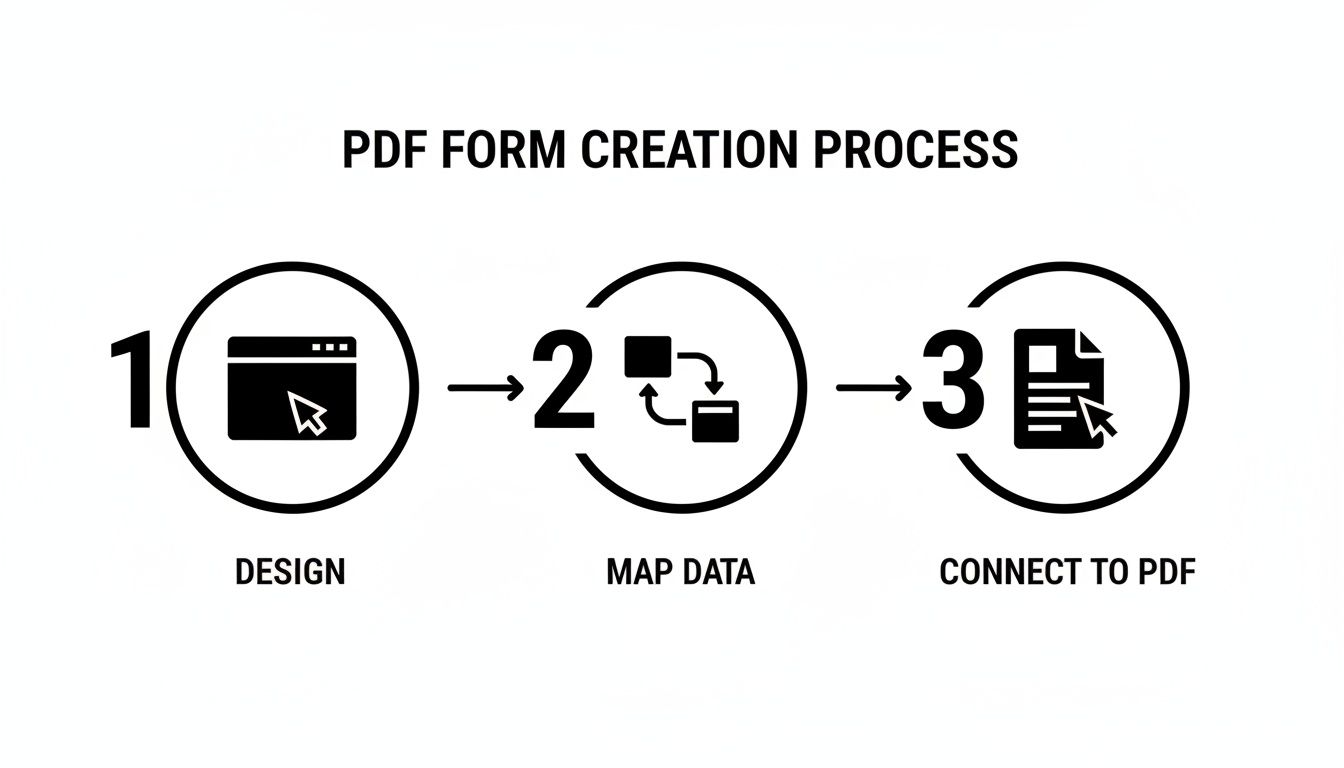
The whole process flow, from designing the form to connecting it with the final PDF, is pretty straightforward.
Ensuring Data Integrity with Validation Rules
Let’s be honest: clean data is everything for an automated workflow. Validation rules are your first line of defense against typos and funky formatting, making sure the information you receive is actually usable from the get-go.
You can set up specific rules for your form fields, like:
- Email Validation: Automatically checks for an "@" symbol and a proper domain format. No more "test@test" submissions.
- Number Formatting: Makes sure a field like "Project Budget" only accepts numbers.
- Character Limits: Keeps fields like "ZIP Code" to the right length.
Setting these rules saves you from the frustrating back-and-forth of fixing simple mistakes and keeps your backend systems free of junk. If you're serious about automation, mastering PDF parsing is a crucial skill for turning raw form data into structured, useful information.
Automation is only as good as the data it runs on. By implementing conditional logic and validation, you're not just creating a form; you're building a reliable system for collecting accurate, actionable information every single time.
Integrating E-Signatures and Payments
The final piece of the automation puzzle is hooking in legally binding e-signatures and payment gateways directly. This transforms a simple document into a powerhouse for closing deals, onboarding clients, or getting paid—all without you lifting a finger for follow-up.
This is an area where artificial intelligence has completely changed the game. Modern AI systems can now hit over 98% accuracy on real-world forms. A task that used to take 45 minutes of manual data entry now happens in just 3 seconds. Even better, error rates have dropped from 8% to 1%.
By connecting services like Stripe or PayPal, you can collect a deposit or process a full payment the second a client signs your agreement. It removes all the friction from the sales process and solidifies the client relationship right away. If you want to dive deeper into connecting different systems, check out our guide on automated data integration.
Testing and Deploying Your Automated Form
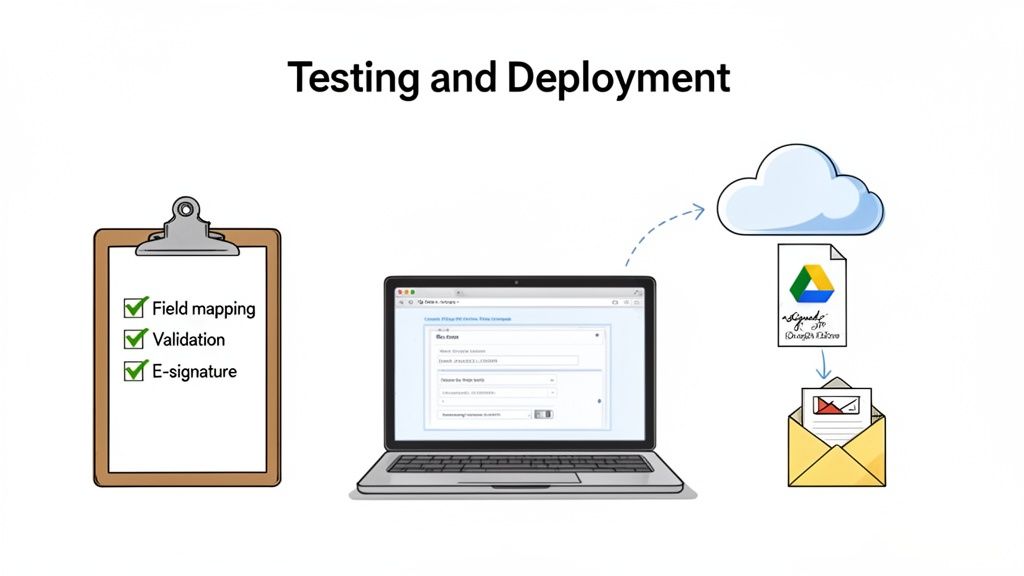
This final quality check is what separates a smooth, professional workflow from a user-frustrating mess that leaves you with a data-entry nightmare.
Before anyone else sees it, you need to be your form's biggest critic. Fill it out. Then fill it out again, and again, trying every possible path a user could take. Does every piece of info land exactly where it should on the PDF? Misaligned text or data spilling out of its box are common snags that are simple to fix now but look sloppy to your clients.
A Practical Testing Checklist
A structured approach to testing will save you from headaches later. Think of it as a pre-flight check before you go live.
Here's what you absolutely need to verify:
- Field Mapping Accuracy: Check that every single field populates correctly. Pay extra attention to the little things—checkboxes, radio buttons, and dropdowns—to make sure the selections are showing up right.
- Conditional Logic Paths: Go down every rabbit hole. If a user clicks "Yes," does the right follow-up field appear? What if they click "No"? You need to test all the branches you built.
- Validation Rule Functionality: Now, try to break it. Put letters where numbers should go. Submit an email address without the "@" symbol. Your custom error messages should pop up and stop the form from submitting.
- E-Signature and Payment Gates: Don't skip this one. Run a complete test transaction. Sign the document and, if you have a payment field, process a small test payment. Make sure the signature looks right on the PDF and the payment shows up in your payment gateway's dashboard.
A common pitfall is only testing the "happy path"—the most obvious way someone would fill out the form. The real value is in testing the weird edge cases and anticipating user mistakes. That’s how you build something truly solid.
Deployment and Post-Submission Automation
Once you’re confident your form is bulletproof, it's go-time. You usually have two easy options here: embed the form right onto a page on your website for a clean, integrated feel, or just share a direct link through email or on social media.
This is also the perfect moment to think about security. As part of your deployment, figuring out how to password protect your PDF forms is a crucial step for handling sensitive information.
But the real magic happens after someone hits "submit." This is where you can put your workflow on autopilot. Set up post-submission actions to do the heavy lifting for you:
- Automatically save the completed, signed PDF to a specific folder in Google Drive or Dropbox.
- Instantly send a confirmation email back to the user with their submitted document attached.
- Ping your team on Slack or send an email notification that a new form has been completed.
This kind of automation closes the loop entirely, transforming a simple form submission into a hands-off, fully managed process. Given that there are over 2.5 trillion PDFs in existence as of 2025, automation isn't just nice—it's necessary. With 78% of digital agreements being finalized as PDFs, having a reliable system in place is non-negotiable for any modern business.
Common Questions About Creating PDF Forms
When you first dive into creating smart PDF forms, a few questions tend to pop up right away. Getting those sorted out early on can save you a lot of headaches and help you build a solid, automated workflow from the get-go.
Let's walk through some of the most common hurdles I see businesses run into. These are the little things that can trip you up, but with a bit of foresight, they're easy to sidestep.
Can I Use My Existing PDF Templates?
You bet. This is honestly one of the biggest wins of using a modern no-code platform. You absolutely do not have to recreate your official documents from scratch.
The whole point is to work with the PDFs you already rely on every day. Just upload your existing file—whether it's a client intake form, a multi-page service agreement, or an internal HR doc—and then build a simple web form on top of it. The platform connects the two, so when someone fills out your user-friendly form, their answers populate your original PDF perfectly.
Are E-Signatures Collected This Way Legally Binding?
Yes, they are. When you're using a reputable tool, the e-signatures you collect are legally binding for most business purposes, thanks to laws like the ESIGN Act in the United States. These platforms are built to provide a secure and verifiable signing process.
Here’s how they ensure validity:
- Capturing Clear Intent: The signer has to actively click and agree to sign the document electronically.
- Creating a Robust Audit Trail: The system logs all the important details behind the scenes, like IP addresses and timestamps of when the document was viewed and signed.
- Ensuring Document Integrity: Once signed, the final PDF is locked and becomes tamper-evident. Any change made after the signature is applied will be flagged.
Frankly, this method creates a far more secure and defensible record than just scanning a piece of paper with a pen-and-ink signature on it.
How Do I Automate Actions After a Form Is Submitted?
This is where the magic really happens. Once that "submit" button is clicked, you can kick off an entire chain of events that runs on autopilot, freeing you from all those repetitive follow-up tasks.
Think of post-submission workflows as your own digital admin. You set up the rules one time, and the system takes over, moving data where it needs to go instantly and without any manual effort from you.
For example, you could have a workflow that automatically emails the final PDF to the client for their records, sends a copy to your sales team, saves it to a specific client folder in Google Drive, and adds the new contact to your CRM. All in the blink of an eye.
What If My Form Needs To Handle Payments?
This is a totally standard feature in most good no-code builders. These platforms offer secure integrations with trusted payment gateways like Stripe or PayPal, which means you never have to directly handle or store sensitive credit card information yourself.
You can drop a payment section right into your form to collect a service fee, grab a deposit for a new project, or even handle a recurring subscription. It all happens in one seamless flow for the user, which makes a huge difference. They're much more likely to complete the transaction on the spot instead of getting distracted by a separate payment page.
Ready to stop chasing paperwork and start automating your business? Supatool gives you all the tools you need to create smart, interactive PDF forms, collect e-signatures, and process payments—all in one place. Start your free trial of Supatool today!