How to Translate a Google Form (Step-by-Step)
Fast navigation
In 5 simple steps, this guide will show you how to translate a Google Form.
Whether you’re surveying employees, gathering customer feedback, or creating order forms for a multilingual audience, converting your form into different languages is crucial.
So let’s dive in and translate your Google Form!
Steps:
- Open the Google Form
- Right-click Anywhere on the Form
- Click on “Translate to English”
- Click on Three Vertical Dots to Choose Your Preferred Language
- Choose Your Preferred Language and Click Translate
Step 1: Open the Google Form


Step 3: Click on “Translate to English”

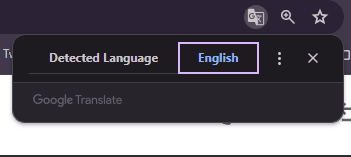
Step 4: Click on Three Vertical Dots to Choose Your Preferred Language
In the translation tool, Click on the three vertical dots.

Click on “Choose another language”

Now, click on the dropdown arrow.

You will see a dropdown menu where you can select the language you want to translate the form into. Google supports over 50 languages, including Spanish, French, German, and many more.

Step 5: Choose Your Preferred Language and Click Translate
After selecting your desired language, click the “Translate” button.

The form will automatically be translated into the chosen language.
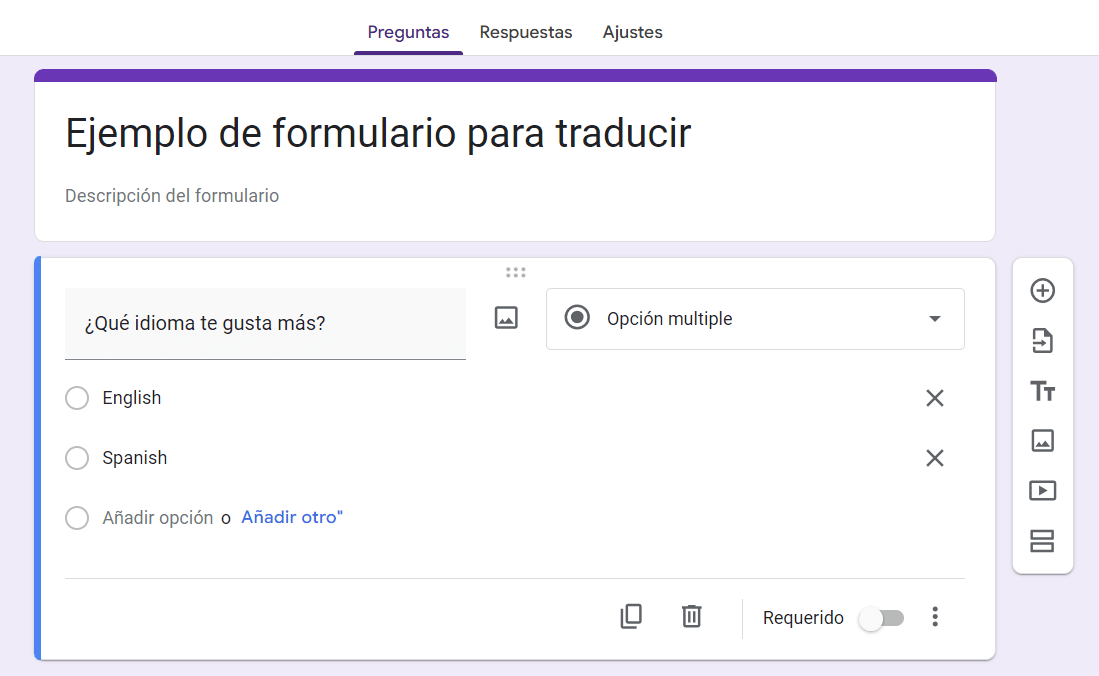
Translating a Google Form using Google Translate is a simple yet powerful way to ensure your forms are accessible to a global audience.
By following these steps, you can easily convert your forms into any supported language, saving time and effort compared to creating multiple versions.
Finished!