How to Make a Sign up Sheet on Google Forms
Fast navigation
- Step 1: Create a New Blank Form//
- Step 2: Name the Form and Add a Description//
- Step 3: Insert Fields for Names and Email Addresses//
- Step 4: Incorporate a Dropdown for Time Slot Selection//
- Step 5: Apply Response Validation for Email Input//
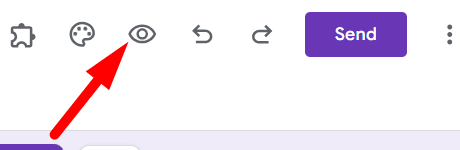
- Step 6: Preview and Test the Form//
- Step 7: Distribute the Form//
- Step 8: Monitor Sign-Up Entries
In 8 simple steps, this guide will show you how to make a sign up sheet on Google Forms.
Managing event registrations, volunteer sign-ups, or any activity requiring participant information is easy with this method.
So let’s dive in and create your sign up sheet on Google Forms!
Steps:
- Create a New Blank Form
- Name the Form and Add a Description
- Insert Fields for Names and Email Addresses
- Incorporate a Dropdown for Time Slot Selection
- Apply Response Validation for Email Input
- Preview and Test the Form
- Distribute the Form
- Monitor Sign-Up Entries
Step 1: Create a New Blank Form
Open Google Forms. Click on the ‘+’ icon to create a fresh, untitled form.

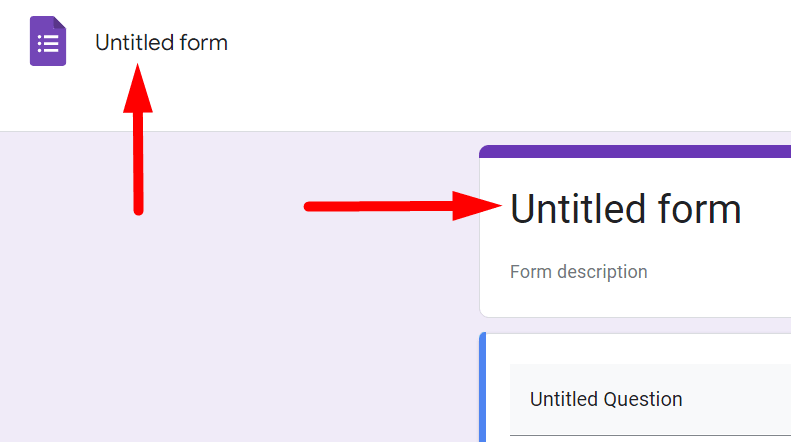
Step 2: Name the Form and Add a Description

Step 3: Insert Fields for Names and Email Addresses
Click on the "Add Question" button to start adding fields.

Type "First Name" in the question field. Ensure the 'Short answer' type is selected.

Click the "Add Question" button again.

Type "Last Name" and ensure 'Short answer' is selected.

Click "Add Question". Type "Email Address" in the question field.

Note: Turn on the 'Required' toggle for all the questions. So that the respondents cannot submit the form without answering any questions.

Step 4: Incorporate a Dropdown for Time Slot Selection
Click on "Add Question" again and create a field named "Preferred Time Slot."

Select the 'Dropdown' question type and enter the available time slots as options, making it easy for participants to choose their preferred slot.

Step 5: Apply Response Validation for Email Input


Step 7: Distribute the Form
Once satisfied with your form, click on the "Send" button in the top right corner to distribute.

Via Email: Enter the recipient's email address, subject, and message, then click ‘Send’.
Click on the 'Link' icon, copy the link, and share it through messages, social media, etc.
Click on the '< >' icon to get the embed code and paste it into your webpage's HTML.

Step 8: Monitor Sign-Up Entries
Click on the ‘Responses’ tab at the top of your form to monitor and review the entries.

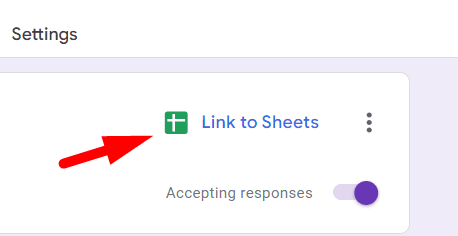
Optionally, link your responses to a Google Sheet for more detailed analysis by clicking on the green Sheets icon.
By following these steps, you'll have a professional and functional sign-up sheet ready to go.
Google Forms makes the process straightforward, and with this guide, you can ensure that your form is optimized for ease of use and efficiency.
Finished!