How to Create a QR Code for Microsoft Forms (Quick & Easy)
Fast navigation
Want to create a QR code for Microsoft Forms?
Microsoft Forms has a built-in QR code generator, so you don't need any third-party tools.
In this guide, I'll break down the process into simple steps.
Let's dive in!
Steps:
- Open Your Microsoft Form
- Click the "Collect responses" Button
- Click the QR Code Icon
- Download Your QR Code
- Share Your QR Code
Step 1: Open Your Microsoft Form
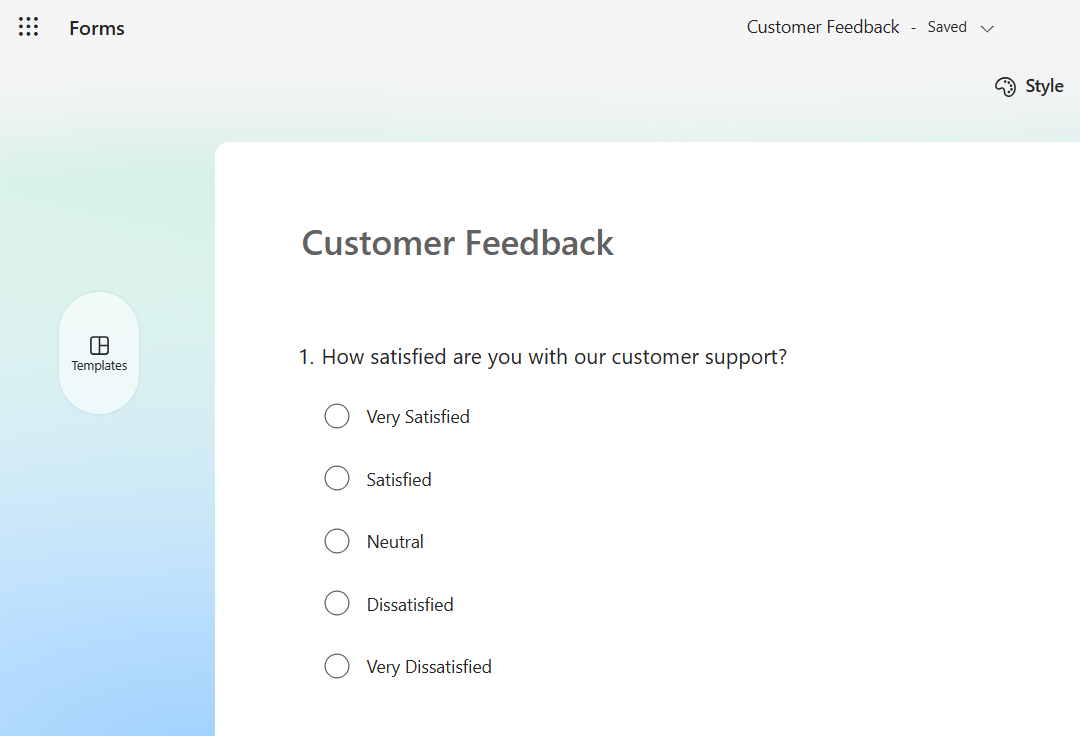
Go to Microsoft Forms and log in with your Microsoft account.
Open the form you want to share. If you don't have one yet, create a new form first and finish building it before moving on.
Step 2: Click the "Collect responses" Button
Once your form is ready, click the "Collect responses" button located in the top-right corner of the Microsoft Forms interface.
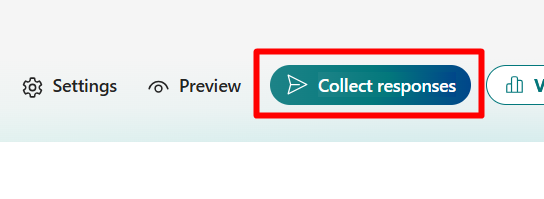
This will open a sharing panel with several options for distributing your form.
Step 3: Click the QR Code Icon
In the sharing panel, you'll see a few icons. Click on the QR code icon, it's the 2nd option from the left, recognizable by its three squares.
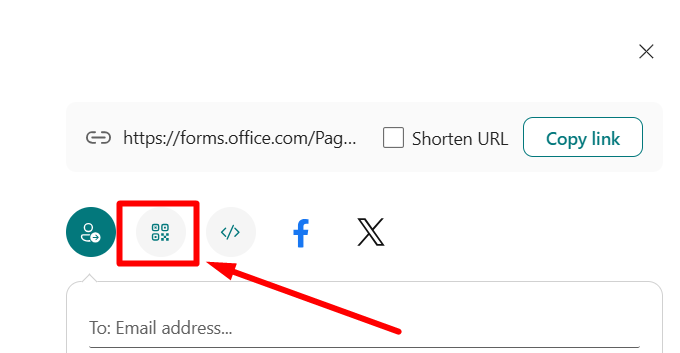
Microsoft Forms will instantly generate a QR code for your form.
Step 4: Download Your QR Code
Once the QR code appears, click the "Download" button.
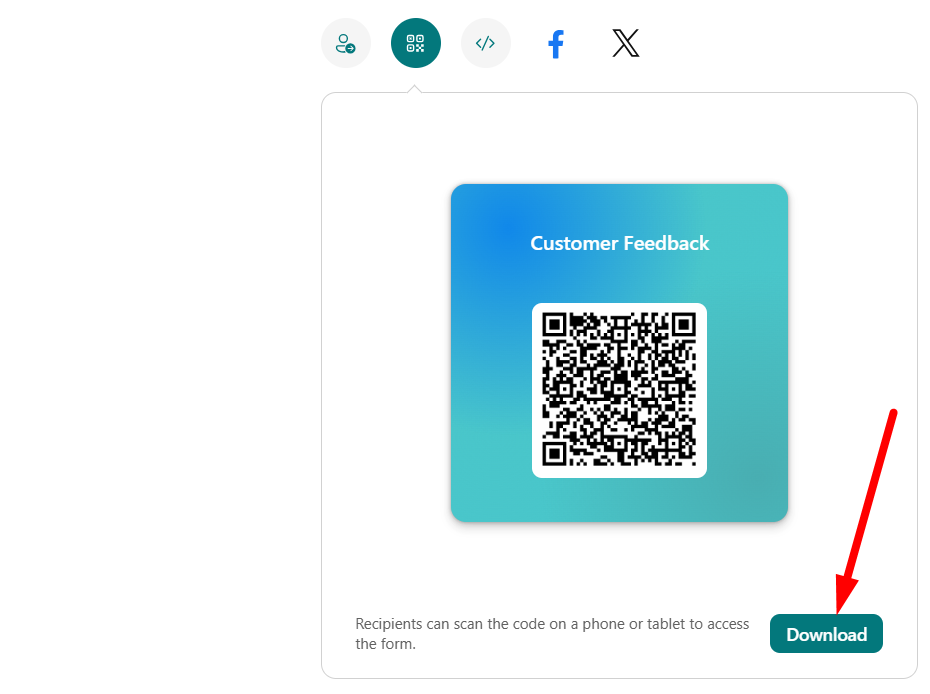
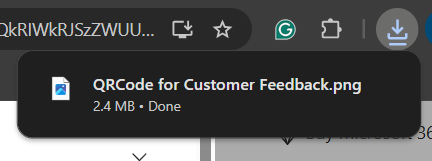
The QR code will be saved to your device as a PNG image file, ready to use.
Step 5: Share Your QR Code
Now that you have your QR code downloaded, it's time to put it to use!
Here are a few popular ways to share it:
- Print it on flyers or posters - Great for events, classrooms, or offices where you want people to quickly scan and respond.
- Add it to business cards - A simple way to collect feedback or contact info from people you meet.
- Embed it in emails or presentations - Insert the PNG file directly into your email or slides.
- Post it on your website - Let website visitors scan and fill out your form without hunting for a link.
Anyone who scans the QR code with their smartphone will be taken directly to your Microsoft Form to fill it out, no typing long URLs required!
That's how you create a QR code for Microsoft Forms in just a few clicks.