Want to know how to create professional surveys with Microsoft Forms?
This guide breaks the process into clear steps, helping you design surveys that look polished, collect accurate data, and provide insights you can actually use.
Microsoft Forms is a lightweight yet powerful survey tool inside Microsoft 365. With the right setup, you can turn it into a professional survey builder for businesses, classrooms, or personal projects.
Let’s dive in and walk through the process step by step!
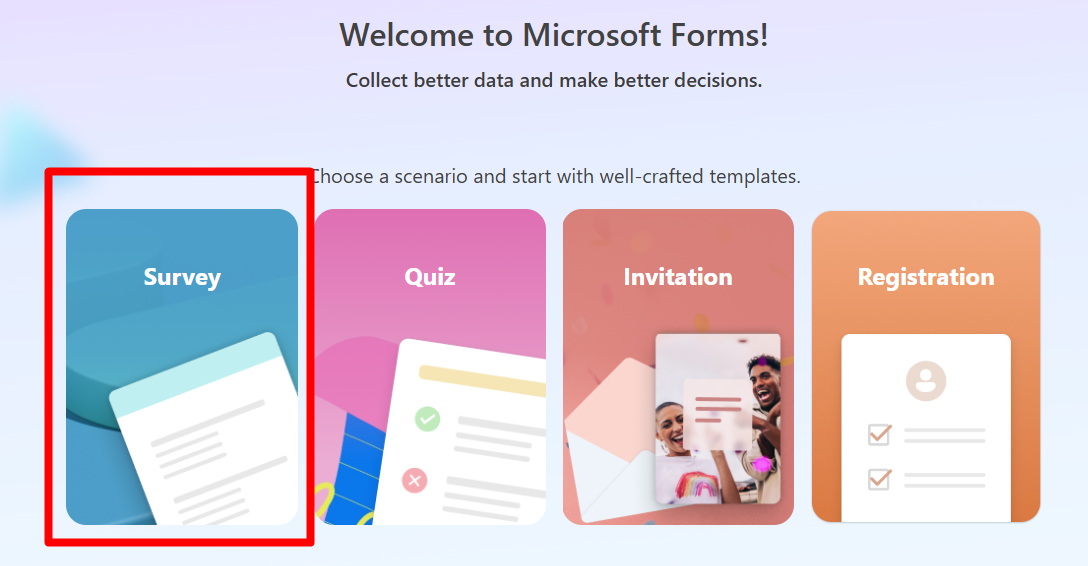
On the dashboard, choose Survey to create a New Survey.
This will open a new survey canvas where you can start building from scratch.
Step 2: Add a Title and Description
Click on the Untitled Form field at the top.
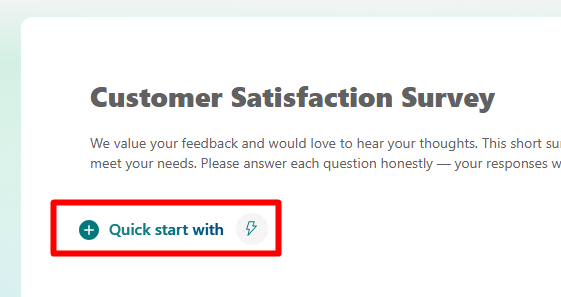
Enter your survey title, e.g., “Customer Satisfaction Survey”.
Add a short description explaining the purpose of the survey or instructions for respondents.
Clear titles and instructions set the tone and improve response rates.
Step 3: Insert and Customize Questions
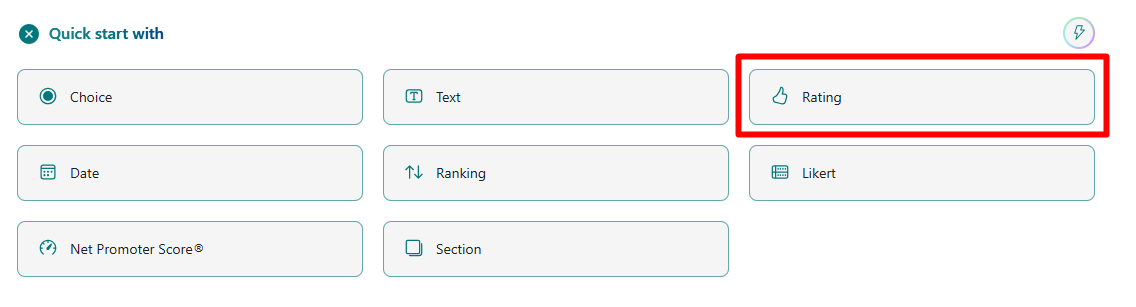
Click + Quick start with to insert a question.
Microsoft Forms supports several question types:
Choice (Multiple Choice)
Text (Short or Long Answer)
Rating
Date
Ranking
Likert Scale
Net Promoter Score (NPS)
Section
For example, if you’re creating a customer survey:
“How satisfied are you with our product?” → Rating scale.
“What feature would you like to see next?” → Open text.
Each question can be marked as required, shuffled, or expanded with images/videos.
Step 4: Customize the Design and Branding
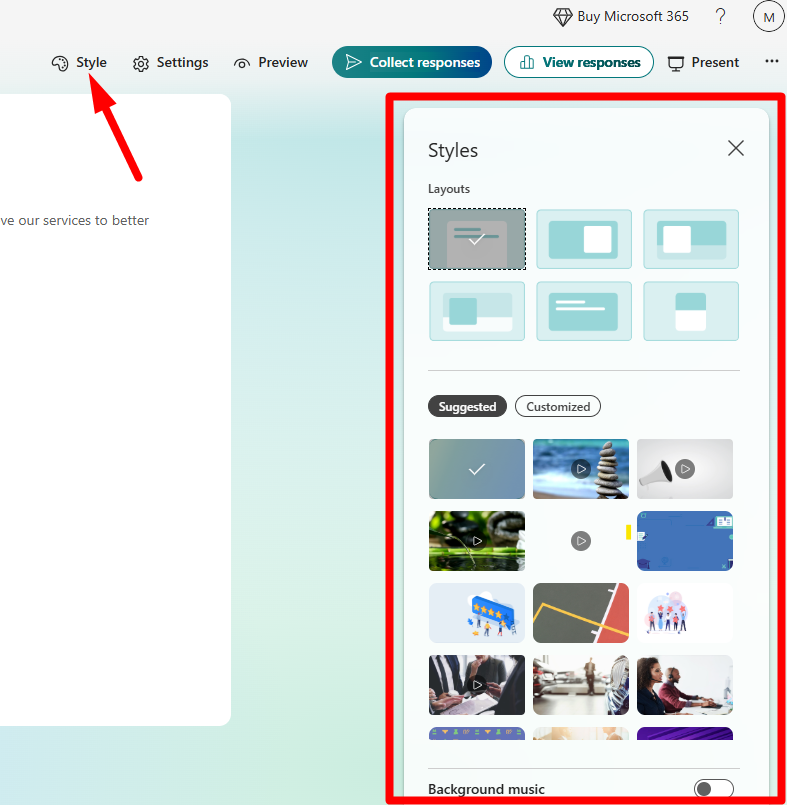
Click Style (top right corner) to adjust the design.
You can customize:
Theme Colors – match your company’s branding.
Backgrounds – choose from available images or upload your own.
Logos/Headers – add your brand logo for a professional look.
Pro Tip: Keep the design clean and consistent. Surveys with heavy colors or distracting visuals often reduce completion rates.
Step 5: Preview and Test the Survey
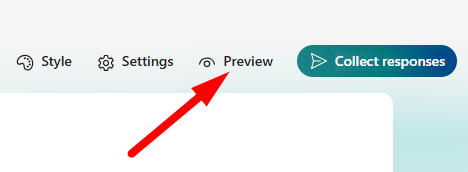
Click the Preview (eye icon) to test your survey.
You can view it on both desktop and mobile screens. Answer the questions yourself to confirm:
Questions are clear.
Logic works properly.
Design looks professional.
Delete your test responses before sharing widely.
Step 6: Share Your Survey
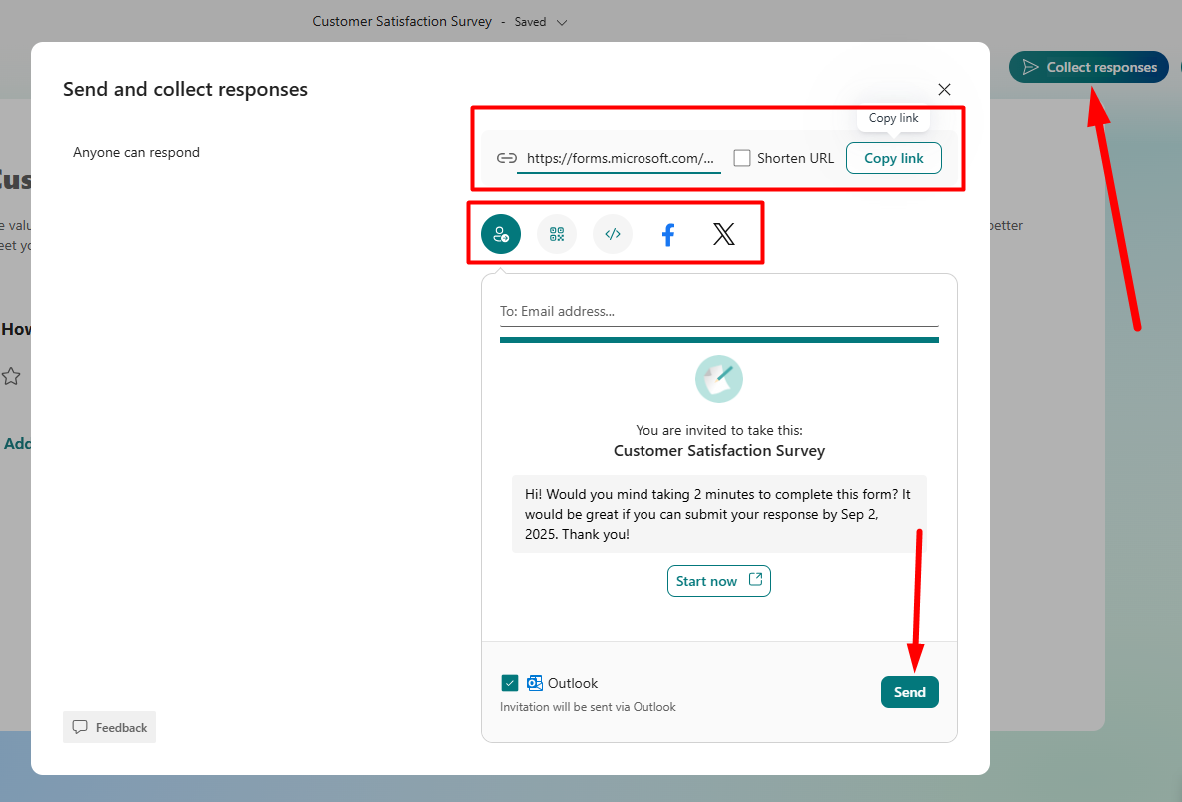
Click Collect Responses in the top-right corner.
Sharing options include:
Link – generate a shareable link.
Email – send directly to respondents.
QR Code – ideal for print materials.
Embed Code – place it on your website.
Microsoft Teams – share directly with your team.
This flexibility makes Microsoft Forms practical for both internal teams and external audiences.
Step 7: Analyze Responses and Export Data
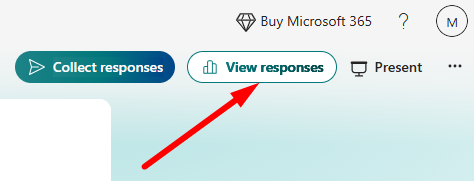
Go to the View responses tab to view real-time results.
You’ll see:
Summary charts (bar graphs, pie charts).
Individual responses.
Export to Excel for advanced analysis.
If you want deeper reporting, link your survey data with Power BI or use Excel pivot tables for breakdowns.
Limitations to Be Aware Of
While Microsoft Forms is easy and integrated into Microsoft 365, it has some drawbacks compared to specialized tools:
Limited question types (around 8–10 options).
Fewer customization and branding options.
Limited third-party integrations.
Basic analytics (no advanced data visualization).
If you need complex surveys, tools like Typeform, SurveyMonkey, or Qualtrics may be better alternatives.
Wrapping Up
Creating professional surveys with Microsoft Forms is quick and user-friendly. Whether you’re gathering employee feedback, running customer satisfaction polls, or creating event forms, this tool gets the job done without extra hassle.
With its integration into Excel, Teams, and SharePoint, it’s especially handy for organizations already using Microsoft 365.
Follow the steps above, test your design, and you’ll have a survey that looks professional and delivers actionable insights.
FAQs: Creating Surveys with Microsoft Forms
Q1. Can I create a survey in Microsoft Forms for free?
Yes, Microsoft Forms is free with any Microsoft account. However, advanced features require a Microsoft 365 subscription.
Q2. Can surveys in Microsoft Forms be anonymous?
Yes, you can enable anonymous responses in the settings so names and emails aren’t collected.
Q3. Can I customize my survey branding?
Yes, but options are limited compared to premium tools. You can change colors, add images, and upload logos.
Q4. Can I export Microsoft Forms survey data?
Absolutely. Responses can be exported directly into Excel for deeper analysis.
Q5. Can Microsoft Forms integrate with Teams?
Yes, surveys can be shared and completed directly inside Microsoft Teams channels or chats.
How to Create Professional Surveys with Microsoft Forms