How to Save a Google Doc as a PDF (2026)
Fast navigation
Don't know how to save a Google Doc as a PDF?
It's easier than you think, and I've broken it down into simple, clear steps for you.
Whether you're saving a resume, a report, or a contract, exporting your Google Doc as a PDF keeps your formatting intact and makes sharing effortless.
Let's get into it.
Methods:
- Save a Google Doc as a PDF by downloading it
- Save a Google Doc as a PDF via email
- Save a Google Doc as a PDF on Chrome
- Save a Google Doc as a PDF on Android
Method 1: Save a Google Doc as a PDF by Downloading It
This is the most straightforward method and works on any browser.
Step 1: Open Your Google Doc
Open the Google Doc you want to save as a PDF in Google Docs.
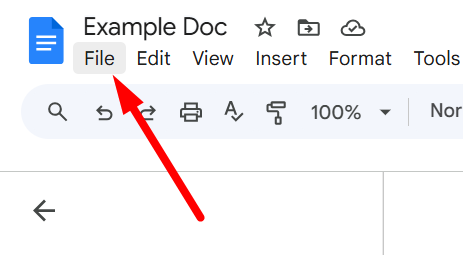
Step 2: Click on "File"
At the top-left of your screen, click on the ‘File’ option to open the dropdown menu.
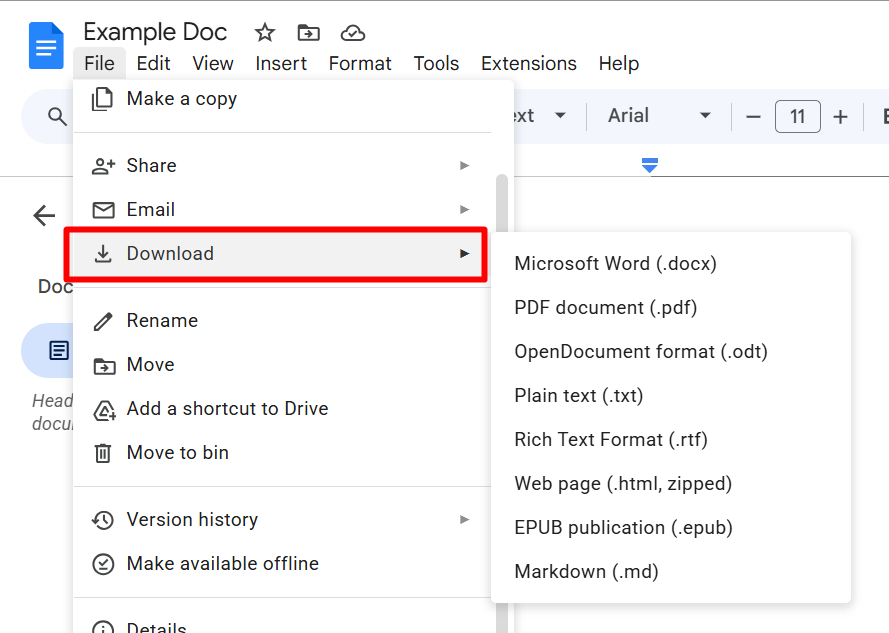
Step 3: Hover Over "Download"
From the dropdown menu, hover over the ‘Download’ option. This will open a secondary menu with several file format options.
Step 4: Select "PDF Document (.pdf)"
From the secondary menu, click on "PDF Document (.pdf)".
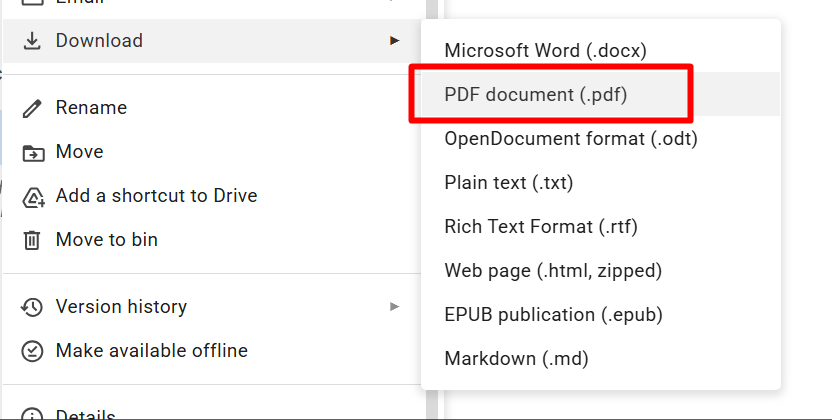
Your browser will immediately begin downloading the file.
Step 5: Locate Your Downloaded PDF
Head to your computer's ‘Downloads’ folder to find your newly saved PDF. From there, you can move it to any folder you'd like.
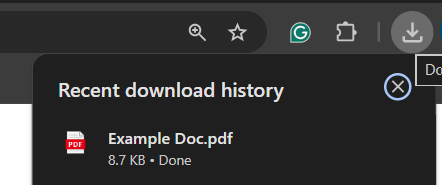
And that's it, your Google Doc is now saved as a PDF on your device!
Method 2: Save a Google Doc as a PDF via Email
Prefer to send the PDF directly? You can email it to yourself or anyone else straight from Google Docs.
Step 1: Open Your Google Doc
Open the Google Doc you want to convert and send as a PDF.
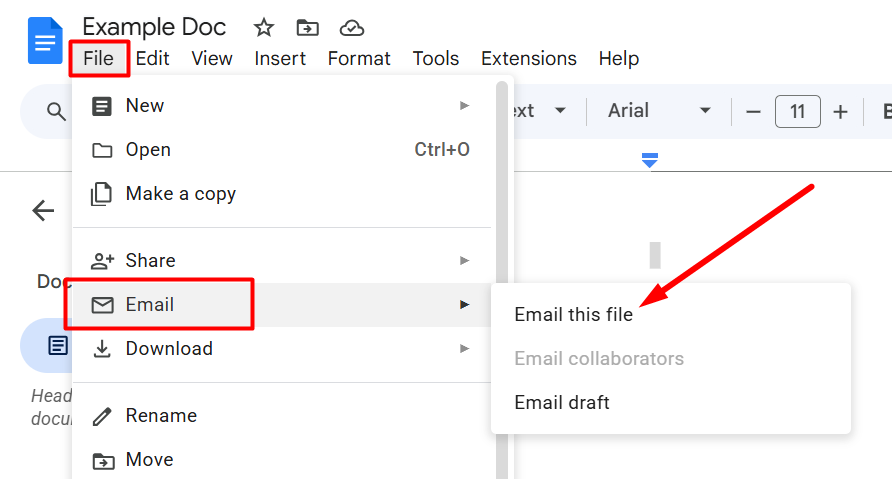
Step 2: Click on ‘File’ and Select "Email This File"
Click ‘File’ at the top-left, then select Email>"Email This File" from the dropdown.
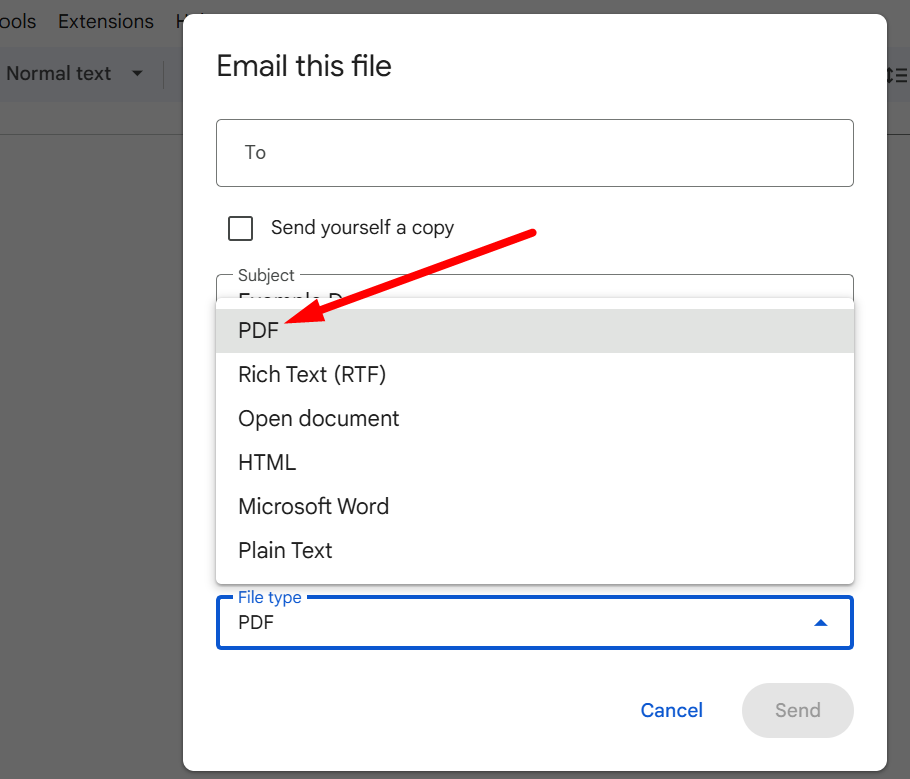
Step 3: Select ‘PDF’ from the Dropdown Menu
At the bottom of the pop-up window, you'll see a file format dropdown. Select ‘PDF’.
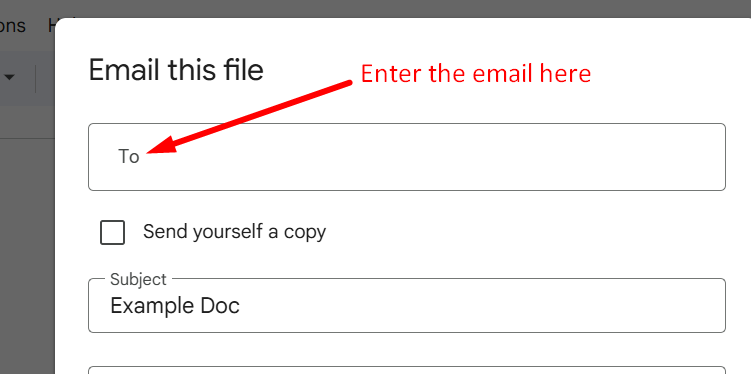
Step 4: Enter the Recipient's Email Address
Type in the email address of whoever you want to send the PDF to. If you want to save it for yourself, just enter your own email address.
Step 5: Add a Subject and Message (Optional)
Write a subject line and any message you'd like to include in the email body.
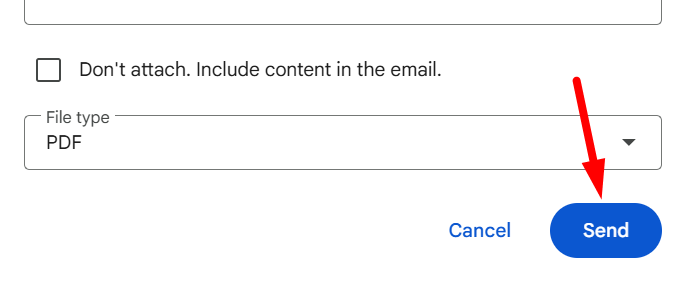
Step 6: Click "Send"
Hit "Send", and the PDF will be delivered to the recipient's inbox as an attachment.
Method 3: Save a Google Doc as a PDF on Chrome
If you're using Google Chrome, you can save your Google Doc as a PDF through the print menu.
Step 1: Open Your Google Doc in Chrome
Make sure you have your document open in the Chrome browser.
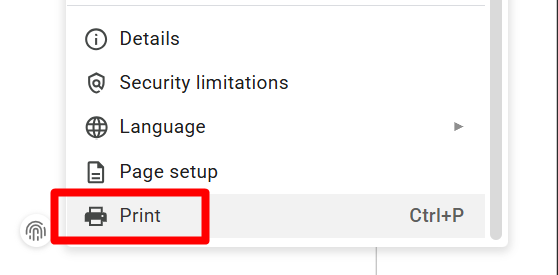
Step 2: Click File > Print
At the top of the page, click "File", then select "Print".
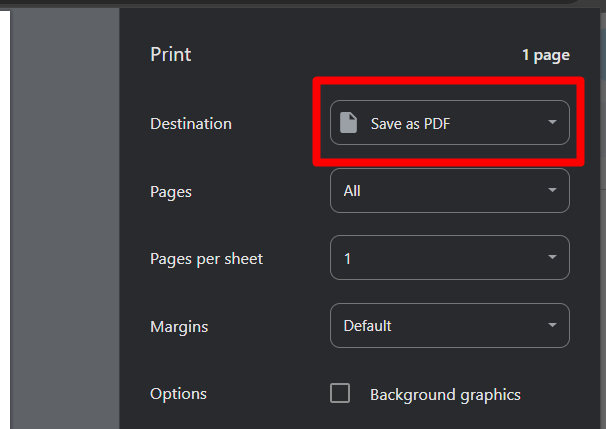
Step 3: Set the Destination to "Save as PDF"
In the print dialog, look for the "Destination" field. Click the dropdown and select "Save as PDF".
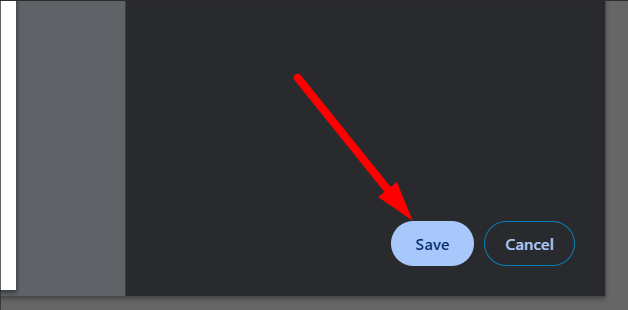
Step 4: Click "Save"
Click the "Save" button at the top and choose where you'd like to save your PDF.
Method 4: Save a Google Doc as a PDF on Android
Need to save a PDF on your Android phone? Here's how.
Step 1: Open the Google Docs or Google Drive App
Launch the Google Docs or Google Drive app on your Android device and open the document you want to convert.
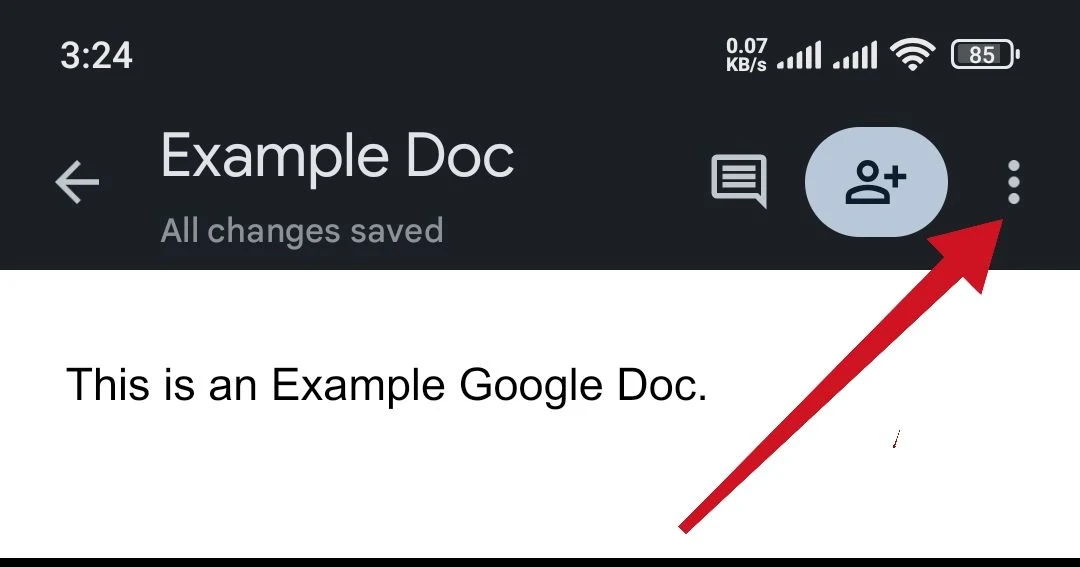
Step 2: Tap the Ellipses (…) Menu
Tap the three-dot menu (⋮) in the top-right corner of the screen.
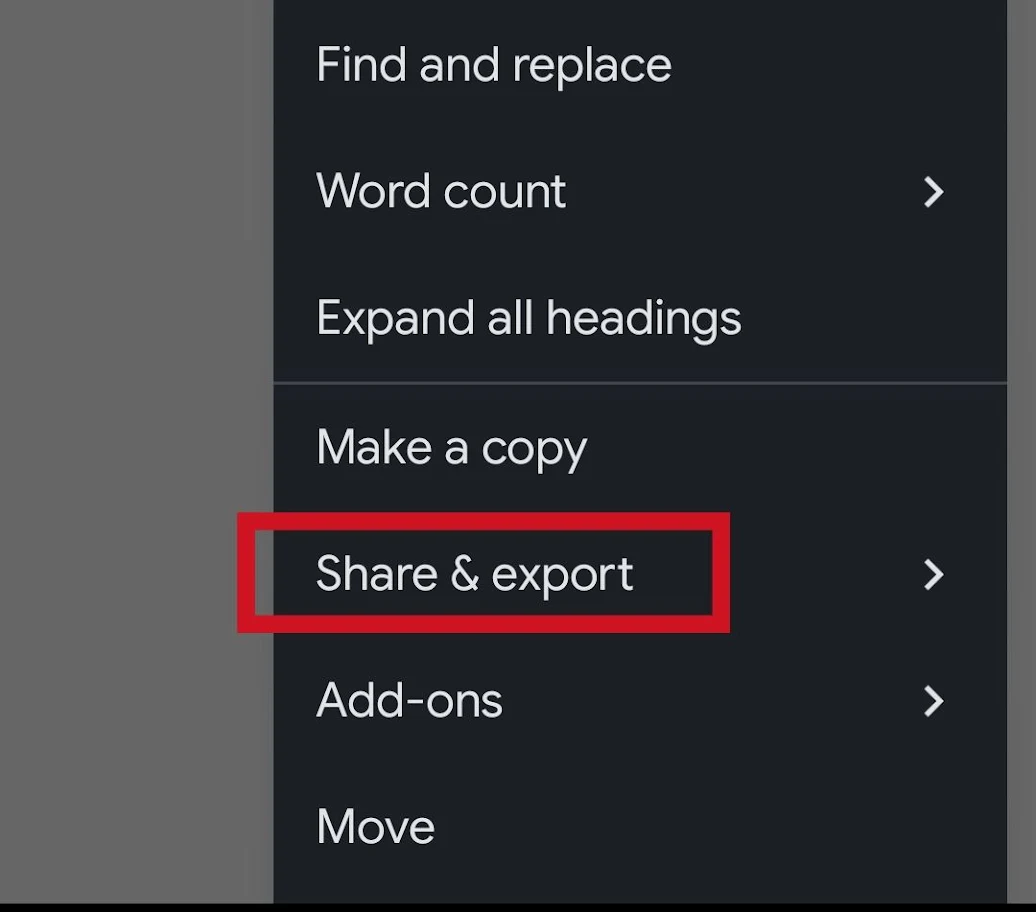
Step 3: Tap "Share & Export"
From the menu, select "Share & Export."
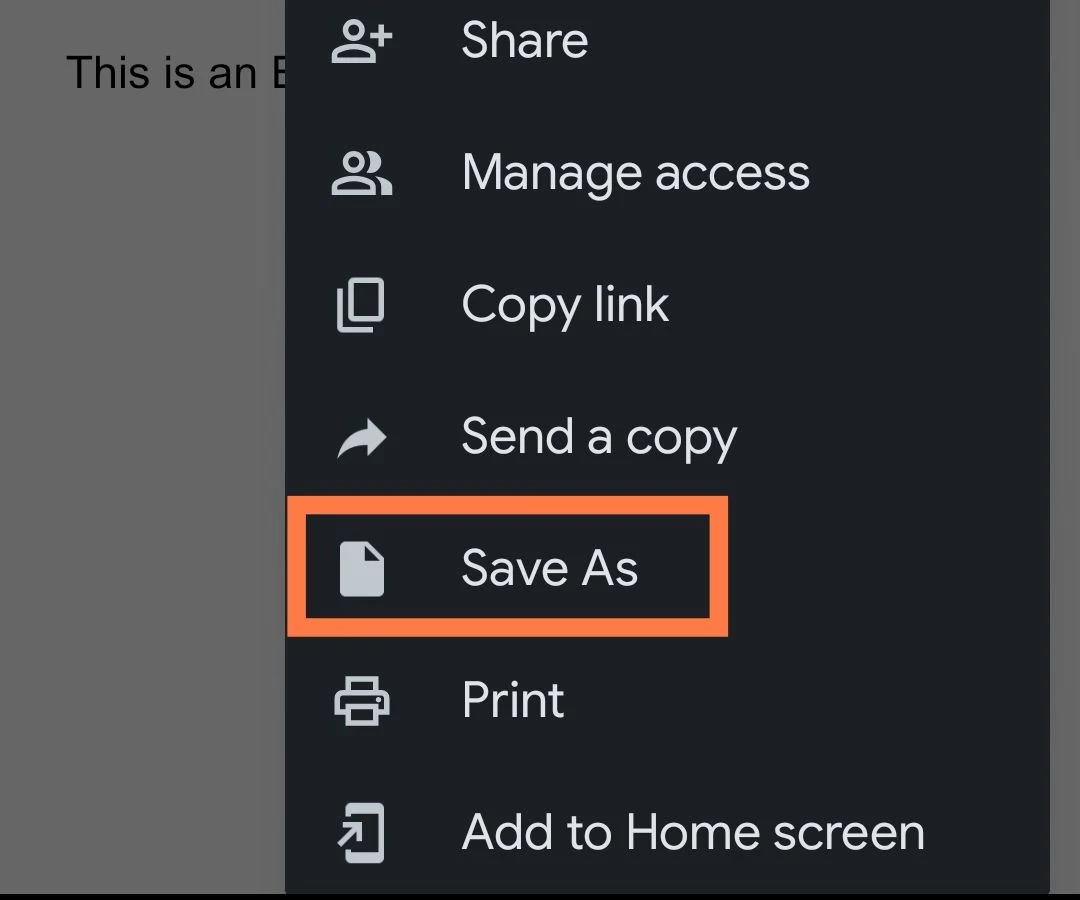
Step 4: Tap "Save As" > "PDF Document" > "OK"
Tap "Save As".
Then select "PDF Document" and confirm by tapping ‘OK’.
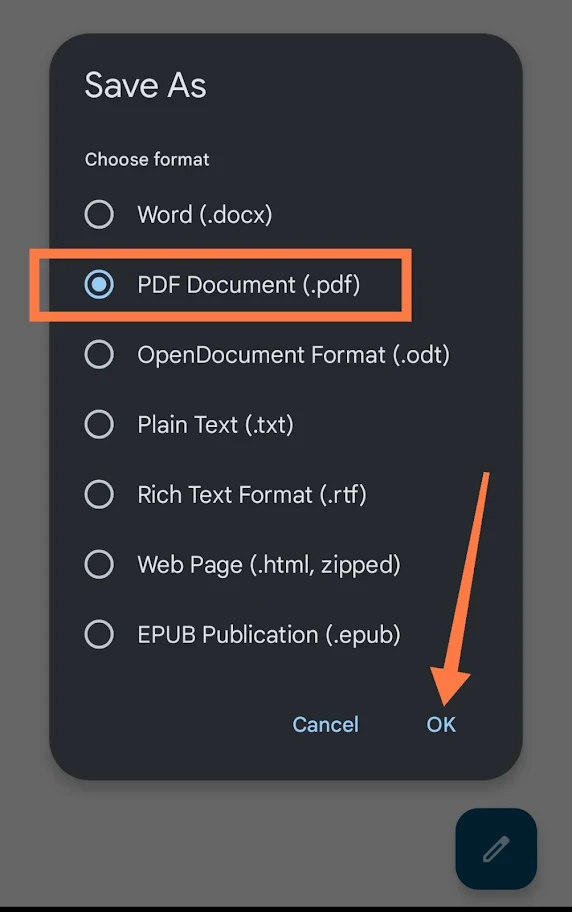
Your PDF will be saved directly to your device.
And that's how you save a Google Doc as a PDF, on any device, using any method.
Whether you're on a desktop browser or an Android phone, the process is quick and takes just a few clicks.