How to Remove Highlight in PDF in 5 Steps
Fast navigation
In 5 simple steps, this guide will show you how to remove highlights in a PDF using Adobe Acrobat.
This is helpful when highlighted text looks distracting or was left in the file by mistake.
So let’s dive in and clean up your PDF.
Steps:
- Open the PDF in Adobe Acrobat
- Click on the highlighted text
- Remove the highlight from the quick toolbar
- Save the PDF
- Use the advanced method if the highlight won’t delete
Step 1: Open the PDF in Adobe Acrobat
First, open the PDF file in Adobe Acrobat.
Make sure you are opening the correct file where the highlighted text appears.
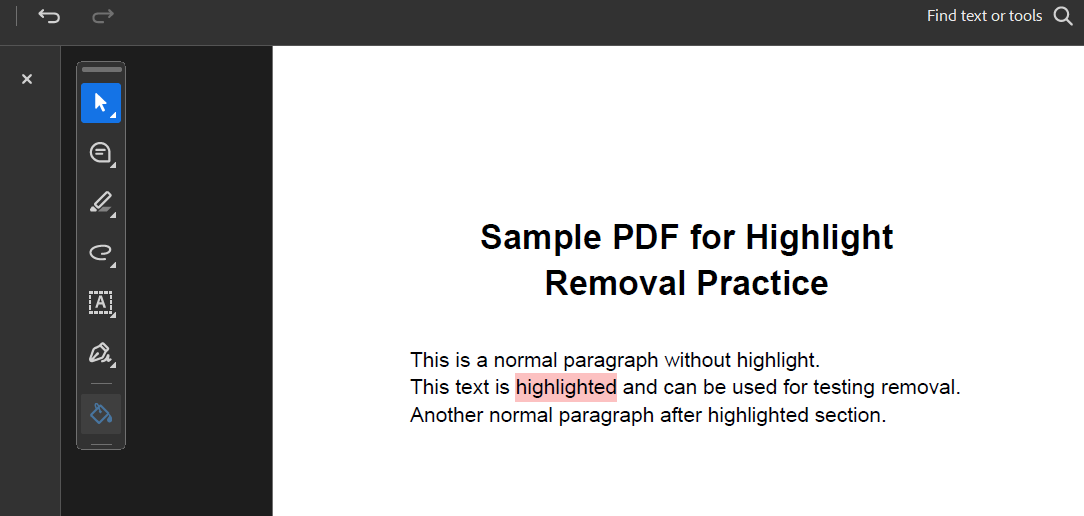
Step 2: Click on the highlighted text
Now click directly on the highlighted text in the PDF.
When you click on it, Adobe Acrobat should show a small quick toolbar.
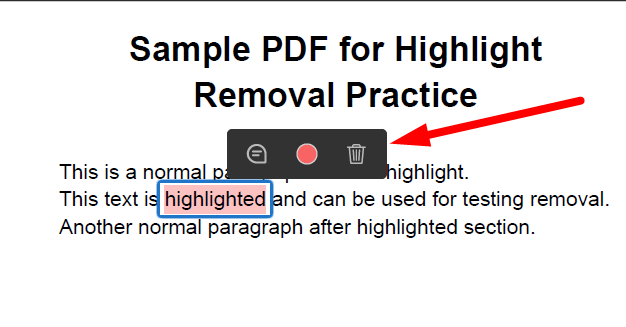
Step 3: Remove the highlight from the quick toolbar
From the quick toolbar, click on the trash icon.
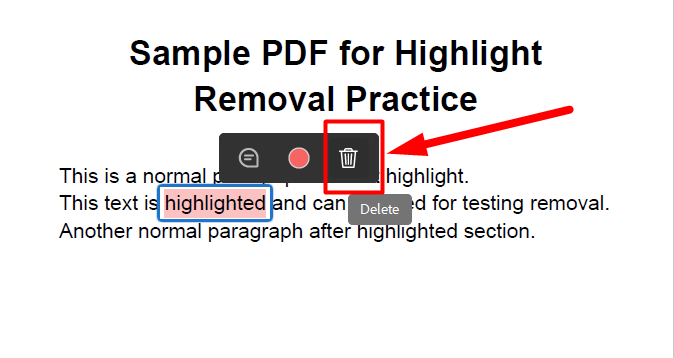
This will remove the highlight from that selected text.
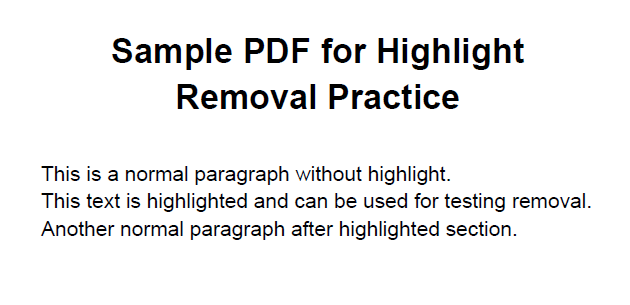
If your PDF has multiple highlighted sections, repeat the same process for each one.
Step 4: Save the PDF
After removing all the highlights, save the file.
This will keep the updated version of your PDF without the highlighted text.
Step 5: Use the advanced method if the highlight won’t delete
Sometimes, clicking on the highlight and pressing the trash icon does not work.
This usually happens when the highlight is not a normal annotation and is instead part of the PDF content itself.
In that case, you need to use Adobe Acrobat’s Print Production tools.
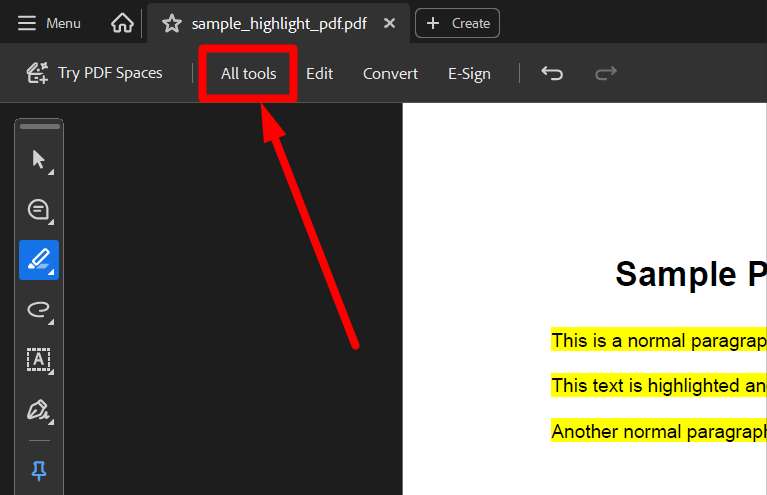
5.1 Go to “All Tools”
At the top right of Adobe Acrobat, click on “All Tools”.
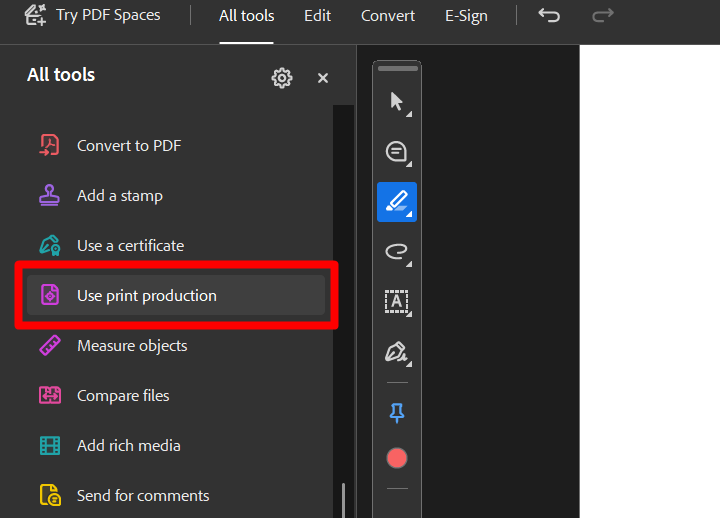
5.2 Select “Use Print Production”
Scroll down and click on “Use Print Production”.
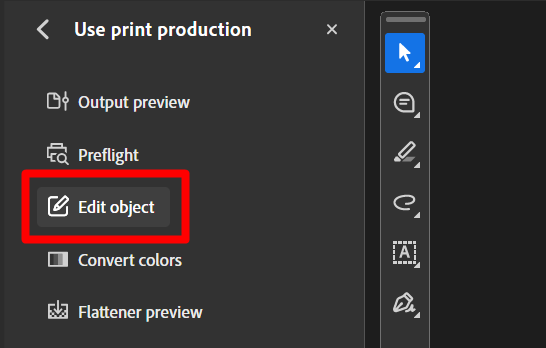
5.3 Click on “Edit Object”
Now select “Edit Object”.
This tool lets you select separate objects inside the PDF.
5.4 Select the text first
If you cannot click on the highlight behind the text, click on the text first.
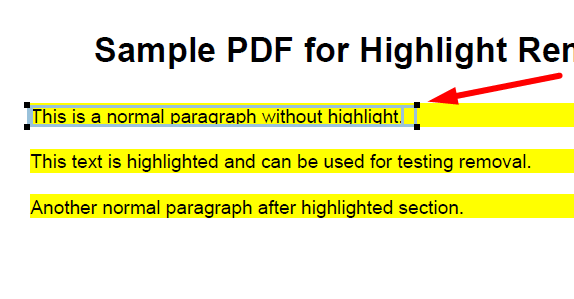
Then press “Ctrl + X” on your keyboard to cut the text. It will appear only the highlighted color.
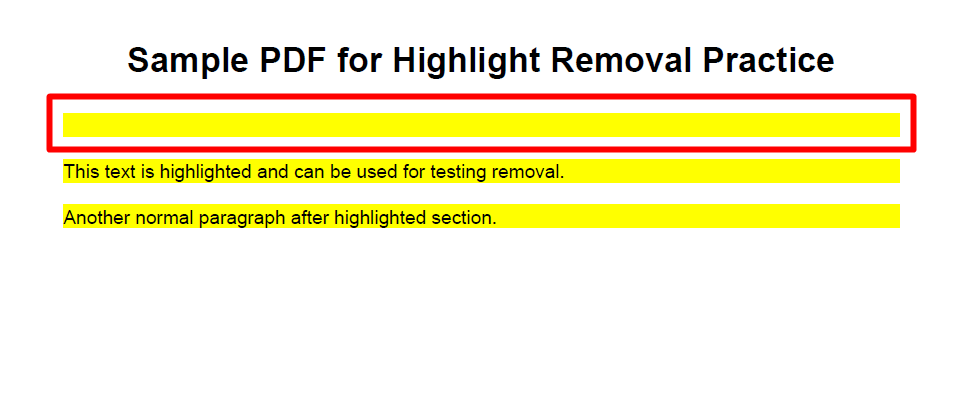
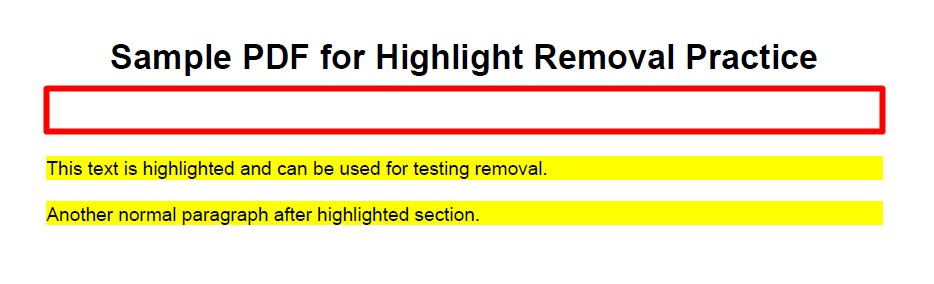
5.5 Delete the highlight
Now click on the highlight object and press “Delete”.
This removes the highlight.
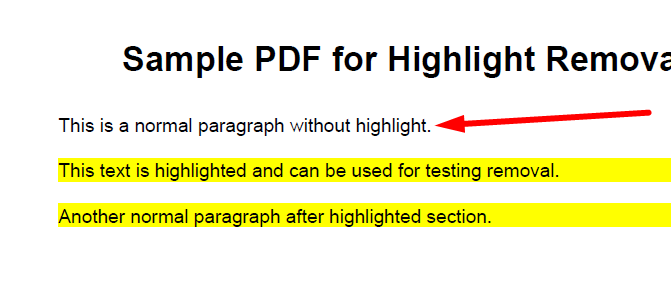
5.6 Paste the text back
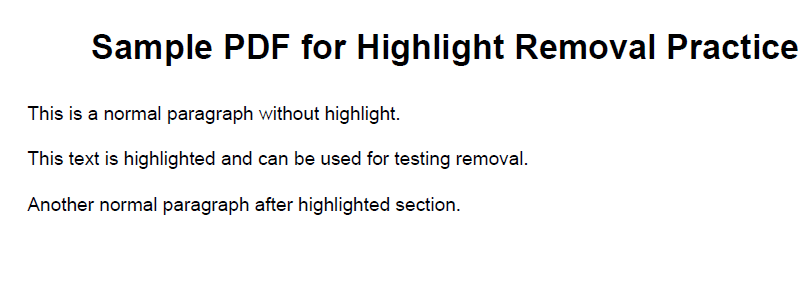
Press “Ctrl + V” to paste the text back into place.
Repeat these steps for each highlighted section you want to remove.
5.7 Save the PDF again
Once you are done, save the PDF.
That’s it!
That’s how to remove highlight in PDF using Adobe Acrobat.
In most cases, you just need to click the highlighted text and remove it from the quick toolbar. If that does not work, the Edit Object tool in Print Production should help you remove it manually.
Remove Highlights from PDFs With Supatool
Looking for an easier way to edit PDFs without complicated tools?
At Supatool, we’re building a simple PDF editor that lets you remove highlights, edit text, and manage documents—all in one place.