
How to Create Forms in Asana
Fast navigation
- Step 1: Go to the project where you want to add the form//
- Step 2: Click on ‘Customize’//
- Step 3: Click on ‘Forms’//
- Step 4: Add form title and description//
- Step 5: Add your questions//
- Step 6: Preview your form//
- Step 7: Share the form link//
- What Are Asana Forms and How They Work//
- Common Limitations of Asana Forms//
- FAQs About Creating Forms in Asana
Curious about how to create a form in Asana that turns every submission into a task automatically?
This section walks you through the exact setup using a simple, repeatable process so your requests stop living in DMs and start landing in the right project with the right details.
Let’s build your Asana form.
Steps:
- Go to the project where you want to add the form
- Click on ‘Customize’
- Click on ‘Forms’
- Add form title and description
- Add your questions
- Preview your form
- Share the form link
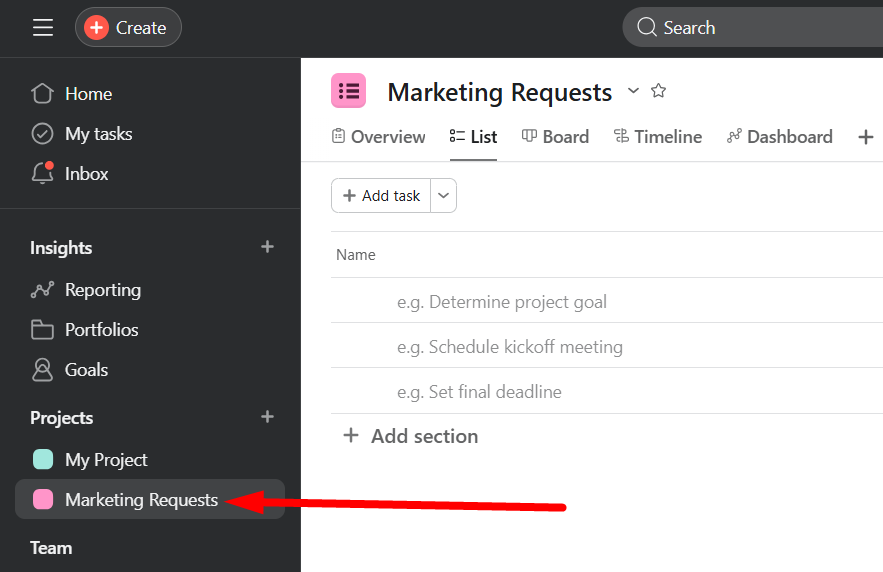
Step 1: Go to the project where you want to add the form
First, go to Asana and open the project where you want every form response to become a task.
For example, if this form is for “Marketing Requests”, open your Marketing Requests project.
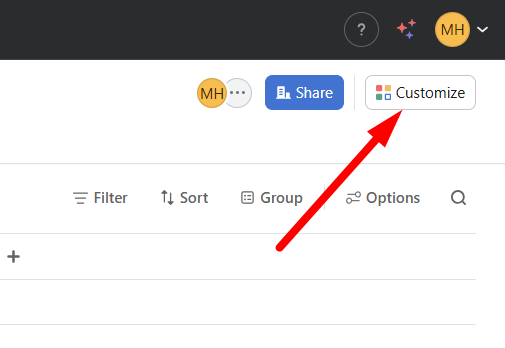
Step 2: Click on ‘Customize’
Click on ‘Customize’ at the top right corner to open the Customize menu.
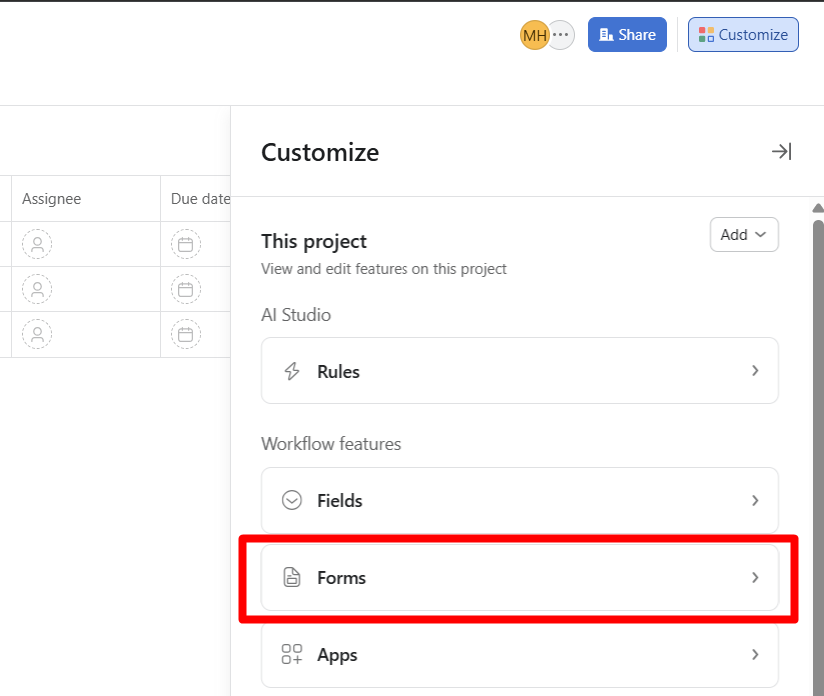
Step 3: Click on ‘Forms’
In the Customize menu, click on ‘Forms’.
Then click Add to open the form builder area.
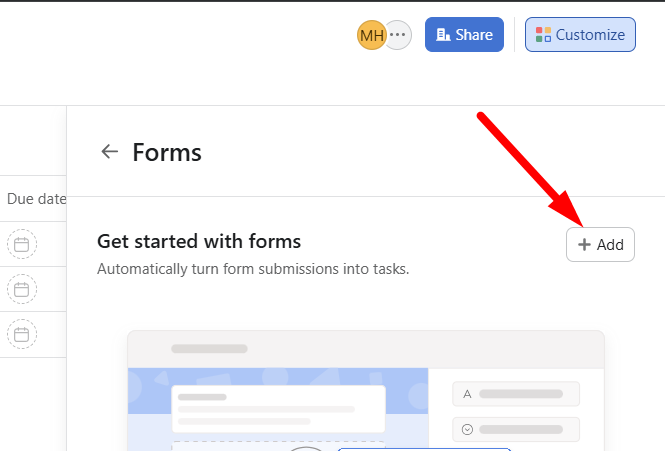
A pop-up will appear named “Add form”.
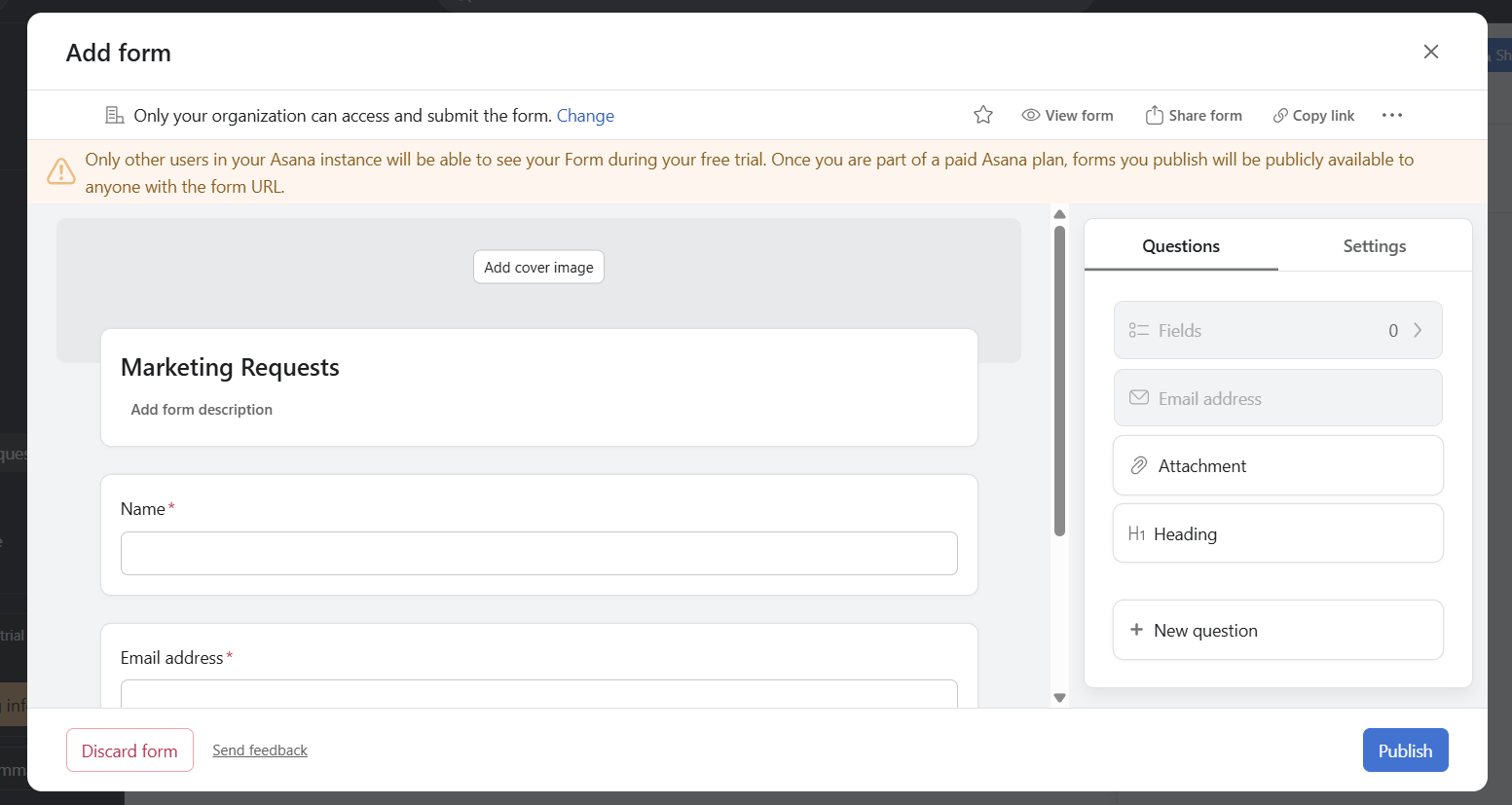
Step 4: Add form title and description
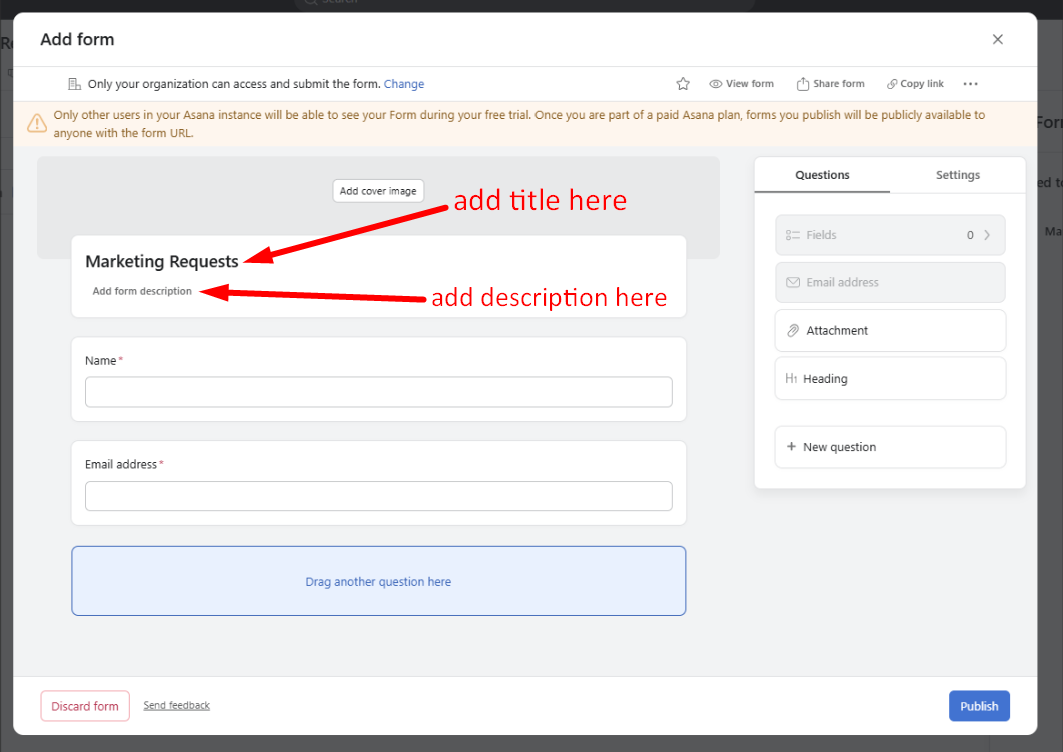
In the Add form pop-up, you can set the form title and description (see the screenshot below):
Step 5: Add your questions
By default, here are two question fields appearing. One is ‘Name’, and the other is “Email address”.
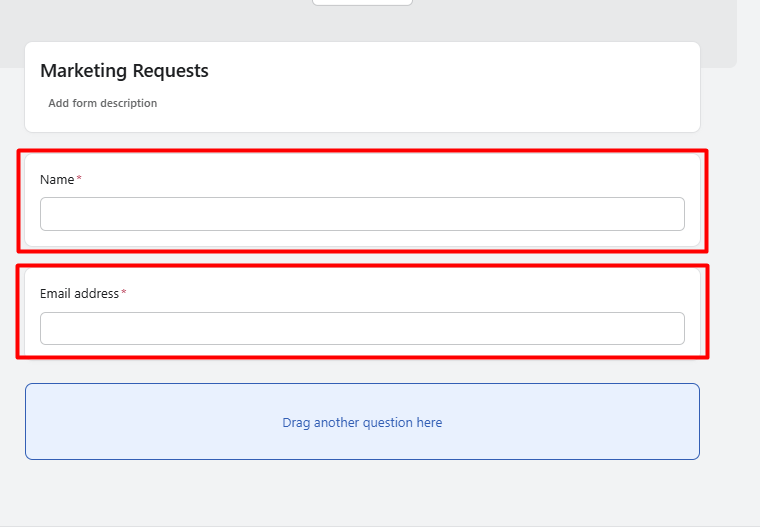
You can edit these questions by clicking on them or keep them if you want. To add new questions, drag the “New question” widget to “Drag another question here” field.
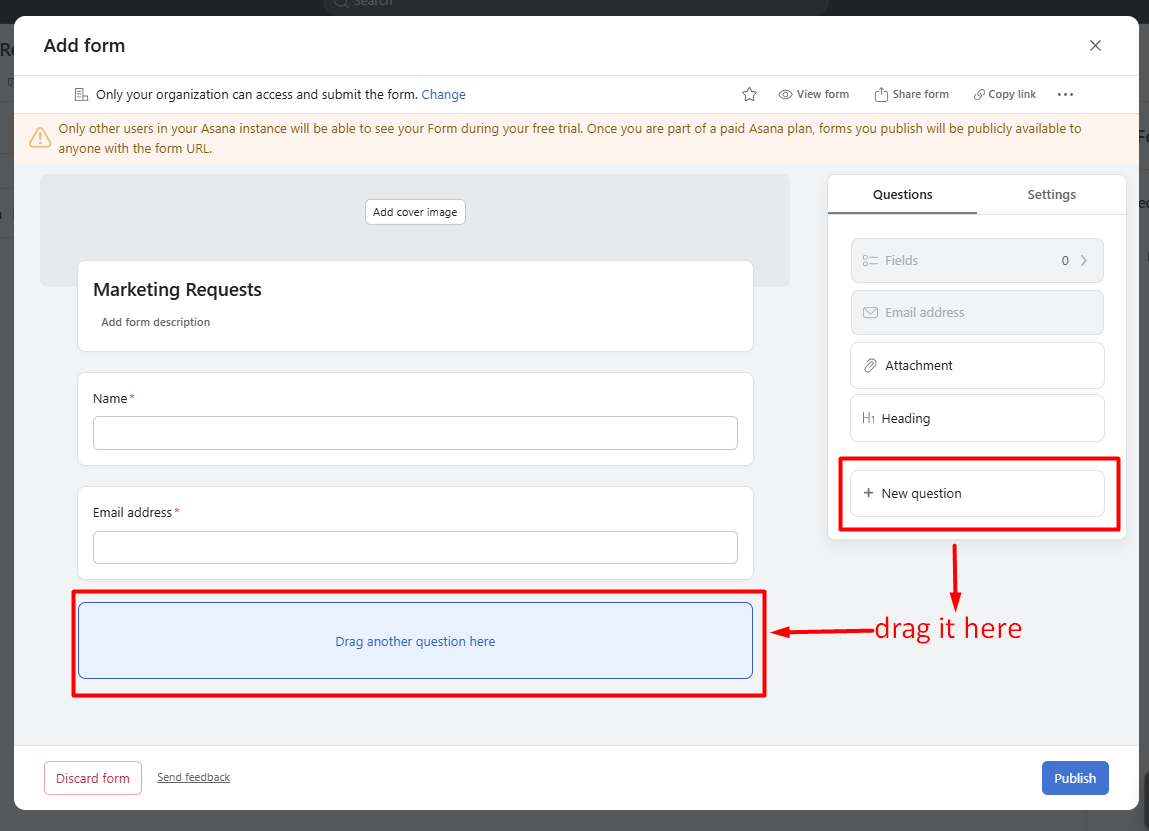
For each question, choose a field type (like short text, dropdown, date, etc.), then toggle Required for anything people must fill out.
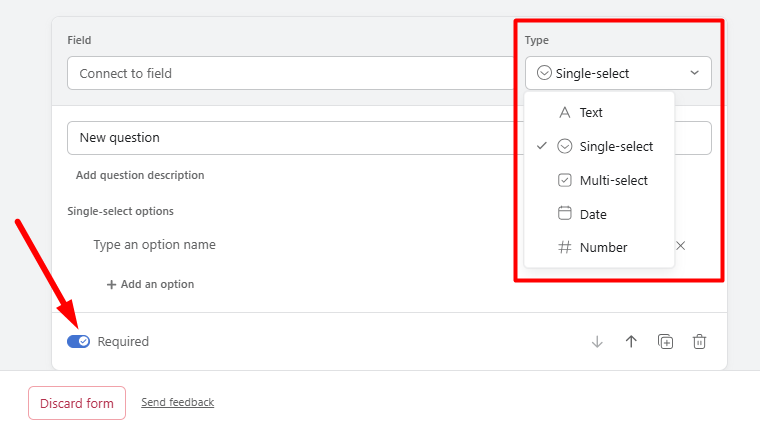
A simple example for an IT request form:
- “What do you need help with?” (Required)
- “Which device?” (Dropdown)
- “Priority level” (Dropdown)
- “Due date” (Date)
Step 6: Preview your form
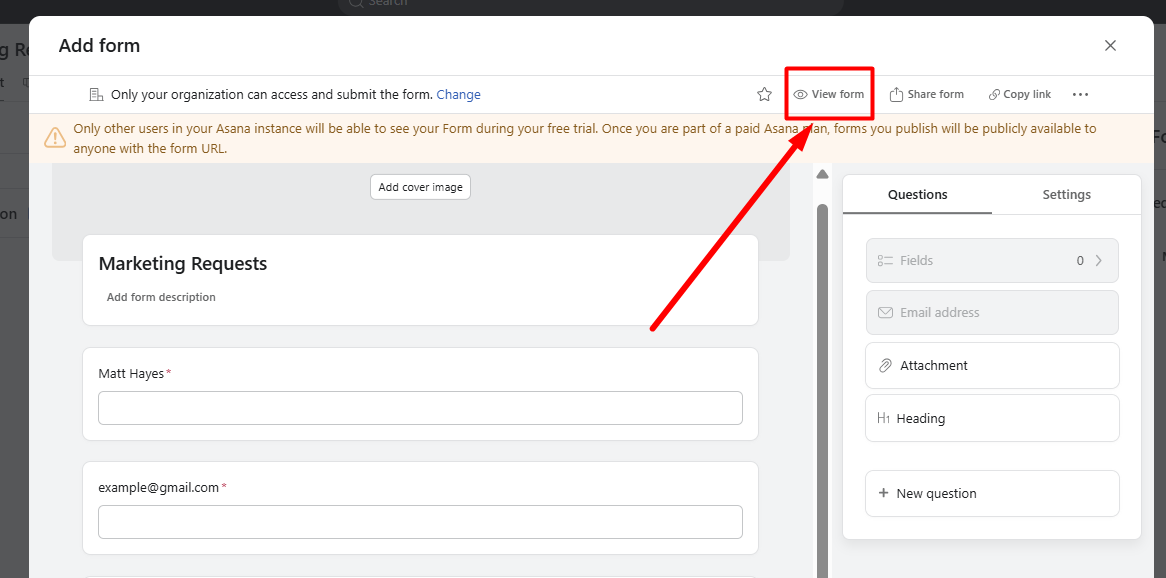
Before sharing the form, preview it so you can see what the submitter will see. For that, click on the “View form” button at the top of the pop-up.
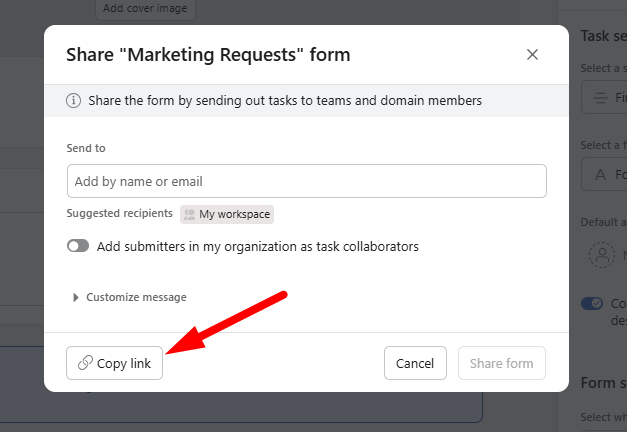
Step 7: Share the form link
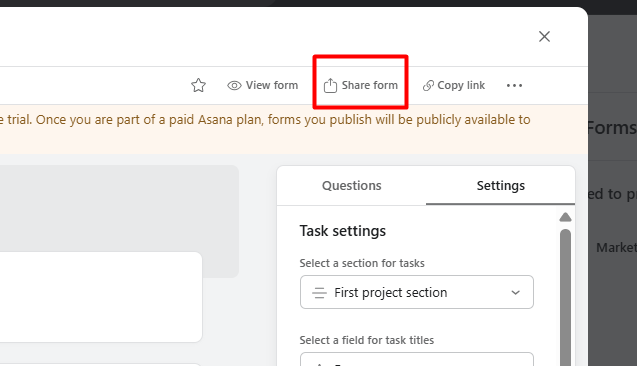
Once your form works, click on “Share form” button at the top of the pop-up.
Enter the email of the person you want to share the form with and click on the “Share form” button.
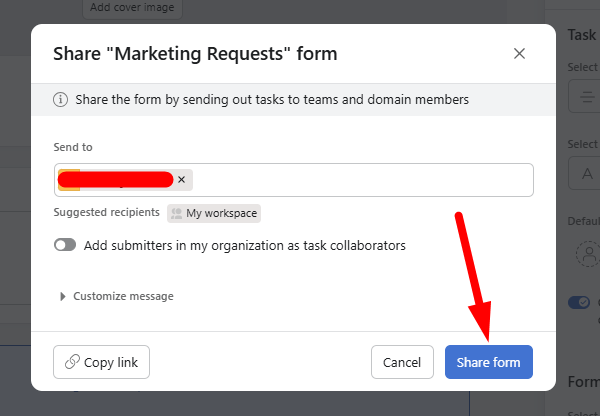
Or copy the share link and send it to your team or anyone who needs to submit requests.
Now you know how to create a form in Asana.
What Are Asana Forms and How They Work
Asana forms are a built-in way to standardize work requests and capture structured information inside your projects. Instead of taking unstructured emails, chats, or messages and manually turning them into work, you can collect details up front so every submission starts as a clear, actionable item.
When you build a form in Asana, you’re setting up a custom intake form that people can fill out whether they’re inside your team or outside your organization. Once someone submits that form, Asana will automatically create a new task in the project where the form lives, with the form answers mapped to fields like title, description, assignee, due date, and custom fields.
This means the form isn’t just for collecting info it becomes part of your workflow. Because each submission becomes a task, you can immediately assign it to someone, set deadlines, add attachments, and use Asana’s workflow tools like rules and automation to keep things moving.
Asana forms work best for simple intake processes where each submission represents a discrete piece of work, such as support tickets, creative requests, bug reports, or internal approvals. They aren’t designed for in-depth surveys or complex multi-step processes, but they shine when you need structured, task-ready inputs from users without back-and-forth.
Common Limitations of Asana Forms
Asana forms are useful for basic task intake—but once your workflow goes beyond simple requests, their limitations start to show. Understanding these gaps is important before you rely on forms for business-critical processes.
Below are the most common constraints teams run into.
Limited Validation
Asana forms let you mark fields as required, but that’s where validation largely stops.
You can’t:
- Enforce formats (like phone numbers, IDs, or structured inputs)
- Validate answers based on conditions
- Prevent incomplete or inconsistent data beyond “required vs optional”
This often leads to cleanup work after submission, especially when forms are used by external users.
No Document Generation
Asana forms collect information—but they don’t turn that information into documents.
There’s no native way to:
- Generate contracts, letters, or agreements
- Populate PDFs or templates with form data
- Create standardized documents from submissions
If your workflow involves paperwork, you’ll need to manually copy data elsewhere or rely on third-party tools.
No Built-In E-Signatures
Asana does not support e-signatures on forms.
That means you can’t:
- Capture legally binding signatures
- Require sign-off before a task moves forward
- Track who signed and when, inside the same workflow
For approvals that require signatures, Asana forms stop short.
Basic Automation Only
Asana offers rules and automation, but they’re task-focused, not form-focused.
You can automate simple actions like:
- Assigning tasks
- Moving tasks between sections
- Updating fields based on answers
But you can’t easily build:
- Multi-step workflows
- Conditional paths based on multiple answers
- Approval chains tied to documents or signatures
At this point, teams often hit a ceiling.
FAQs About Creating Forms in Asana
Can Asana forms collect signatures?
No. Asana forms don’t support built-in e-signatures. You’ll need a third-party tool if your workflow requires signed approvals or legally binding signatures.
Can Asana forms create documents?
No. Asana forms can collect information and create tasks, but they can’t generate documents like contracts, PDFs, or letters from submitted data.
Can Asana forms replace form builders?
Not fully. Asana forms work for simple task intake, but they lack advanced features like conditional logic, validation rules, branding controls, and multi-step workflows common in dedicated form builders.
Do I need a third-party tool for workflows?
Yes, if your workflow involves approvals, documents, signatures, payments, or complex logic. Tools like Supatool are built specifically for those advanced use cases.