How to Create a Poll in Slack
Fast navigation
Wondering how to create a poll in Slack without overcomplicating things?
Slack doesn’t have a built-in “Poll” button, but you still have several easy and reliable ways to run polls, from quick emoji votes to full-featured polling apps.
In this guide, I’ll walk you through all practical ways to create a poll in Slack, step by step, with clear instructions and screenshot placeholders so you can follow along exactly.
Methods:
You can create a poll in Slack using:
- Emoji reactions (fast & simple)
- Slack polling apps (best for structured polls)
Let’s go through each method in detail.
Method 1: Create a Simple Emoji Poll in Slack
This is the fastest way to run a poll in Slack.
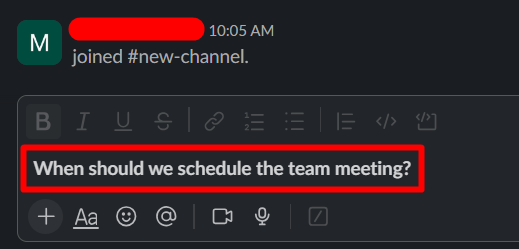
Step 1: Write your poll question
Type your question directly into a Slack channel or DM.
Example: “When should we schedule the team meeting?”
Step 2: Add answer options
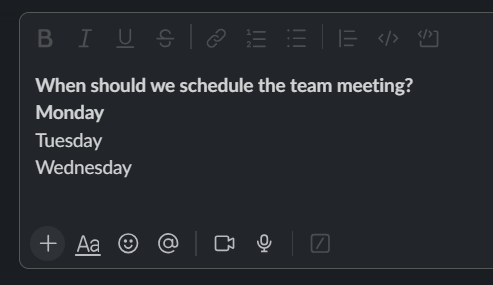
List the options on separate lines by clicking “Shift+Enter”.
Example: • Option 1: Monday • Option 2: Tuesday • Option 3: Wednesday
Step 3: Assign emojis to each option
Hover over your message and click add emoji.
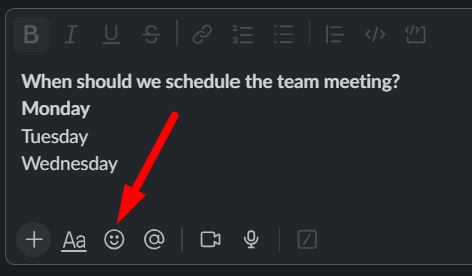
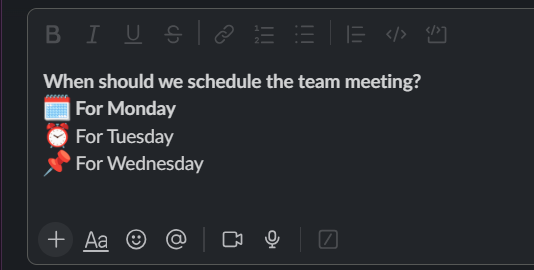
Add one emoji per option.
Example: 📅 for Monday ⏰ for Tuesday 📌 for Wednesday
Step 4: Ask teammates to vote
Tell your team to vote by reacting with an emoji.
Slack automatically counts emoji reactions, so results are visible instantly.
Limitations of emoji polls
- Not anonymous
- No advanced options
- Easy to vote multiple times
Method 2: Create a Poll Using a Slack Polling App
If you want a more structured poll, you can use the Simple Poll app.
Simple Poll is one of the most popular Slack polling tools. It allows you to create polls with clear options and results.
Step 1: Install Simple Poll from the Slack Marketplace
Go to the Slack Marketplace and search for Simple Poll.
Click Add to Slack to install the app in your workspace.
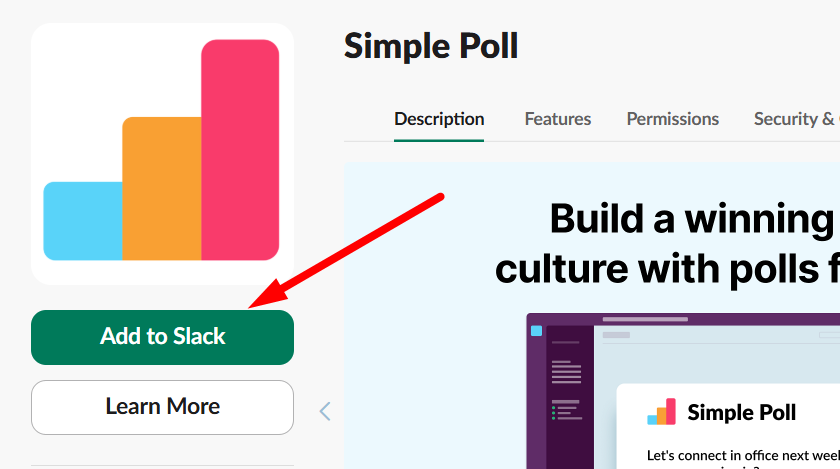
Once installed, you can start creating polls directly from Slack.
Step 2: Type the poll command
Go to the Slack channel where you want to create the poll.
Type the following command:
/poll "Your question" "Option 1" "Option 2" "Option 3"
Example:
/poll "What day should we hold the meeting?" "Monday" "Tuesday" "Wednesday"
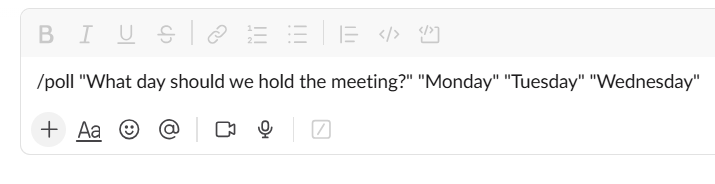
Press Enter.
Slack will generate a poll preview.
Step 3: Preview and create the poll
A preview window will appear where you can review your poll.
Here you can:
- Edit options
- Enable anonymous voting
- Allow multiple votes
- Set a closing time
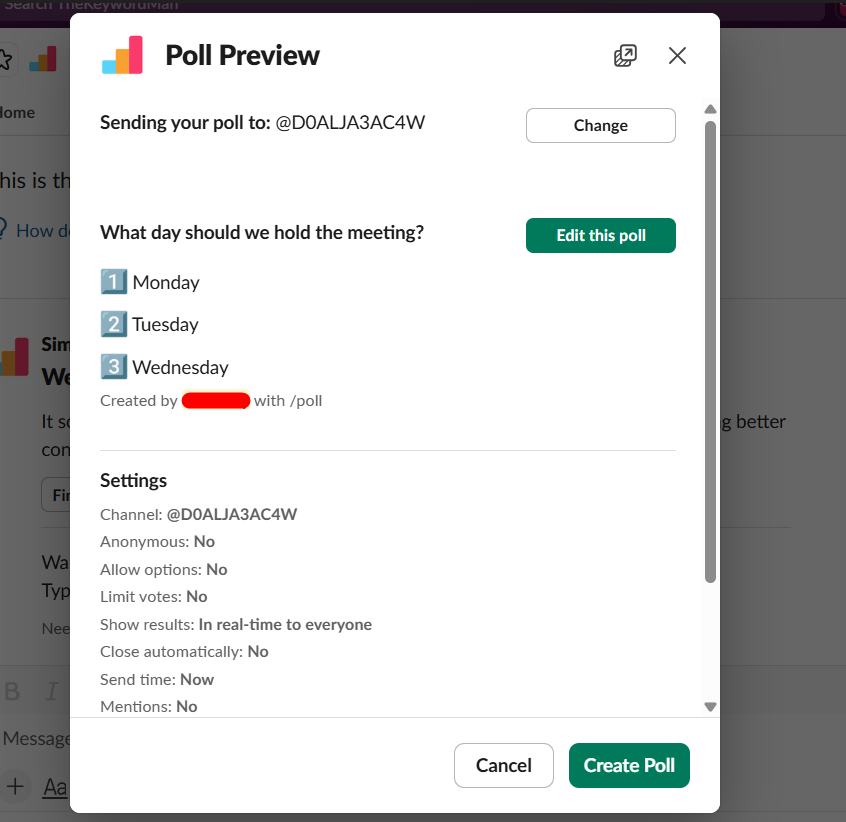
Click Create Poll once everything looks correct.
Step 4: Team members vote in the channel
The poll will now appear inside the Slack channel.
Team members can vote simply by clicking an option.
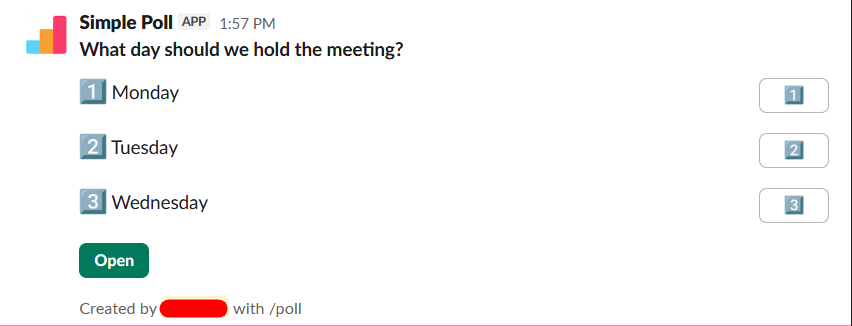
Simple Poll automatically displays the results in a clean format.
Method 3: Create Polls Using Polly
If you need more advanced polling features, the Polly app is another great option.
Polly allows you to create polls with:
- Multiple questions
- Anonymous responses
- Templates
- Scheduled polls
Step 1: Install the Polly app
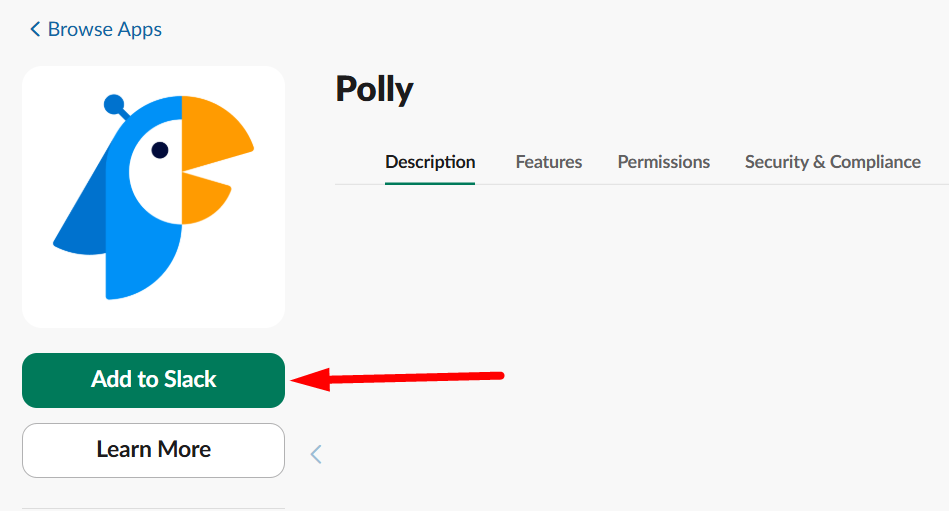
Go to the Slack Marketplace and search for Polly.
Click Add to Slack to install the integration.
Step 2: Start creating a poll
Go to any Slack channel and type:
/polly
or
/polly "Your question here"
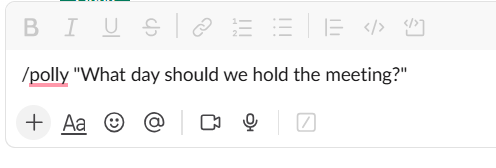
Press Enter.
Slack will open the Polly setup interface.
Step 3: Configure your poll settings
You can now customize your poll with options like:
- Multiple choice
- Agree / disagree
- Open-ended questions
- Anonymous voting
Select the format that fits your poll.
Step 4: Publish the poll
Once you finish configuring the options, click Send Polly.
The poll will appear in the Slack channel.

Team members can vote instantly, and Polly will track the responses.
Which Polling Method Should You Use?
Use Case | Best Option |
|---|---|
| Quick team vote | Emoji poll |
| Anonymous poll | Simple Poll |
| Recurring check-ins | Polly |
Final Thoughts
Now you know how to create a poll in Slack using multiple methods.
If you need speed, emoji polls work. If you need structure, Slack polling apps are best.
Pick the method that matches your goal and you’ll get faster, clearer feedback from your team.