How to Create a Form in Excel
Fast navigation
Creating a form in Excel lets you quickly collect and enter data without manually typing in each row.
Excel has a built-in Form tool that makes data entry easier once you know where to find it.
Let’s walk through it in easy steps.
Steps:
1. Set Up Your Data Table
2. Add the Excel Form Button
3. Open Your Form
4. Share Your Excel Form
Step 1: Set Up Your Data Table
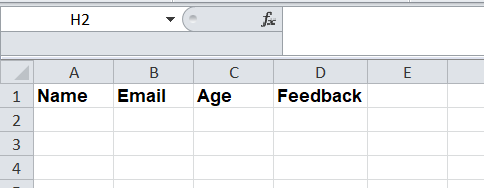
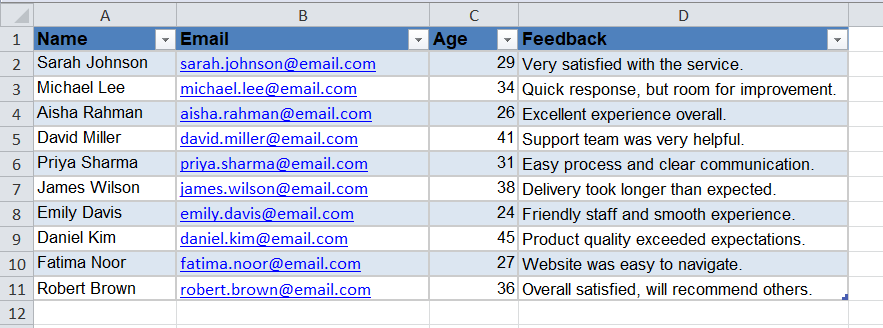
Open Excel and type your column headers in the first row. Example headers:
- Name
- Age
- Feedback
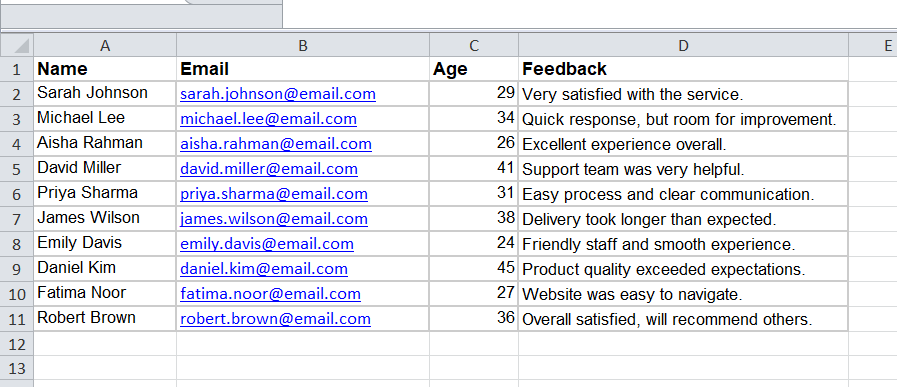
Add your data in the table.
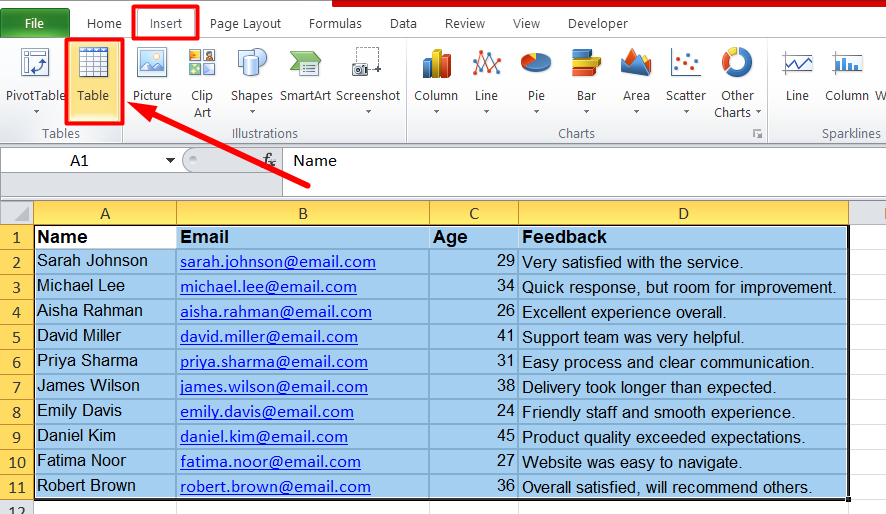
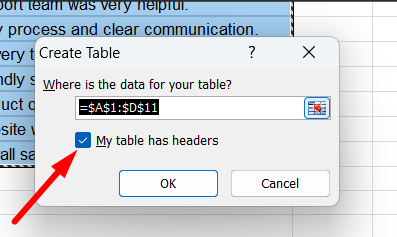
Your data is now a structured Excel table, the foundation of your form.
Step 2: Add the Excel Form Button
By default, Excel doesn’t show the Form tool.
Here’s how to add it:
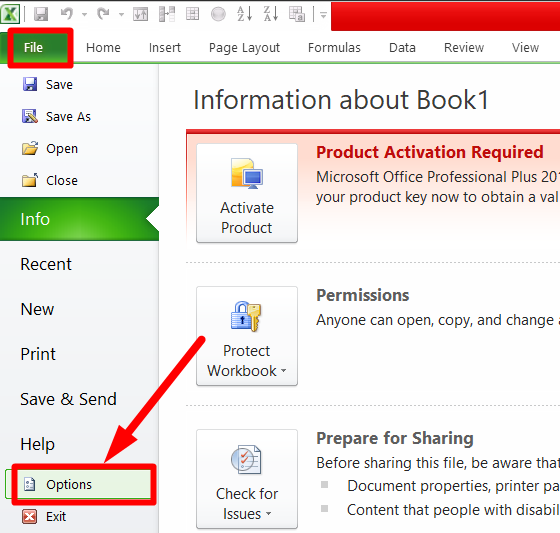
- Click File → Options.
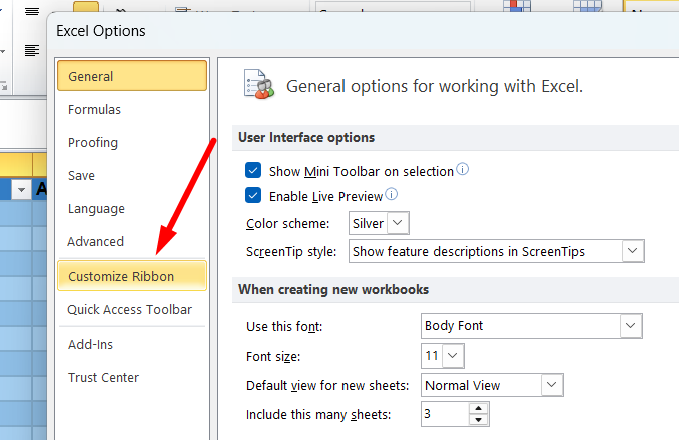
- Click Customize Ribbon or Quick Access Toolbar.
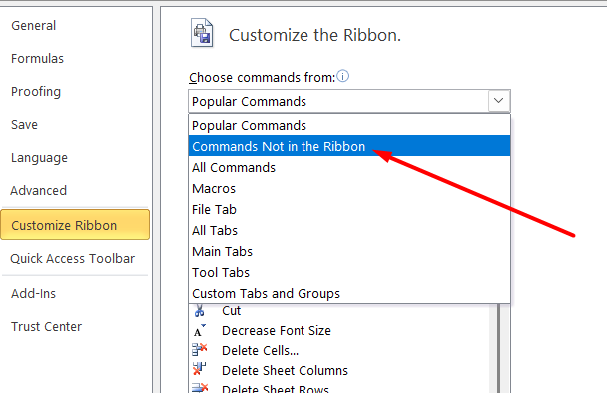
- From “Choose commands from”, select Commands Not in the Ribbon.
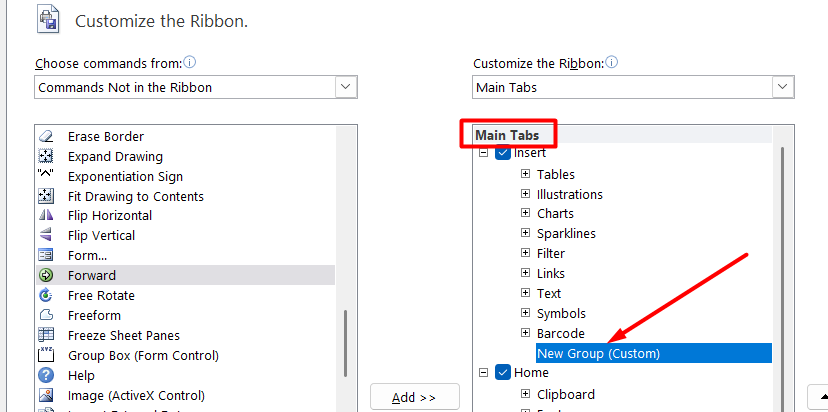
- Add a New Group in the Main Tabs.
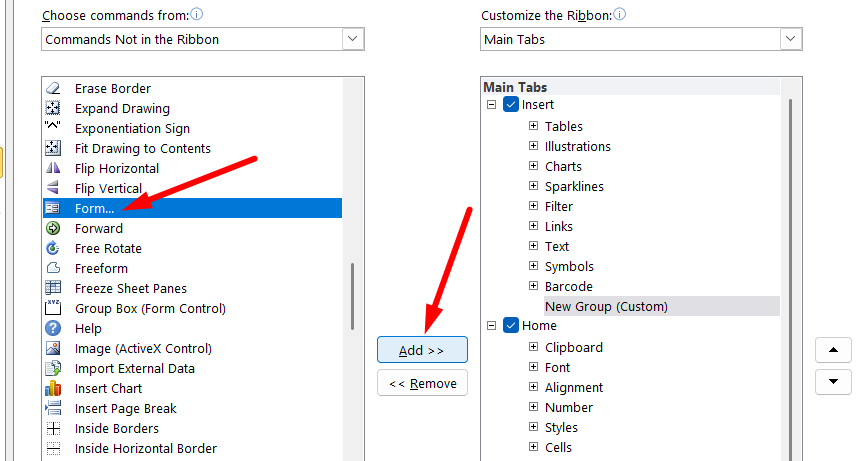
- Find Form from the list under Commands Not in the Ribbon and click on it. Then click on Add.
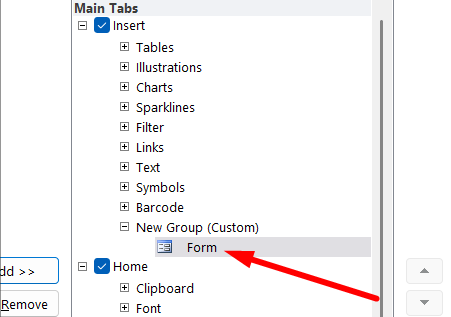
- Form will be added under the New Group.
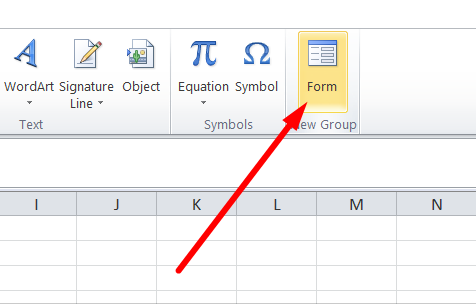
Now you have the Form button ready to use.
Step 3: Open Your Form
- Click any cell inside your table.
- Click the Form button.
A simple form window opens where you can:
- Enter new records
- Delete records
- Navigate between entries
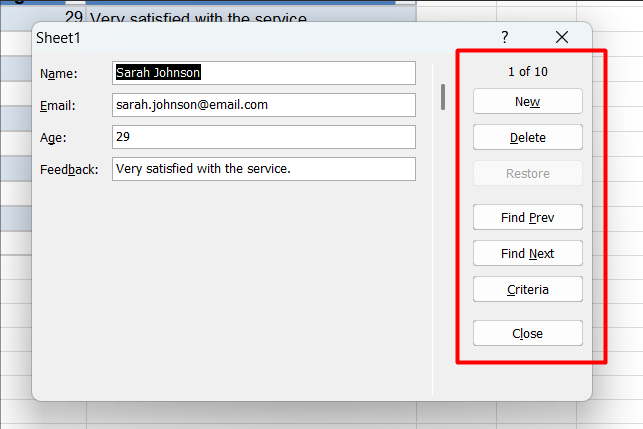
Each time you press New, Excel adds that entry as a new row in your table.
Step 4: Share Your Excel Form
You can share your workbook in multiple ways:
- Send via email
- Upload to OneDrive
- Share through Teams or SharePoint
Users with access to the file can open it and use the form to input data.
Limitations of Excel Forms
If creating a form in Excel feels more complicated than it should be, you’re not imagining it.
Excel is built for spreadsheets, calculations, and data analysis, not form building. While the built-in Form tool works for basic data entry, it has several limitations.
Not designed for forms: Excel’s form feature is hidden and basic. It works for internal data entry, but it’s not intuitive for surveys, registrations, or customer-facing forms.
Limited customization: You can adjust formatting and layout, but advanced design features, multi-page forms, and conditional logic aren’t available unless you use VBA.
Sharing can be restrictive: Excel forms work best inside shared files (like OneDrive or Teams). They’re not ideal for collecting responses from a wide public audience.
No built-in analytics: Excel stores the data, but it doesn’t provide form-focused insights, charts, or automated summaries unless you create them yourself.
When to Use Excel Forms
Excel forms are best when:
✔ You’re entering data yourself or within a small team ✔ You need a quick table-linked form
They’re not ideal for:
❌ Public surveys ❌ Advanced logic (multiple pages, conditions) ❌ Beautiful form design
For those, a dedicated form builder (like Microsoft Forms or other tools) works better.
Final Thoughts
Creating a form in Excel isn’t obvious at first, but once you add the Form button, it becomes a very simple way to enter and manage data.
Just:
- Convert your table
- Add the Form button
- Use the form to input or review entries
And that’s it, a straightforward Excel form ready for data entry!