
How to Set Up A Google Forms Attendance System (2026 Guide)
Fast navigation
Want to set up a Google Forms attendance system that’s simple, accurate, and easy to manage?
Whether you’re a teacher taking daily roll call, an event organizer managing check-ins, or a team leader tracking participation, Google Forms can handle attendance without messy spreadsheets or manual sign-ins.
This guide will walk you through everything—from creating your attendance form to automating data collection with Google Sheets, and even using QR codes for a quick check-in system.
Let’s dive in!
Steps:
- Create a new Google Form
- Add basic attendance questions (Name, Date, Class)
- Add an entry ticket question for engagement
- Connect your form to Google Sheets
- Share the attendance form
- Analyze attendance data in Forms & Sheets
Step 1: Create a New Google Form
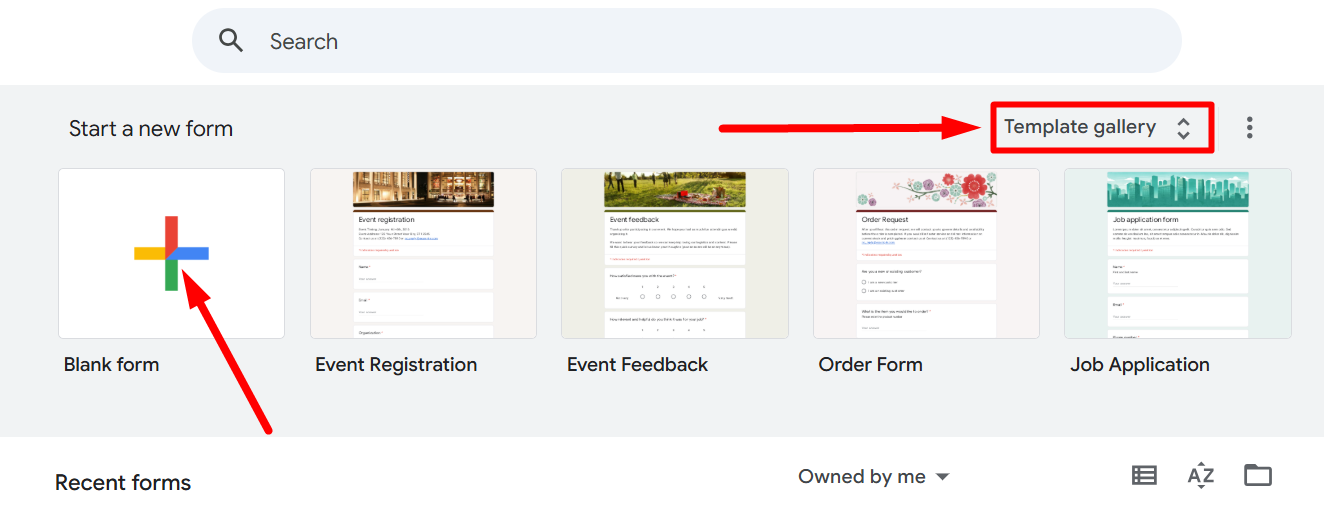
- Go to Google Forms.
- Click the + (blank form) button to start fresh.
- Alternatively, choose a pre-made template if you want to save time.
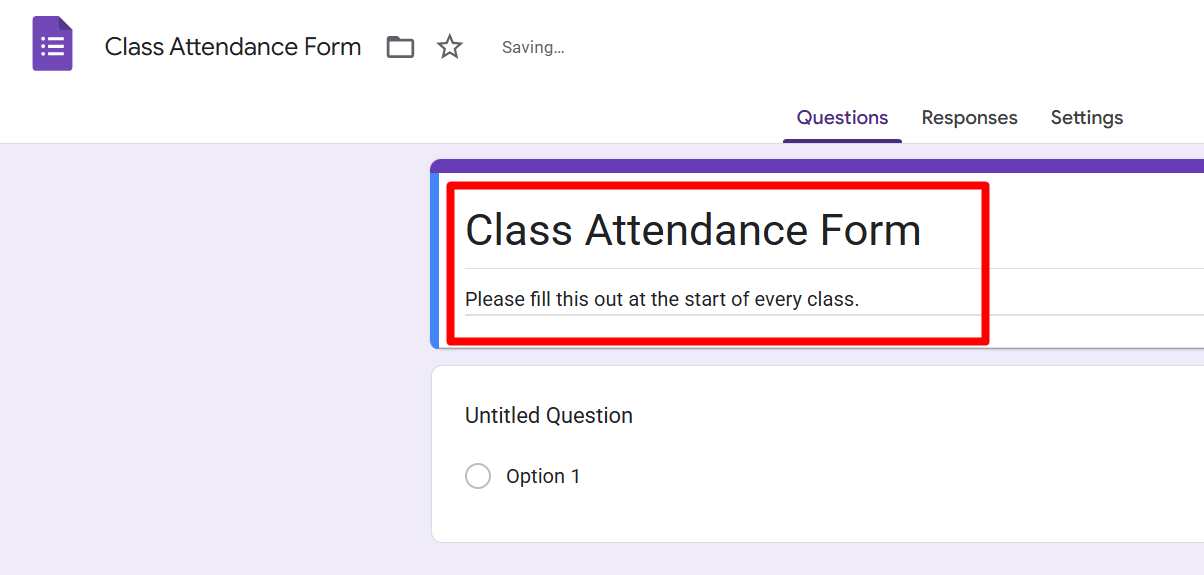
Give your form a title such as “Class Attendance Form” or “Event Check-In”. Add a description if needed, like “Please fill this out at the start of every class.”
Step 2: Add Basic Attendance Questions
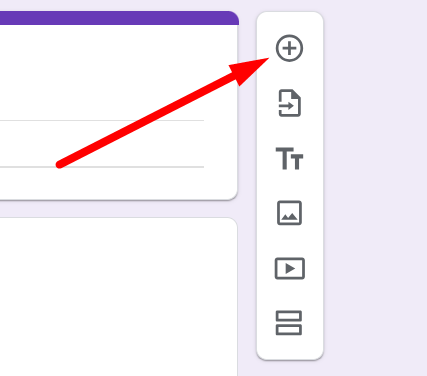
Click on the Add question icon to add a new question.
To track attendance, start by adding essential fields:
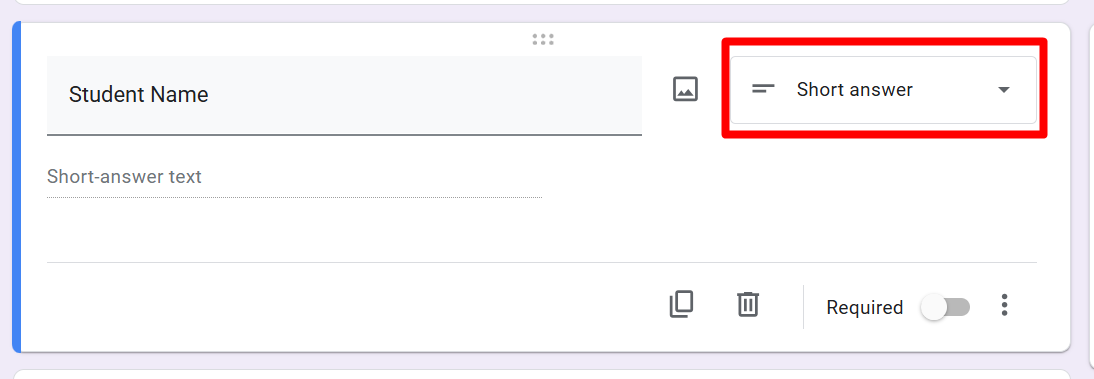
- Student/Participant Name → Use the Short Answer question type.
- Date → Choose the Date question type. This saves you from manually entering dates later.
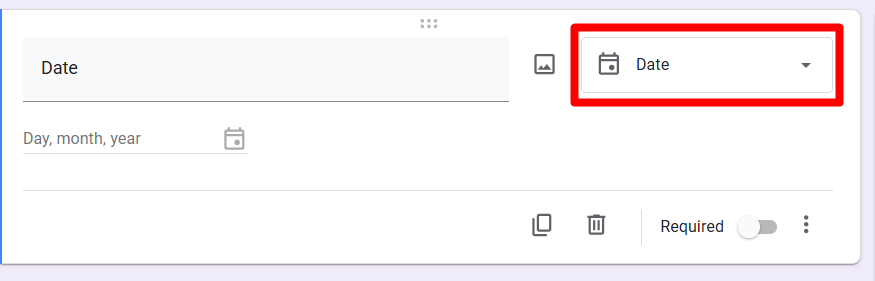
- Class/Session (optional) → If you’re handling multiple groups, use a Multiple Choice or Dropdown question.
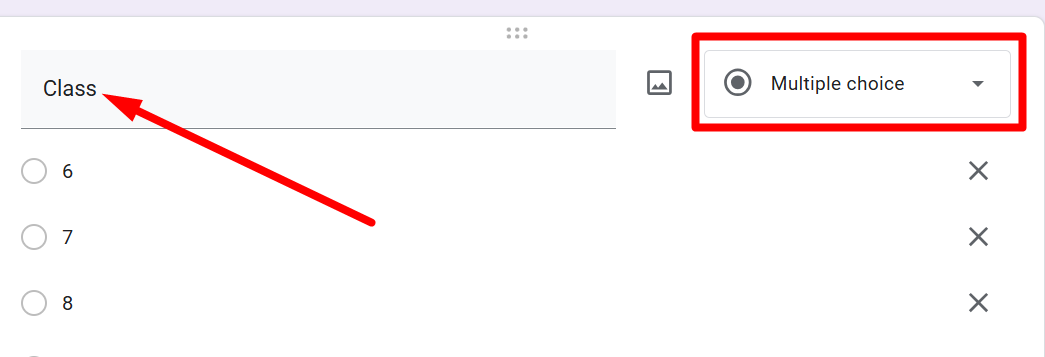
At this point, you have a basic attendance form ready.
Step 3: Add an Entry Ticket Question (Optional but Powerful)
Want to ensure students are paying attention? Add a quick question as an entry ticket.
For example:
- “What’s one thing you remember from yesterday’s lesson?”
- “What’s your energy level right now? (1–5)”
- Click the + button to add a new question.
- Choose the Paragraph or Linear Scale format.
- Turn on Required so students can’t skip it.
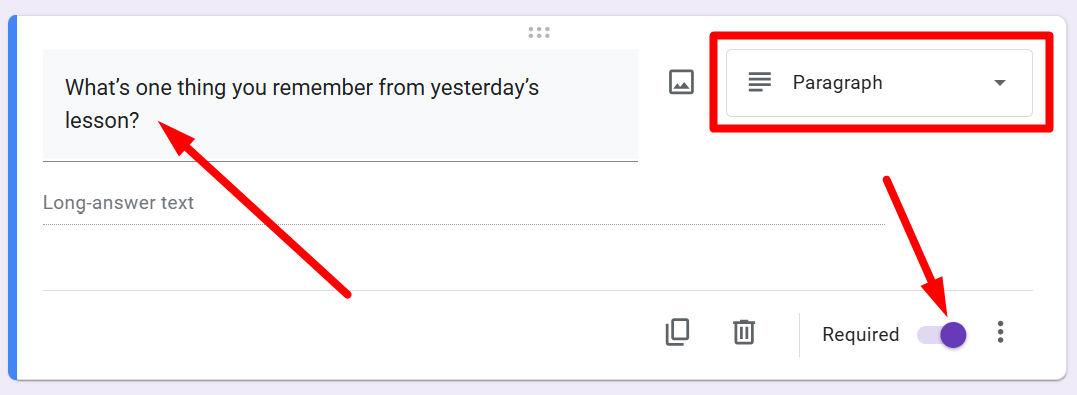
This boosts engagement while doubling as proof of attendance.
If you are done, than click on the ‘Preview’ icon to check how the form will appear to responders.

Step 4: Connect the Form to Google Sheets
Linking your attendance form to Google Sheets is essential—it automatically stores every response and timestamp in one place. With Sheets, you can easily view attendance records, calculate averages, and track trends over weeks or months.
- Go to the Responses tab in your form.
- Click the green Link to Sheets button.
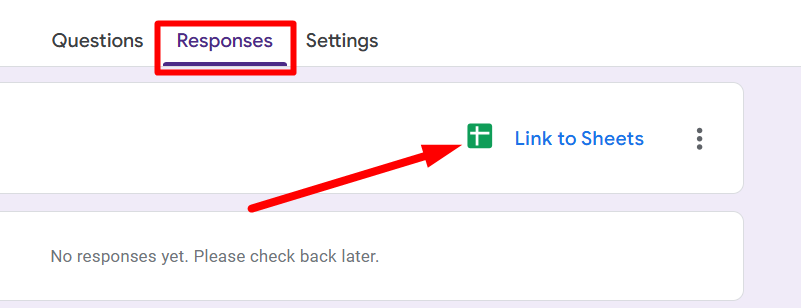
- Choose to create a new spreadsheet or connect to an existing one.
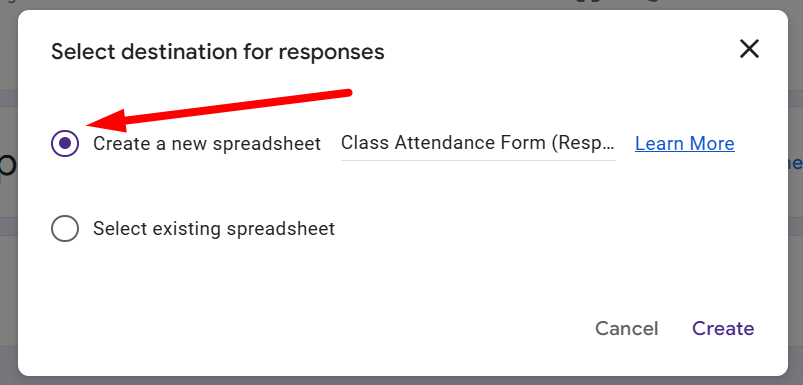
Now every submission is stored neatly in a spreadsheet, complete with timestamps. From there, you can calculate:
- Average attendance rates
- Attendance per class/session
- Who’s frequently absent
Step 5: Share the Attendance Form
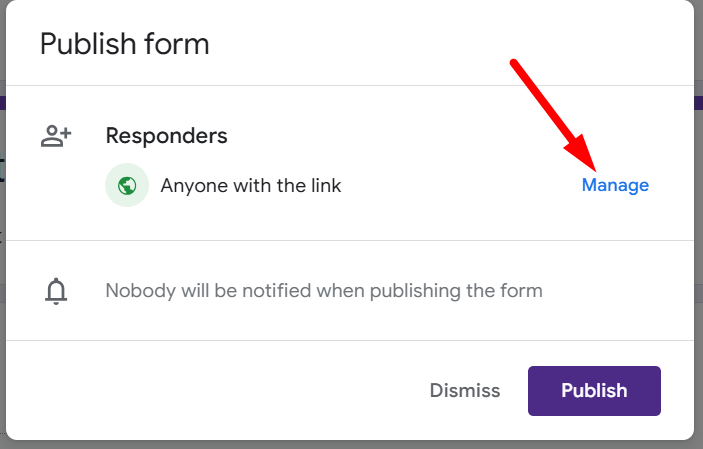
Once your form is ready, click the Publish button. You can see a pop-up like the image below. Click on ‘Manage’.
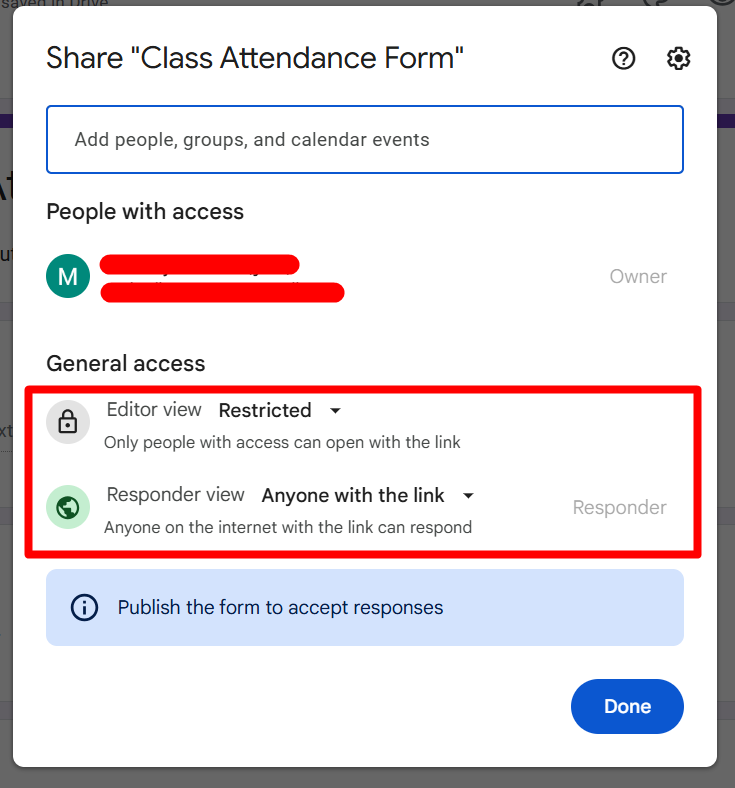
It will show a new pop-up where you can set the permissions for the Editors and the Responders.
Step 6: Analyze Attendance Data
Once responses start coming in, you can view attendance trends in two ways:
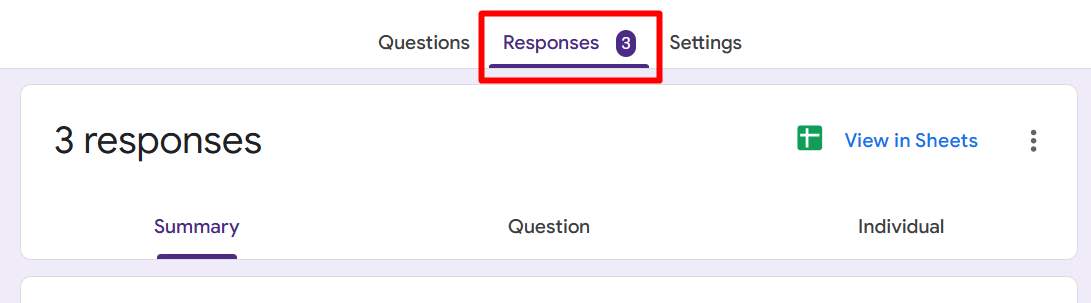
- In Google Forms → Go to the Responses tab to see quick summaries.
- In Google Sheets → Use filters, charts, or pivot tables to dig deeper. For example:
- See which students are consistently late.
- Track attendance across weeks/months.
Conclusion
Setting up a Google Forms attendance system is quick, flexible, and reliable. In just a few steps, you can:
- Collect names and dates automatically
- Engage students with entry ticket questions
- Store everything in Google Sheets for easy analysis
- Even speed things up with QR codes and pre-filled links
No more paper sign-ins, no more messy records—just clean, trackable attendance that works for both classrooms and events.
Now it’s your turn: set up your own Google Forms attendance system today and make roll call effortless!
Frequently Asked Questions
Q1. Can Google Forms track attendance automatically without students filling it out?
No, Google Forms requires a submission to record attendance. However, you can pre-fill links or manually fill out the form yourself if you want to act as the recorder.
Q2. How do I prevent cheating in attendance forms?
Enable “Limit to 1 response per user” under Settings. Also, link responses to the email collection so each student must sign in with their Google account.
Q3. Can I use one attendance form for multiple classes?
Yes. Add a Dropdown or multiple-choice question for “Class/Section” so students can select the right group when submitting.
Q4. What happens if a student forgets to fill out the form?
You can edit responses manually in the linked Google Sheet, or allow students to resubmit later by enabling “Edit after submit” in the form settings.
Q5. Can I get attendance reports from Google Forms?
Yes! Once linked to Google Sheets, you can generate charts, calculate percentages, or use add-ons like Form Publisher to create reports or certificates.