
How to Make an Escape Room in Google Forms (Step by Step)
Fast navigation
Ever wished a plain quiz could feel like a mini-adventure, and wondered how to make an escape room in Google Forms? That’s exactly what a Google Forms escape room does. Instead of ticking boxes, players follow a story, hunt for clues, and unlock the next section only when they enter the right answer just like cracking a code on a door. The best part: you don’t need any add-ons or coding. With sections, answer validation, and simple branching, Google Forms already has everything you need.
In this guide, we’ll build one together from picking a theme and planning puzzles to adding ‘locks’, hints, and a final win screen. Whether you’re a teacher, trainer, or just want a fun team challenge, you’ll walk away with a playable digital escape room you can share in minutes. Ready to turn your form into a game people can’t wait to finish?
Let’s begin.
Steps:
- Create a New Google Form
- Set the Theme and Storyline
- Add the First Puzzle Section
- Add the Puzzle Question with a Lock
- Add a Success Section with Feedback
- Repeat for Each Challenge
- Add the Final Escape Section
- Test Your Escape Room
- Publish Your Escape Room
What is a Digital Escape Room?
A digital escape room works just like a physical one, except everything happens online. Instead of unlocking a real door, players solve virtual puzzles to move through the game.
Typically, there’s a story behind it, like finding hidden keys in a dungeon, escaping a haunted house, or defeating monsters to save a kingdom. The storyline keeps players motivated as they move puzzle by puzzle.
There are two main types of digital escape rooms you can build:
Lock-and-Key Style Rooms
This is the most popular format. Players solve puzzles to uncover codes, which act as virtual ‘keys’ to open digital ‘locks’. For example:
- Close-reading a passage to find a keyword.
- Solving math equations to uncover a digit code.
- Matching clues to reveal a secret word.
These are easy to build in Google Forms and can be added to almost any lesson plan.
Branching Style Rooms
If you’ve ever tried a choose-your-own-adventure game, you’ll recognize this format. Players make choices at certain points that affect what happens next, for instance, deciding whether to explore a misty forest or head back to camp.
Branching escape rooms can be very engaging, but they’re trickier to design in Google Forms. The limited conditional logic makes them harder to pull off compared to lock-and-key rooms.
What You'll Need:
- A Google account
- Google Drive access
- Creative ideas for puzzles or challenges
- Optional: images or themed visuals for storytelling
How to Make an Escape Room in Google Forms
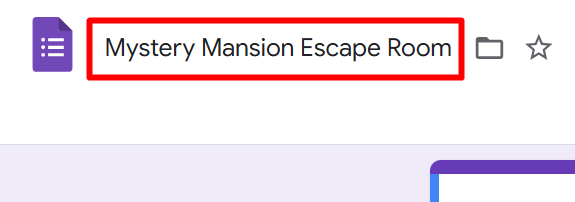
1. Create a New Google Form
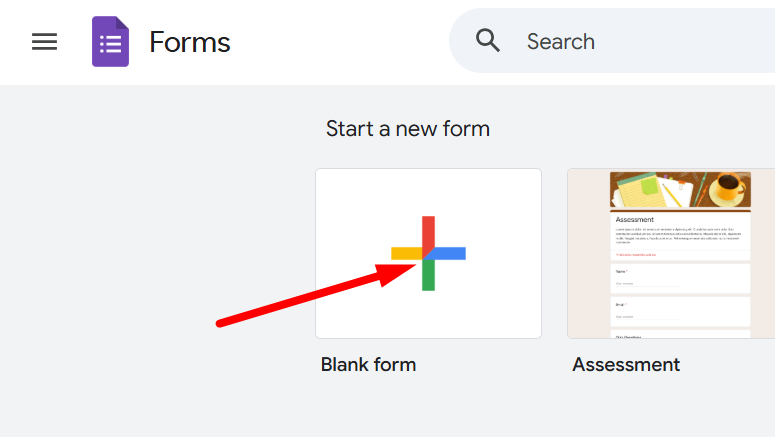
To begin, go to Google Forms and click the blank form (+) under "Start a new form."
2. Set the Theme and Storyline
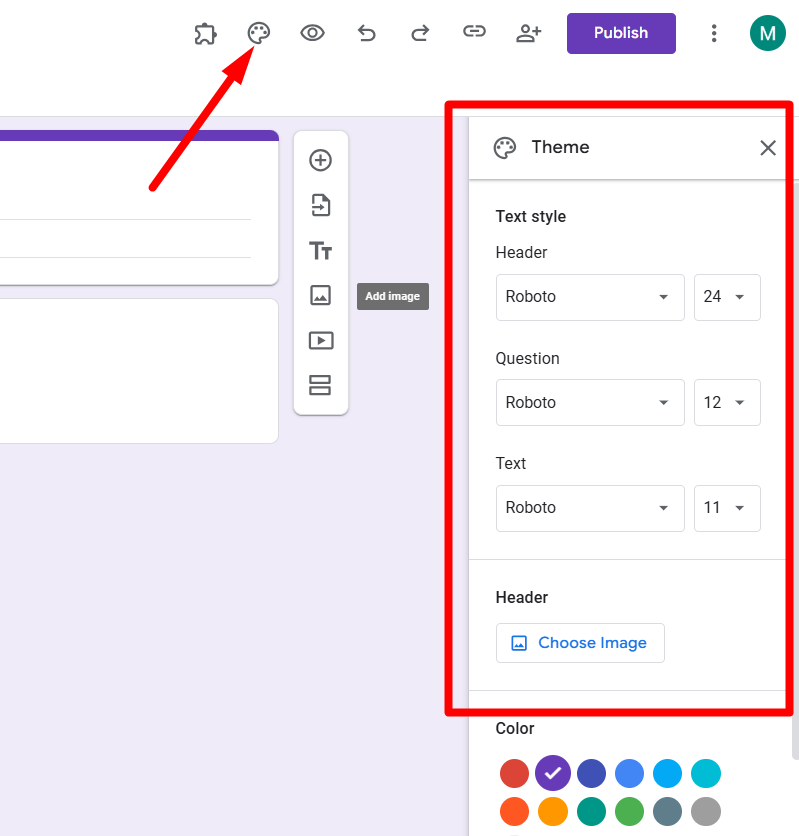
Use the “Customize Theme” button (paint palette icon in the top right) to visually match your theme:
- Add a header image that suits your escape room (e.g., haunted house, medieval castle, space station).
- Adjust colors and fonts for atmosphere.
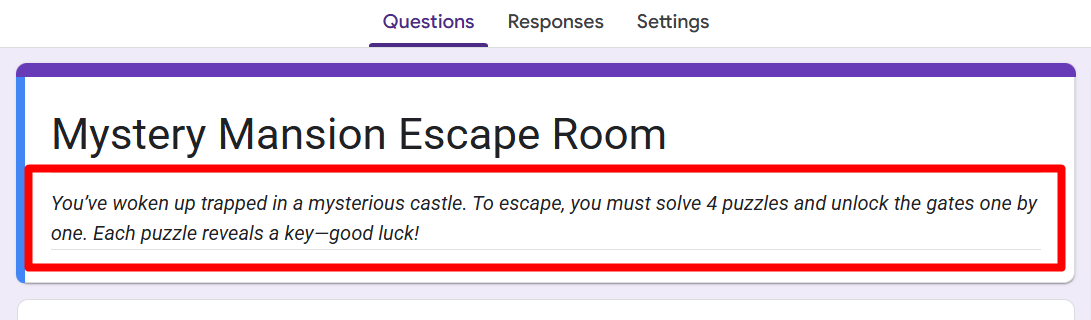
Then, in the Form Description, write a brief story. For example:
You’ve woken up trapped in a mysterious castle. To escape, you must solve 4 puzzles and unlock the gates one by one. Each puzzle reveals a key to good luck!
3. Add the First Puzzle Section
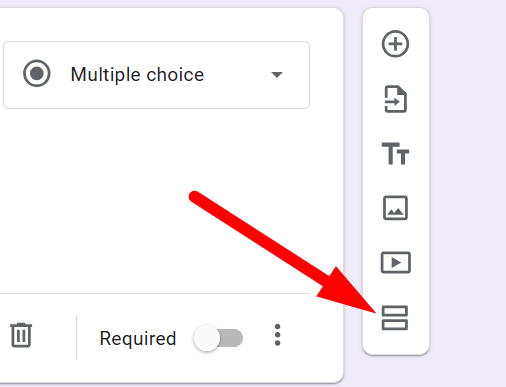
Each puzzle in your escape room will live in its own section. Click the equal sign button (=) on the right toolbar to add a new section.
Use this format:
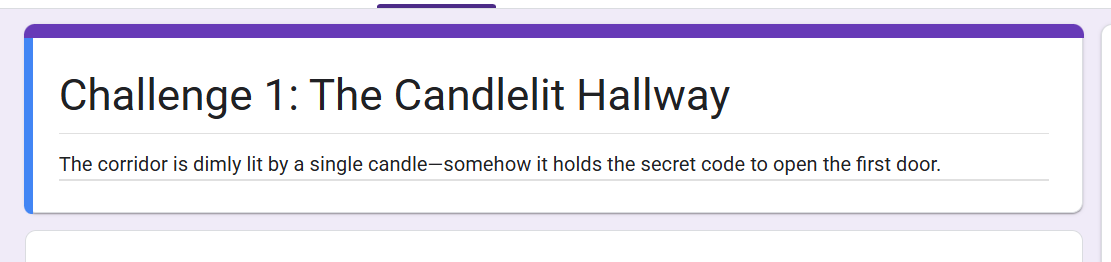
- Section Title: e.g., Challenge 1: The Candlelit Hallway
- Description: Describe the setting and the challenge.
- Optionally, insert an image to match the scenario (e.g., a dark hallway or riddle graphic). Click the image icon to upload.
4. Add the Puzzle Question with a Lock
Now, create a short answer question. This is where your participant will enter the code (answer) to ‘unlock’ the door.
Here’s how:
-
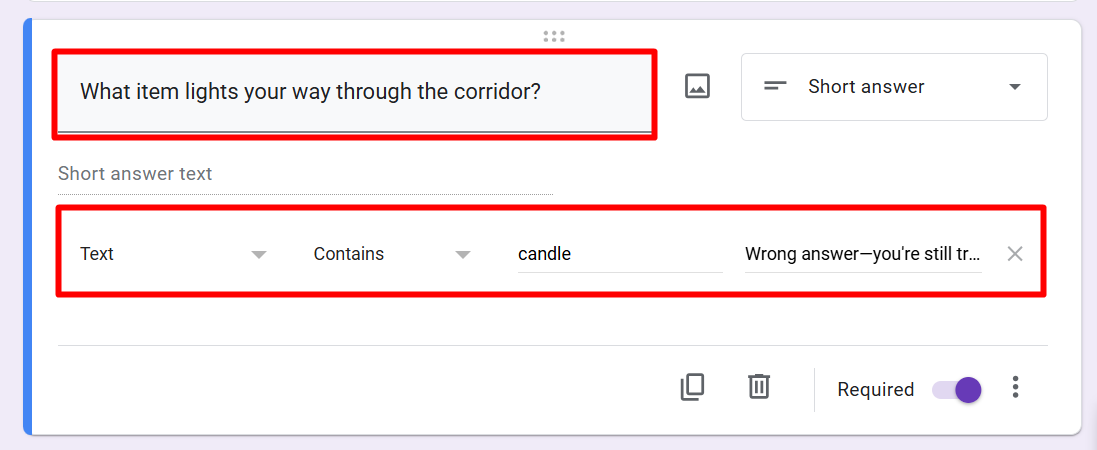
Click Add Question inside your section. Click on “Untitled Question” and paste the question. (e.g., What item lights your way through the corridor?)
-
Choose Short Answer as the format.
-
Turn on Response Validation:
- Change the validation to Text > Contains
- Enter the correct answer (e.g., candle)
- Add a custom error message (e.g., “Wrong answer, you're still trapped!”)
5. Add a Success Section with Feedback
Once the answer is correct, they should be rewarded with feedback.
Add a new section and call it something like "You Found the Key!" Then:
- Insert a congratulatory image (e.g., key unlocked)
- Add a message like: “Great job! You found the rusty old key to the next room.”
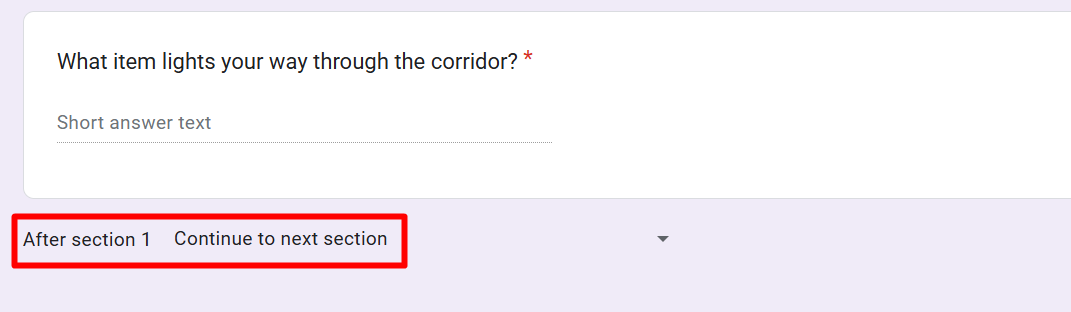
At the bottom of the previous puzzle section, under "After section X," make sure "Continue to next section" is selected.
6. Repeat for Each Challenge
Keep building your escape room by repeating steps 3–5:
- Add a puzzle section (with a challenge and lock)
- Follow it with a reward/transition section (congrats + story continuation)
You can add 3–5 puzzles total, each increasing in difficulty or creativity.
Ideas for puzzle types:
- Riddles: Embed an image with a brain teaser.
- Math Codes: Use simple calculations.
- Word Scrambles: Hide answers in descriptions.
- Hidden Hints: Use clues scattered across images or storylines.
7. Add the Final Escape Section
End your form with a section titled something like:
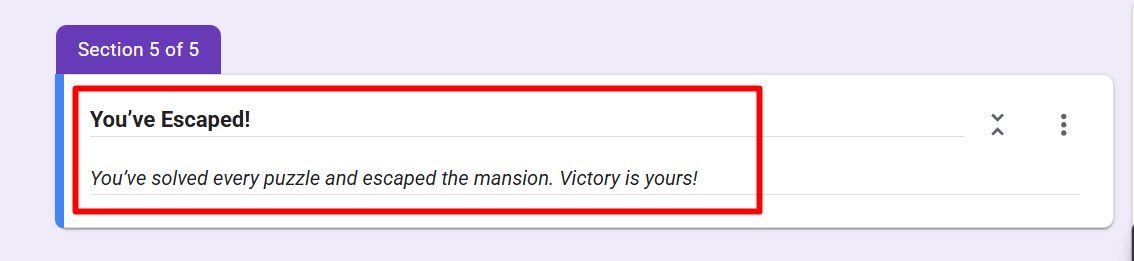
“You’ve Escaped!”
Add:
- A celebratory message (e.g., “You’ve solved every puzzle and escaped the mansion. Victory is yours!”)
- A reward image (fireworks, open gate, etc.)
8. Test Your Escape Room
Before sharing:
- Click the “eye” icon in the top right to preview the form.
- Walk through each puzzle and test:
- Is each section working as expected?
- Are your codes case-sensitive? (If yes, add clear instructions)
- Are the transitions smooth?
9. Publish Your Escape Room
Click ‘Publish’ in the top right corner.
Tip: If you're a teacher, you can upload the link to Google Classroom or your LMS for students to access.
Extra Tips:
- Use "Response Validation" carefully, it’s the “lock” mechanism of your escape room.
- Include small story bits in each section to keep participants engaged.
- Customize error messages to match the theme (e.g., “The ghost is still watching…”).
- Use images for visual clues and to break up text.
Conclusion
With just Google Forms and some imagination, you've now built a fully functional digital escape room. These are fantastic for classroom engagement, team-building, or just having fun with friends online.
So go ahead build, share, and see who can escape!