
What are Google Forms Features and Options?
Fast navigation
- What is Google Forms?//
- Starting With Google Forms//
- Question Types in Google Forms//
- Adding Sections and Logic//
- Turning Your Form Into a Quiz//
- Customizing Your Form’s Appearance//
- Sharing and Distributing Your Form//
- Viewing and Analyzing Responses//
- Advanced Options & Add-Ons//
- Limitations of Google Forms//
- FAQs – Google Forms Features and Options
Curious about what are Google Forms features and options and how you can make the most out of them?
Google Forms is one of the most powerful (and free) tools inside Google Workspace. It helps you create surveys, quizzes, feedback forms, event registrations, and so much more, all without needing any coding skills.
In this guide, I’ll walk you through all the major features and options of Google Forms, breaking everything down step by step.
Let’s dive right in.
What is Google Forms?
Google Forms is a free online form builder that lets you collect data, feedback, and responses in real-time. It’s part of the Google Workspace suite, which means it integrates seamlessly with tools like Google Sheets, Docs, and Gmail.
From simple feedback surveys to quizzes with auto-grading, Google Forms covers a wide range of use cases.
Common uses include:
- Collecting customer or employee feedback
- Creating classroom quizzes
- Event planning and RSVP forms
- Market research surveys
- Internal company requests and HR applications
Starting With Google Forms
Getting started is easy:
- Go to forms.google.com and log in to your Google account.
- Choose a template or start with a blank form.
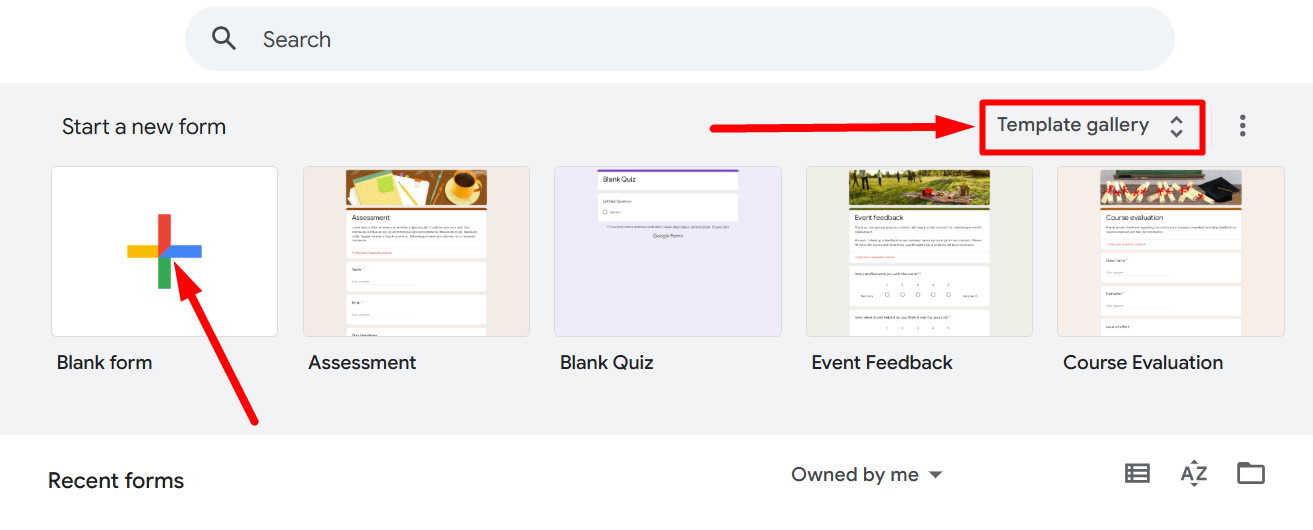
- Add a title, description, and start adding questions.
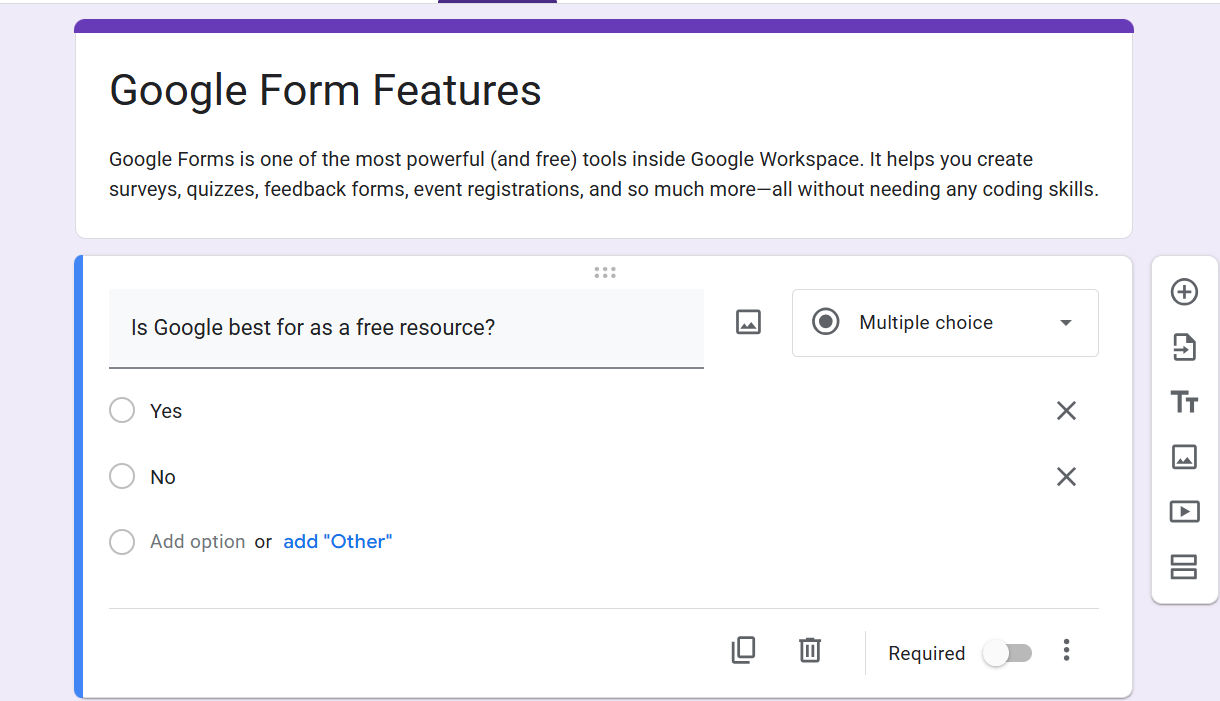
Templates save time, but blank forms give you full creative control.
Question Types in Google Forms
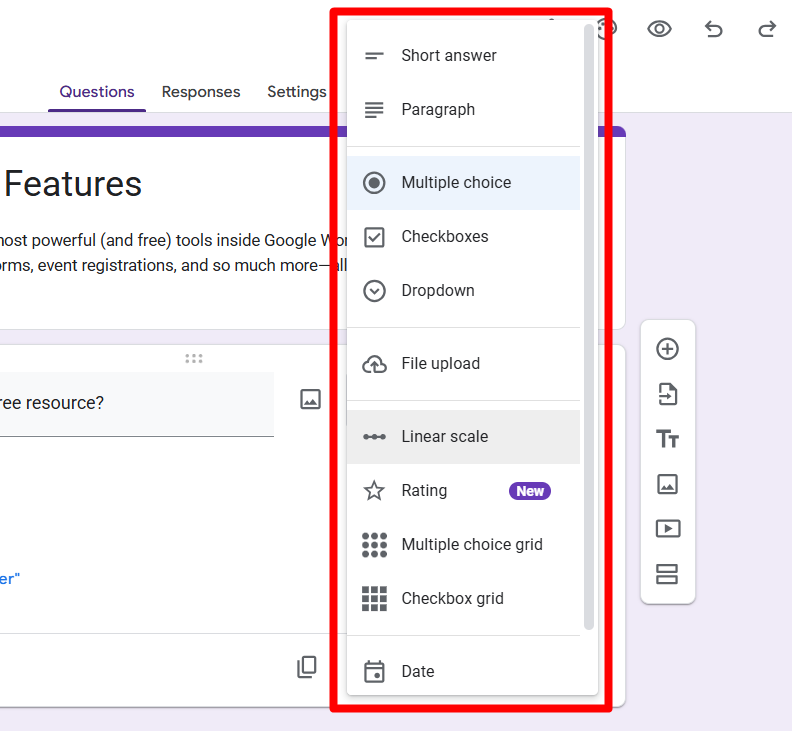
Google Forms offers multiple question types that you can mix and match depending on your needs.
Here are the main options:
-
Short Answer – Collects brief text inputs.
-
Paragraph – For longer, detailed answers.
-
Multiple Choice – Lets users select one option.
-
Checkboxes – Respondents can pick multiple answers.
-
Dropdown – Good for long lists of options.
-
File Upload – Collect resumes, documents, or images. Files are saved directly to your Google Drive.
-
Linear Scale – Let respondents rate something on a scale (e.g., 1–5).
-
Multiple-Choice Grid – Users select one option per row.
-
Checkbox Grid – Similar to multiple-choice grid, but allows multiple selections per row.
-
Date & Time – Collects calendar dates or times.
Adding Sections and Logic
For longer forms, you can split questions into Sections. This keeps the form clean and easier to navigate.
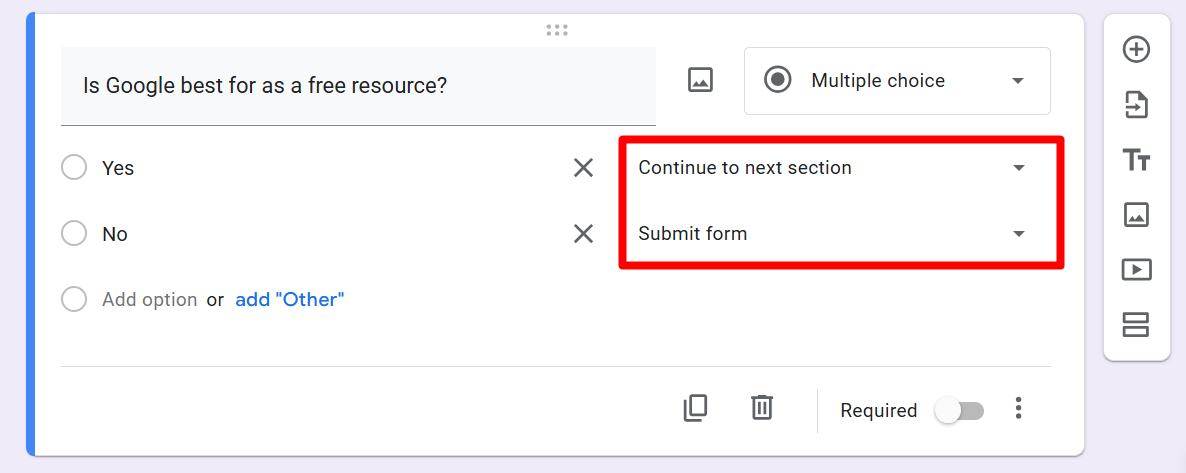
You can also use Conditional Logic (Go to section based on answer). This allows respondents to skip irrelevant questions or be directed to different sections depending on their choices.
Example: If someone answers ‘Yes’ to attending an event, they’ll be shown event detail questions. If ‘No’, they can skip to the end.
Turning Your Form Into a Quiz
One of the most powerful Google Forms options is the ability to create Quizzes.
Here’s how:
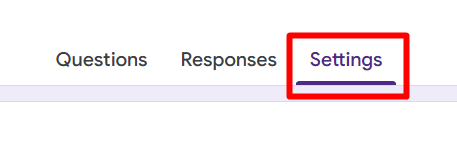
- Go to the ‘Settings’ tab at the top middle of the form.
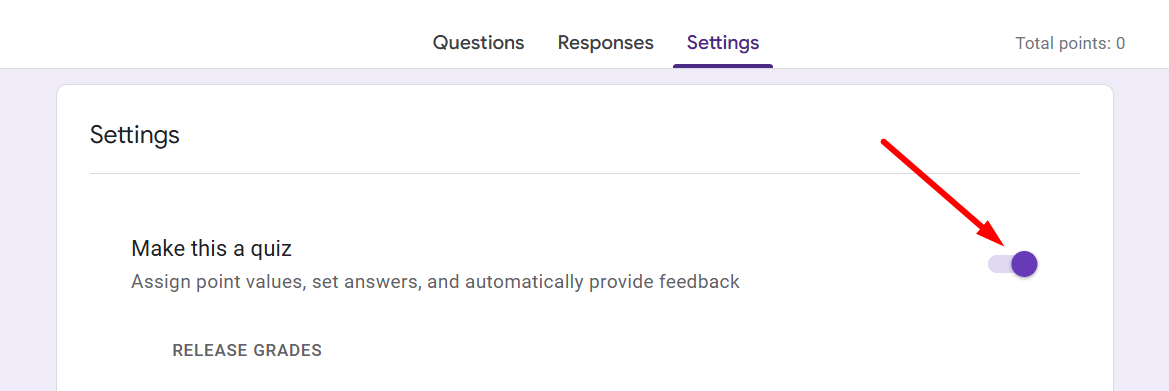
- Toggle on “Make this a quiz”.
- Assign points, add correct answers, and write custom feedback.
Now, your form will automatically grade responses and even show scores instantly if you choose.
Perfect for teachers, employee training, or fun personality quizzes.
Customizing Your Form’s Appearance
Google Forms lets you brand and style your form so it doesn’t look too plain.
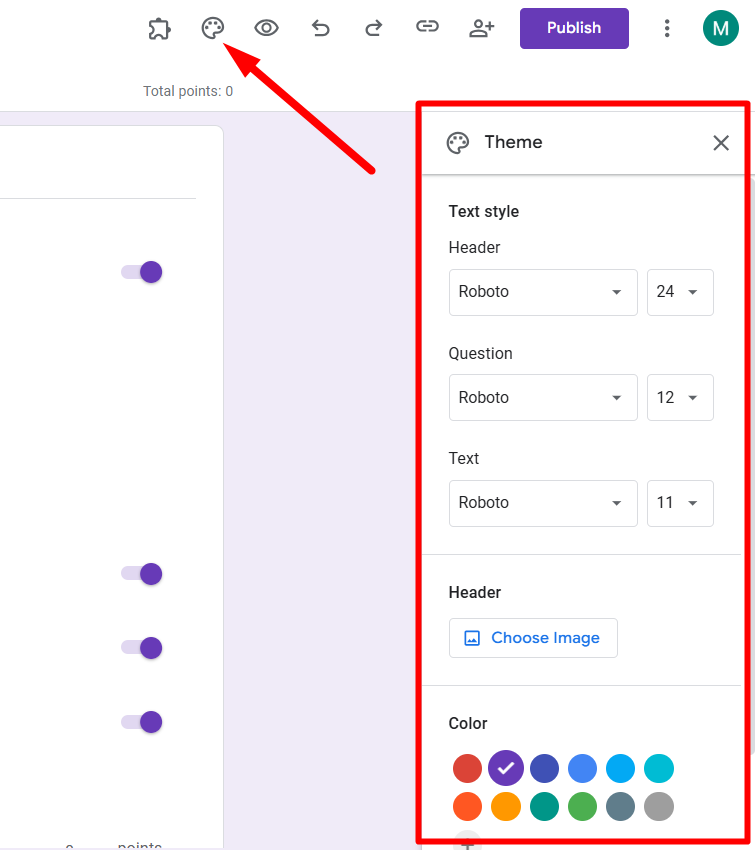
Click on the Theme (paint palette) icon at the top to customize:
- Header image – Upload a logo or choose from Google’s library
- Form & background color – Select from 12 preset colors or add a custom one
- Fonts – Adjust the style for headers, questions, and text
Adding a logo or branded colors makes your form look more professional.
Sharing and Distributing Your Form
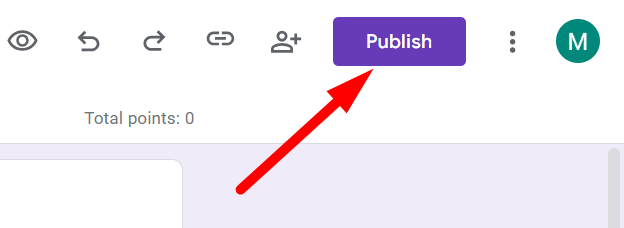
Once your form is ready, click on the Publish button at the top right. You’ll see several sharing options:
Viewing and Analyzing Responses
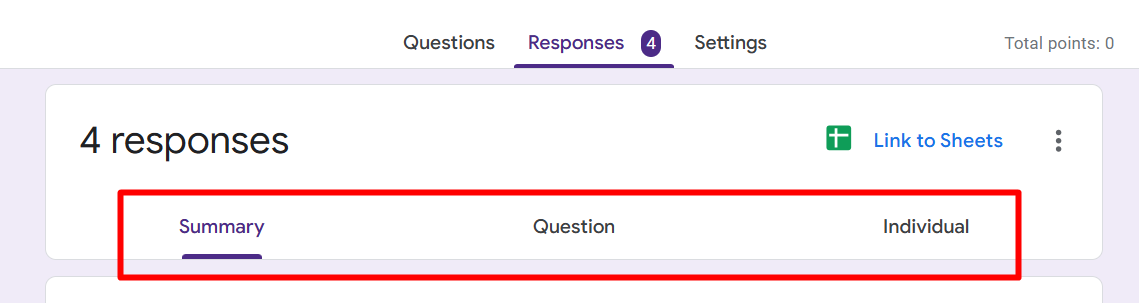
After people start responding, click the Responses tab. Here, you’ll find three views:
- Summary – Automatic charts and graphs
- Question – View answers grouped by each question
- Individual – See responses one by one
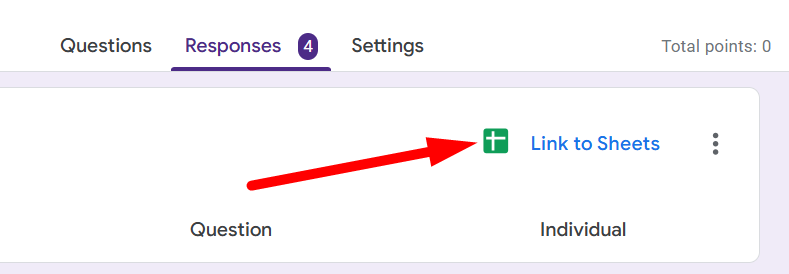
For deeper analysis, link your form to Google Sheets by clicking the green Sheets icon. From there, you can sort, filter, create pivot tables, and even build dashboards.
Advanced Options & Add-Ons
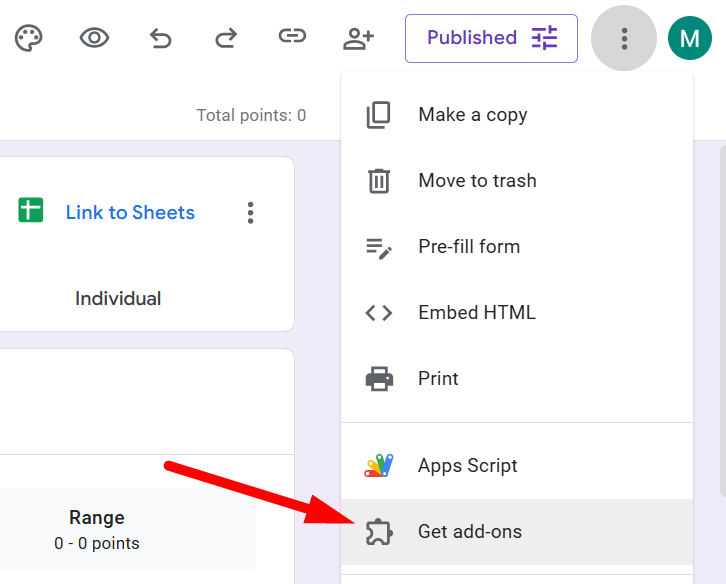
Google Forms can be extended with add-ons from the Google Workspace Marketplace.
Some popular ones include:
- Form Publisher – Converts responses into PDFs, Google Docs, or Sheets.
- Form Timer – Add a countdown for timed quizzes.
- Form Notifications – Get alerts whenever someone submits a response.
To install, click the three-dot menu (⋮) in your form → Add-ons.
Limitations of Google Forms
While Google Forms is powerful, it does have some limitations:
- Limited design customization (only colors, fonts, and headers).
- Basic conditional logic (compared to advanced form builders).
- No native payment collection.
- File upload size limits tied to your Google Drive storage.
For more advanced features like multi-step funnels, branded layouts, or payment integration, you’d need third-party tools.
FAQs – Google Forms Features and Options
Q1. What are the main features of Google Forms?
The main features include customizable question types, quizzes with auto-grading, conditional logic, real-time collaboration, and integration with Google Sheets.
Q2. Can I customize the design of my form?
Yes, you can add a header image, change colors, and adjust fonts. But customization is limited compared to paid form builders.
Q3. How do I share my Google Form?
You can share via email, link, embed code, or social media directly from the “Send” button.
Q4. Can Google Forms collect files like resumes or images?
Yes, the file upload option allows respondents to submit documents, images, or videos. Files are stored in your Google Drive.
Q5. Does Google Forms integrate with other tools?
Yes, it connects directly with Google Sheets, and you can use add-ons or automation tools like Zapier for advanced workflows.