
How to Create a Petition on Google Forms (Step by Step)
Fast navigation
- Step 1: Create a New Google Form//
- Step 2: Add Petition Title & Description//
- Step 3: Insert Fields for Signers (Name, Email, ZIP Code)//
- Step 4: Add Optional Questions (Reason for Signing, Comments)//
- Step 5: Customize the Look of Your Petition//
- Step 6: Share the Petition Link//
- Step 7: Collect & Manage Responses//
- FAQs About Creating Petitions on Google Forms
Want to make your voice heard and rally support for a cause? Good news you don’t need clipboards or paper anymore. You can create a petition online in minutes, and one of the easiest ways is by using Google Forms.
In this guide, I’ll walk you through the exact steps to create a petition in Google Forms, share it with people, and collect signatures or responses.
Let’s dive right in.
Steps:
- Create a New Google Form
- Add Petition Title & Description
- Insert Fields for Signers (Name, Email, ZIP Code)
- Add Optional Questions (Reason for Signing, Comments)
- Customize the Look of Your Petition
- Share the Petition Link
- Collect & Manage Responses
Step 1: Create a New Google Form
- Go to forms.google.com.
- Click the blank form (+) to start a new petition.
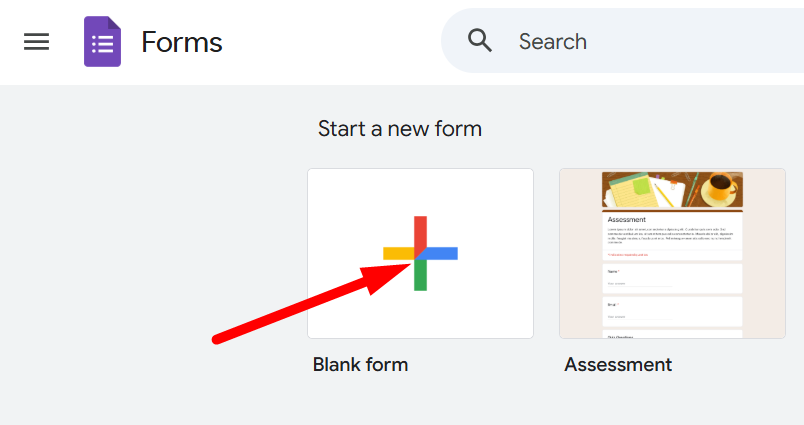
You’ll now have a fresh form where you can build your petition from scratch.
Step 2: Add Petition Title & Description
At the top, give your petition a clear, strong title. Example: “Save Our Local Park from Commercial Development.”
In the description box below, briefly explain the cause:
- What the issue is
- Why it matters
- What outcome you’re demanding
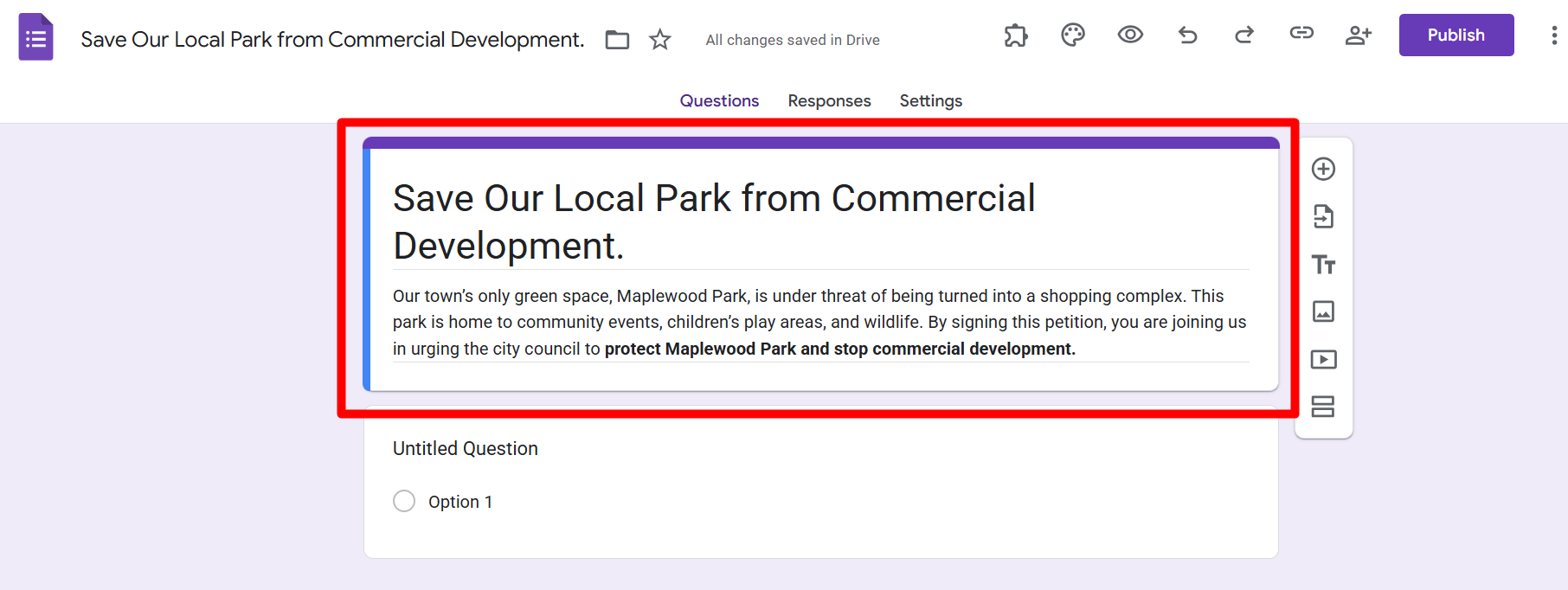
Keep it short and easy to understand. This will be the first thing supporters see before signing.
Step 3: Insert Fields for Signers (Name, Email, ZIP Code)
Your petition must collect basic details to verify signers. Add fields for:
-
Full Name (Short Answer)
-
Email Address (Short Answer)
-
ZIP Code/Location (Short Answer)
Make these questions required so every signer provides their info.
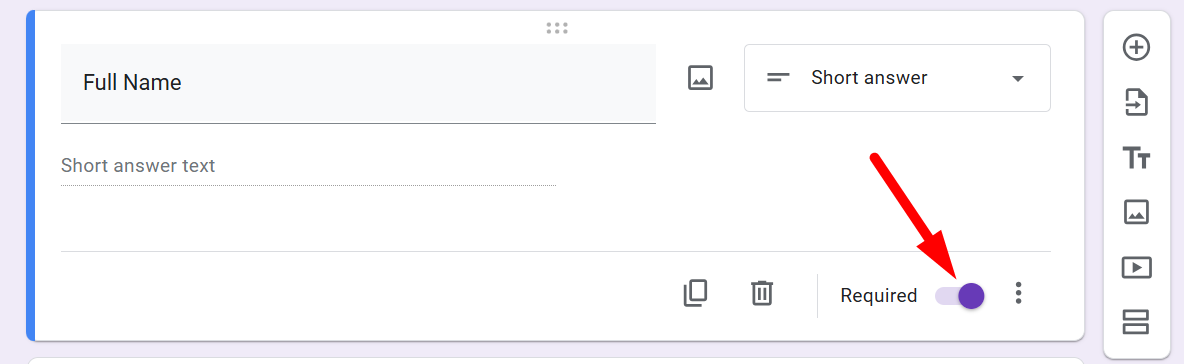
This ensures credibility and helps you present real, verifiable support.
Step 4: Add Optional Questions (Reason for Signing, Comments)
To make your petition stronger, add an optional paragraph question: “Why did you choose to sign this petition?”
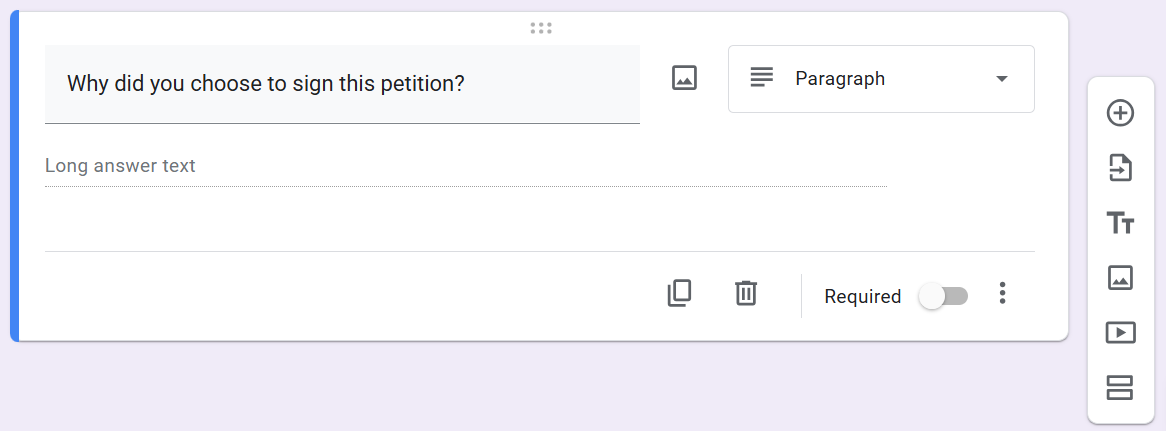
These responses can add emotional weight when you present the petition to decision-makers. You can also add a checkbox question for supporters who want updates, like: “Would you like to stay informed about this cause?”
Step 5: Customize the Look of Your Petition
Click the Customize Theme button at the top right to make your form stand out.
You can adjust:
-
Header Image — upload a banner related to your cause
-
Colors — match the theme of your petition
-
Fonts — pick easy-to-read styles
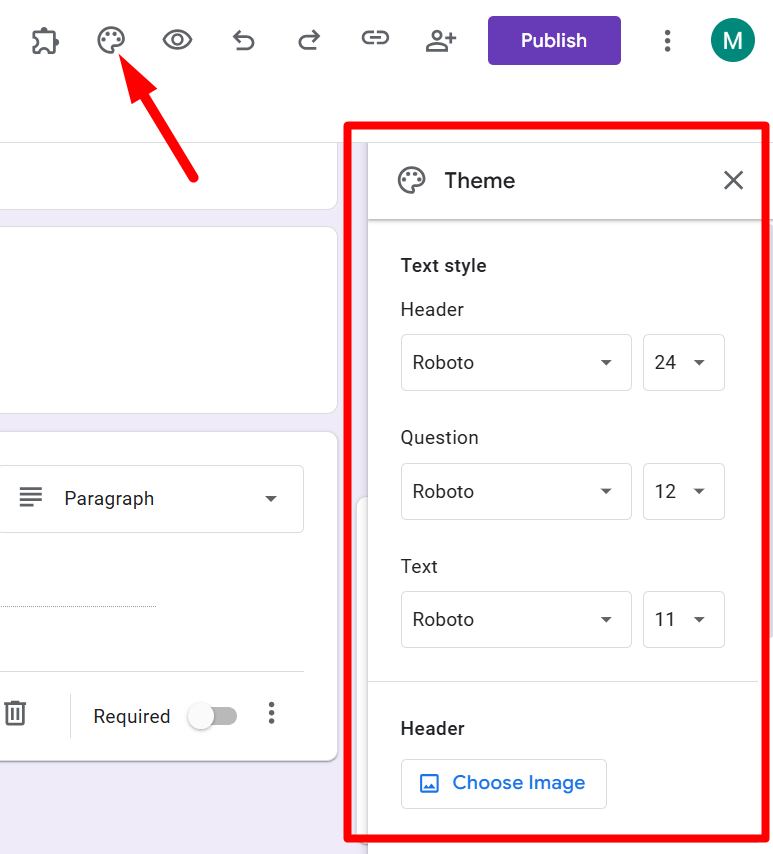
A professional-looking petition builds trust and encourages more people to sign.
Step 6: Share the Petition Link
When ready, click the Publish button at the top right.

Step 7: Collect & Manage Responses
All signatures and responses appear in the Responses tab of your form.

You can also click Link to Sheets to export the data to Google Sheets for better management and reporting.
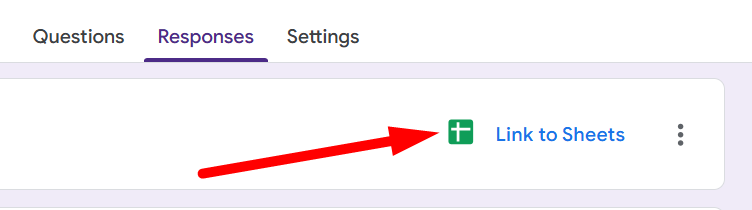
This makes it easy to track how many people signed and organize supporter details for follow-up.
FAQs About Creating Petitions on Google Forms
Q1. Can you create a petition directly on Google Forms?
Yes, you can set it up with fields like name, email, and ZIP code. However, Google Forms doesn’t support e-signatures unless you use an add-on.
Q2. Is Google Forms free for petitions?
Absolutely. Google Forms is 100% free, whether you collect 10 signatures or 10,000.
Q3. Can people sign anonymously?
You can make questions optional, but anonymous responses reduce the credibility of your petition.
Q4. How do I download signatures from my petition?
Go to the Responses tab → click the Sheets icon → export to Google Sheets. From there, you can download as Excel or CSV.
Q5. What’s the best alternative to Google Forms for petitions?
If you need digital signatures, use tools like Jotform or forms.app. Both offer free petition templates and built-in signature fields.