
Templates in Microsoft Forms: How to Use & Customize
Fast navigation
Want to save time and still collect high-quality data?
Microsoft Forms gives you access to 27+ pre-built templates—each designed for a different use case. Whether you're running a business survey, hosting an event, or collecting school feedback, these templates can help you build a form fast.
In this guide, you’ll learn:
- How to access free templates in Microsoft Forms
- The 10 best Microsoft Forms templates you should try
- Their limitations (and workarounds to get more control)
- Pro tips on how to customize and use them effectively
Let’s dive in.
What Are Templates in Microsoft Forms?
Templates in Microsoft Forms are pre-made forms designed for common data collection tasks like:
- Surveys (customer, employee, event)
- Quizzes
- Registration and consent forms
- Feedback forms
Each template comes with a title, question structure, and pre-set formatting. You can tweak any question or add your own, but they’re meant to get you started fast without building everything from scratch.
💡 Good to know: All Microsoft Forms templates are free and available from the Template Gallery.
How to Access Templates in Microsoft Forms
Step 1: Open Your Microsoft Forms Dashboard
Head over to forms.office.com and log in with your Microsoft account.
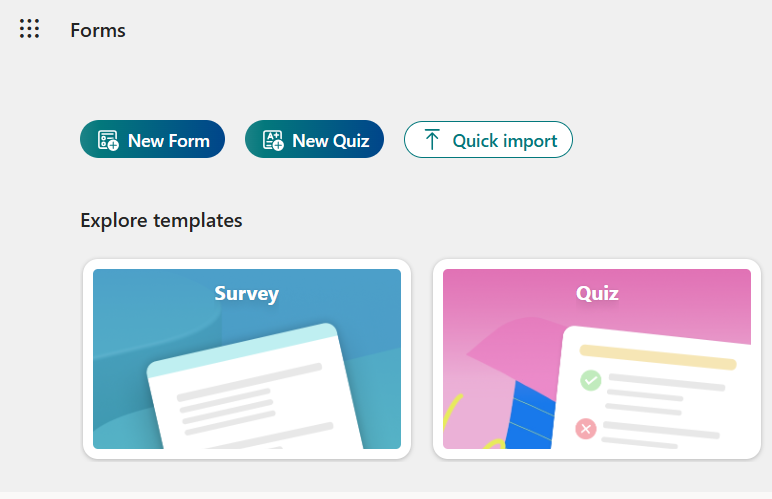
Step 2: Click on the “Template Gallery”
Look at the top right corner of your dashboard and click “Template Gallery”.
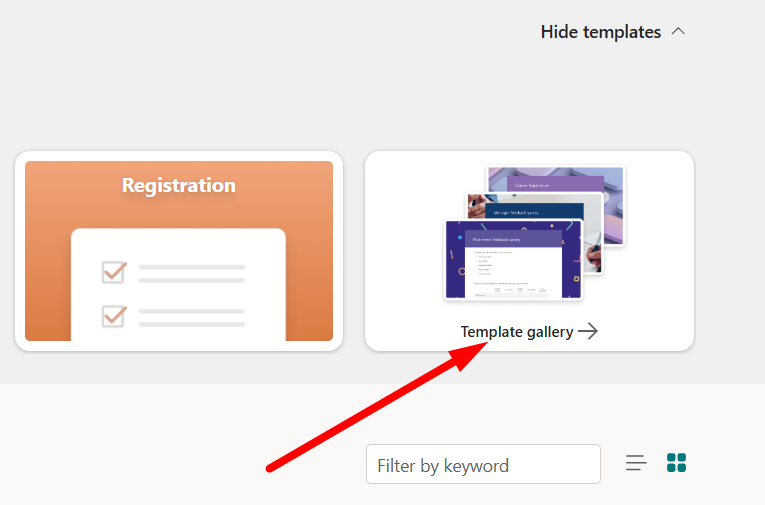
You’ll now see dozens of categorized templates such as:
- Work
- Education
- Feedback
- Events
- Personal
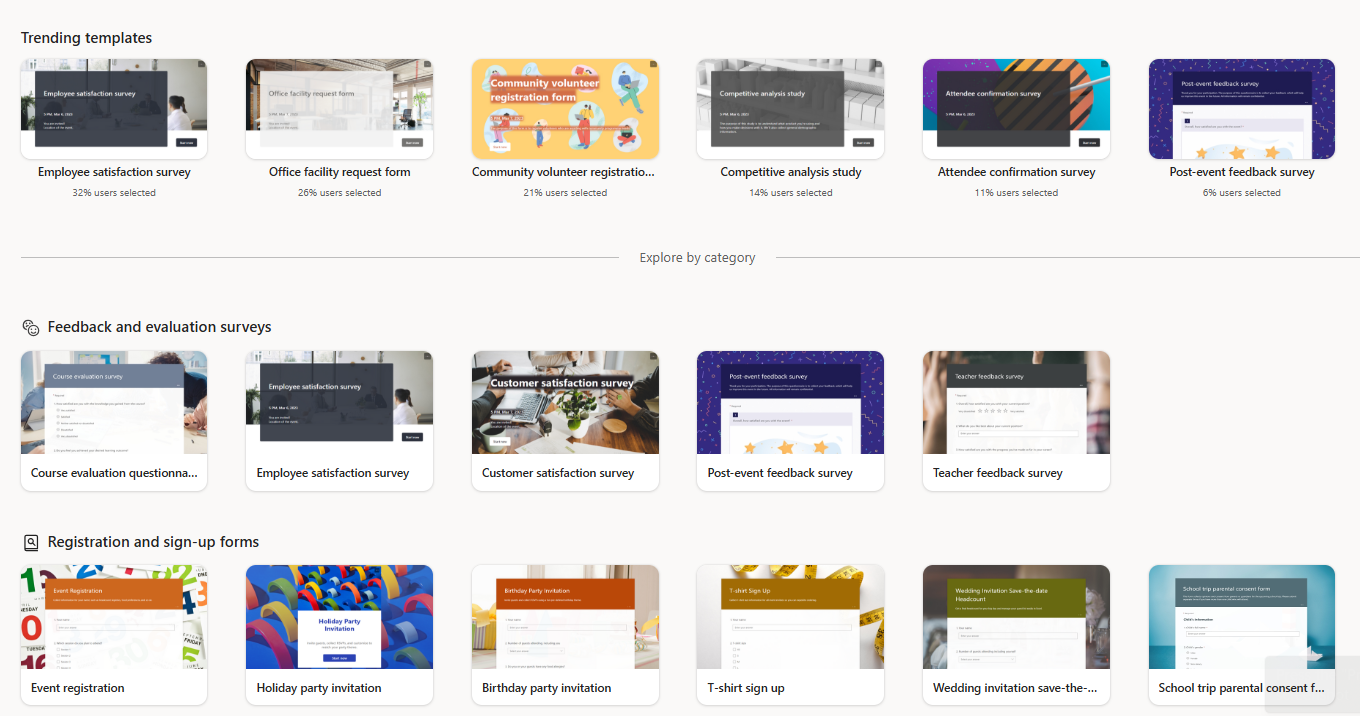
Step 3: Choose a Template That Fits Your Use Case
You can scroll or search to find the right template. When you click on one, it opens as a new, editable form.
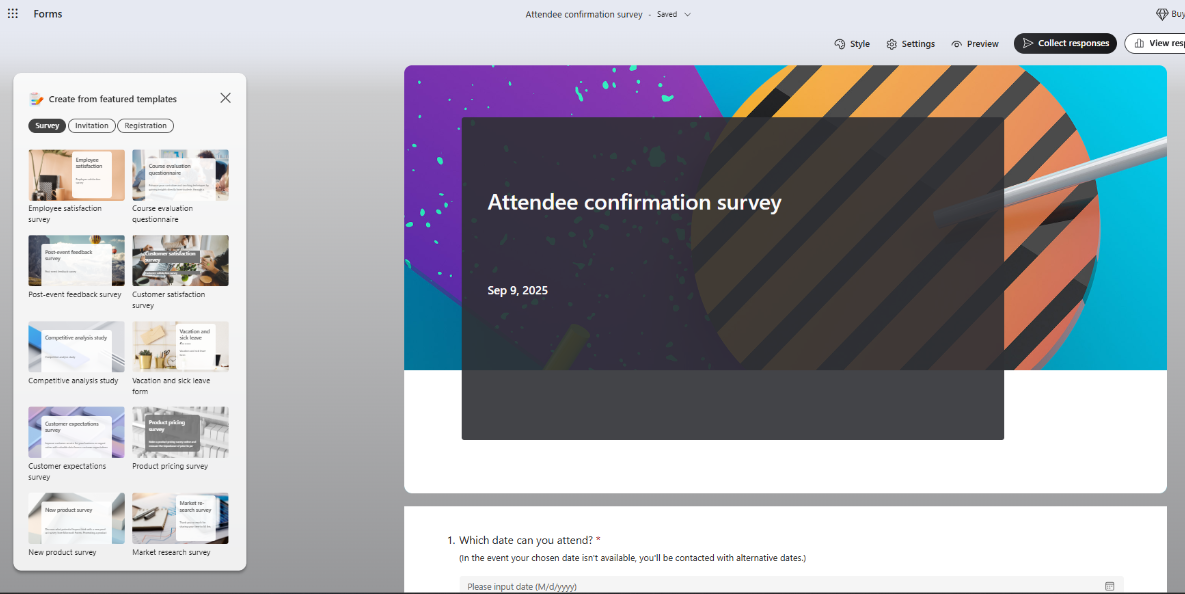
Step 4: Start Editing Your Form
Edit the form title, questions, and settings based on your needs.
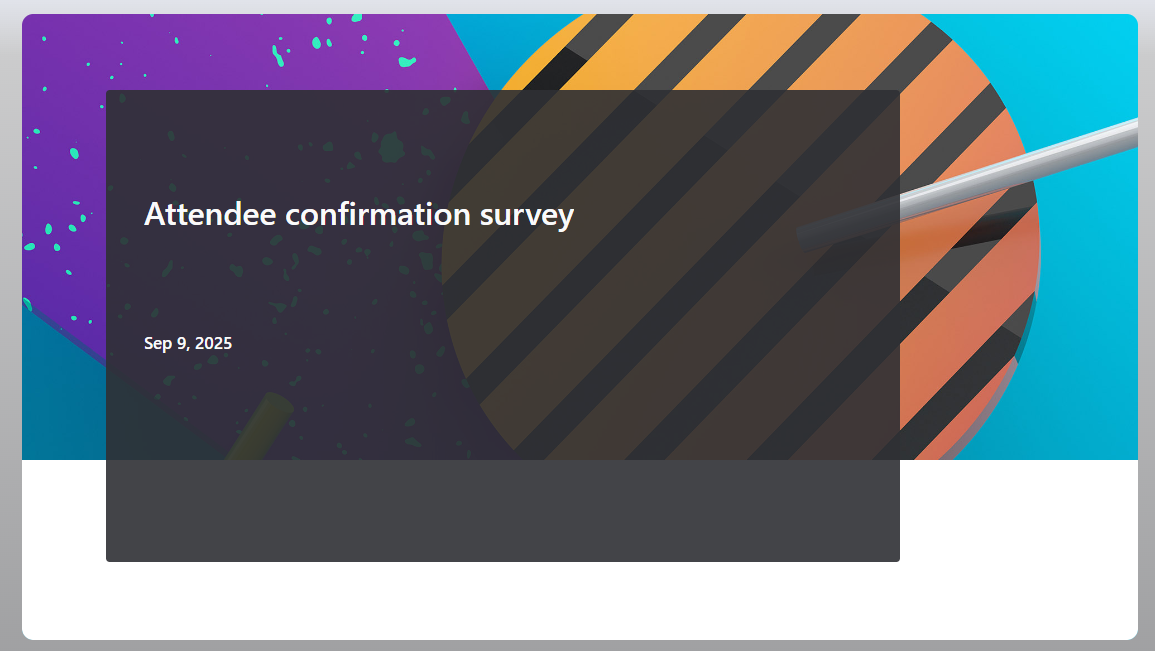
10 Best Microsoft Forms Templates to Use in 2026
1. Customer Satisfaction Survey
Perfect for businesses to collect insights on products, services, or support.
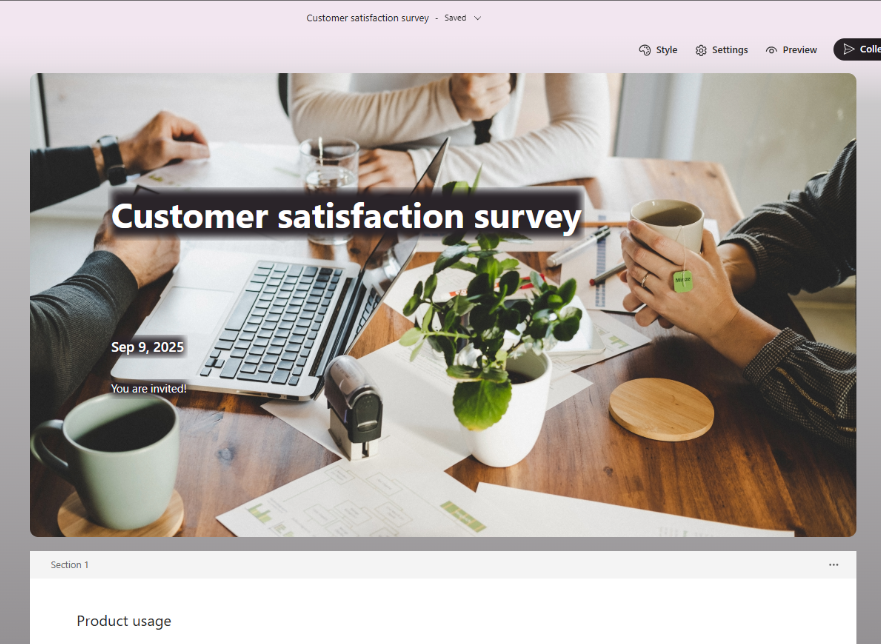
Includes:
- Rating scale
- Likert questions
- Open-ended feedback
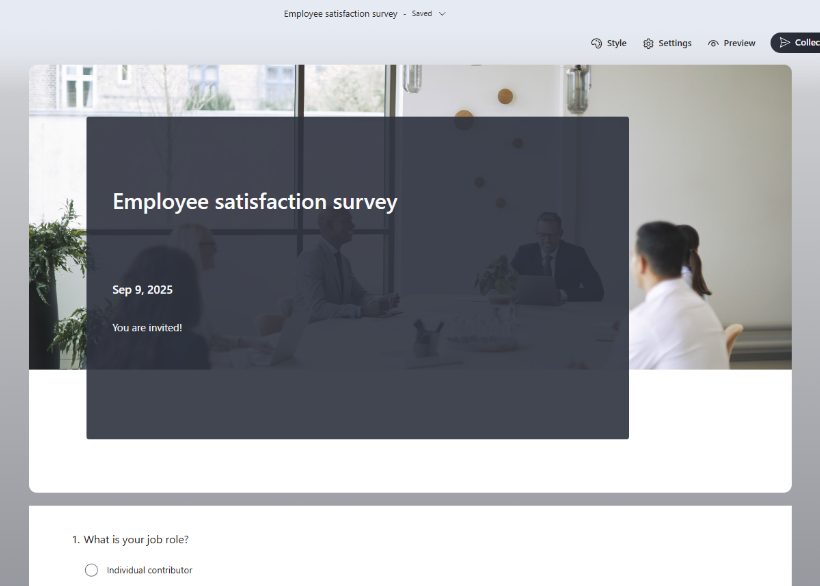
2. Employee Satisfaction Survey
Helps HR teams and managers evaluate workplace morale and areas for improvement.
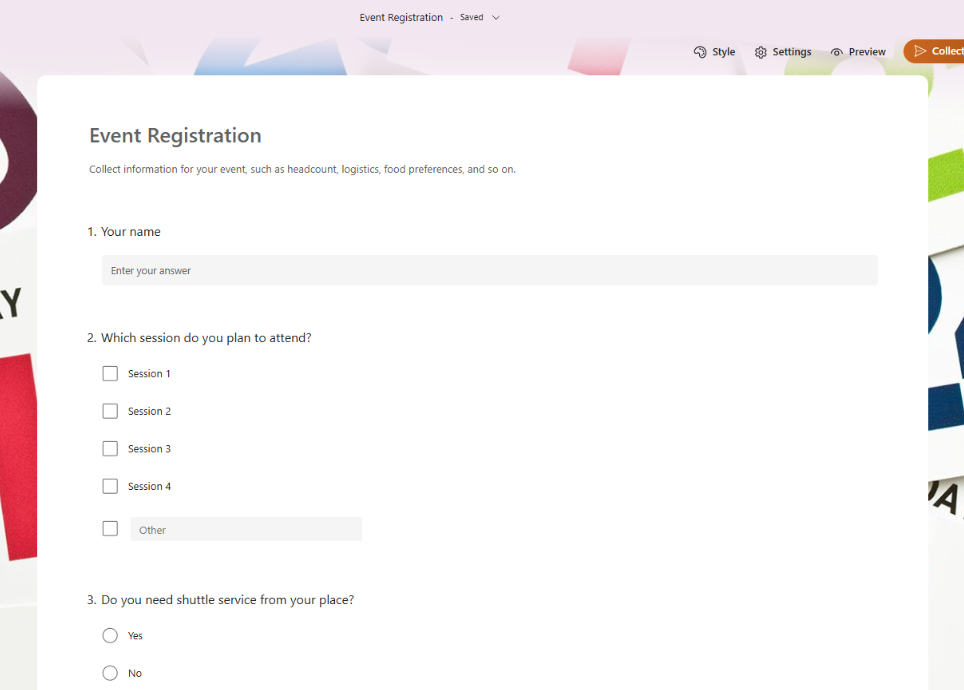
3. Event Registration Form
Collect RSVPs and important guest details in one form before your event.
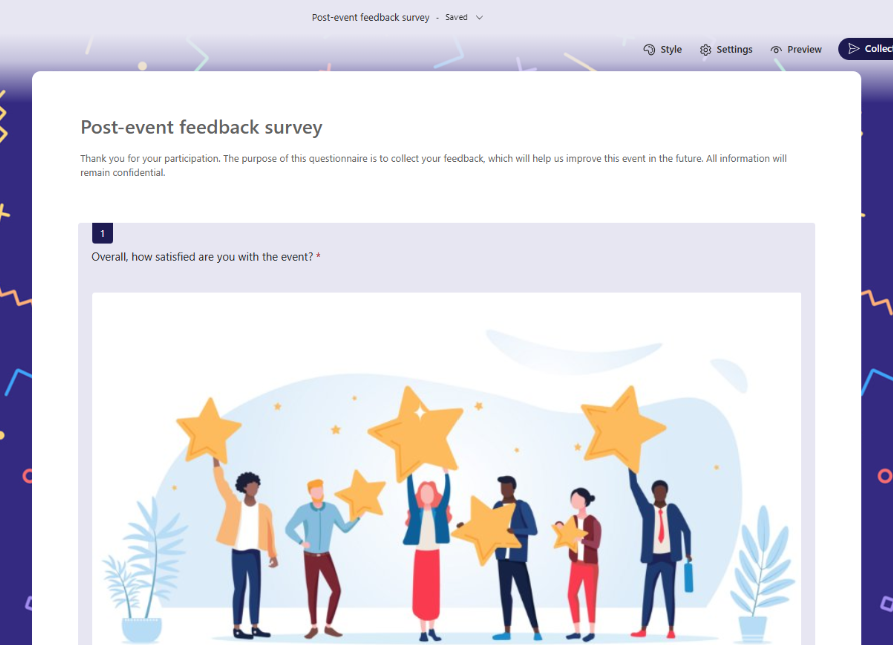
4. Post-Event Feedback
Follow up with attendees after the event to improve future planning.
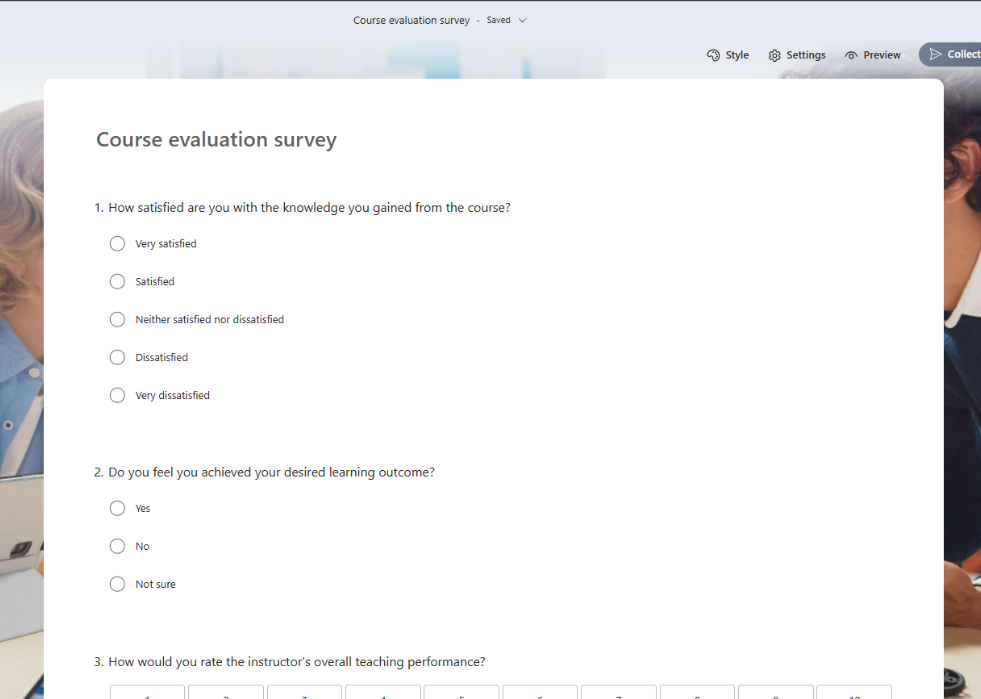
5. Course Evaluation
A must-have for schools, teachers, and online trainers to gather student feedback.
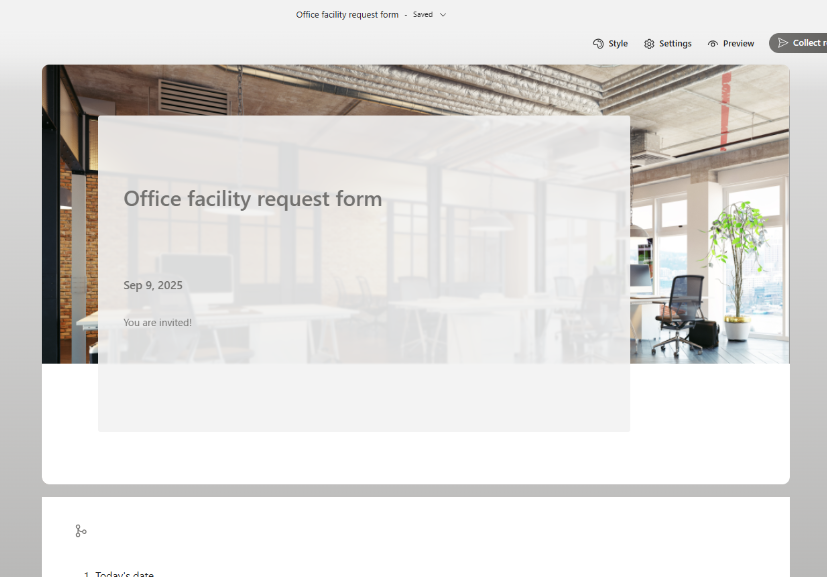
6. Office Facility Request
Employees can request items or report issues with office tools and supplies.
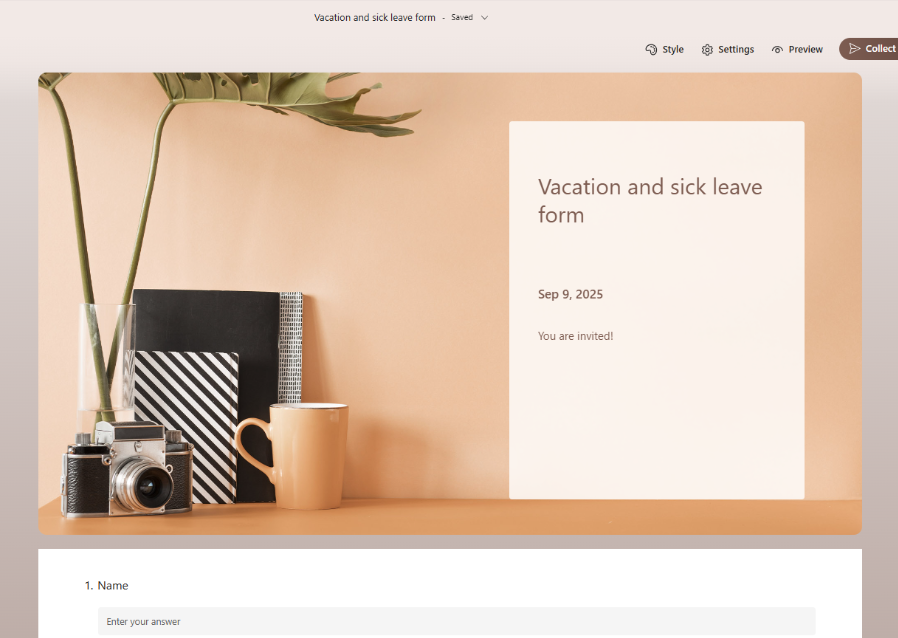
7. Vacation & Sick Leave Form
Allows team members to formally request time off—great for internal workflows.
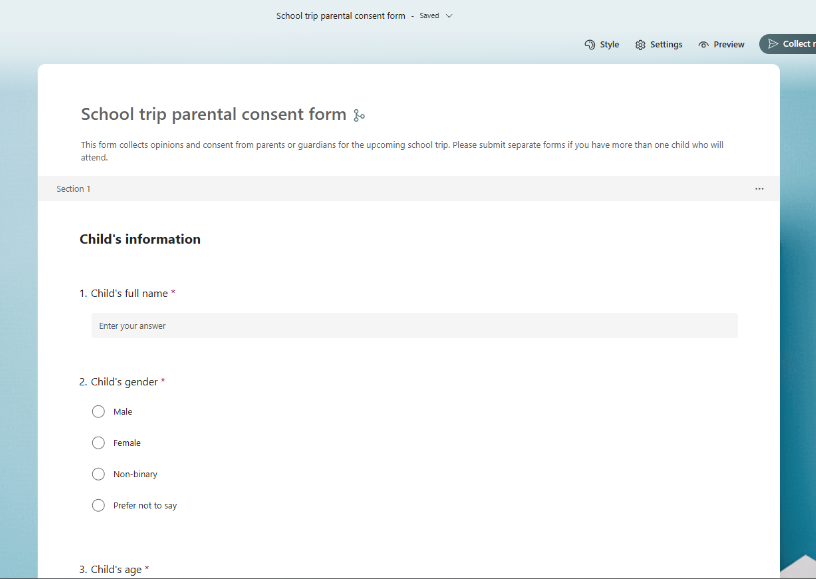
8. School Trip Parental Consent Form
Essential for field trips or school activities—easily share with parents via link or email.
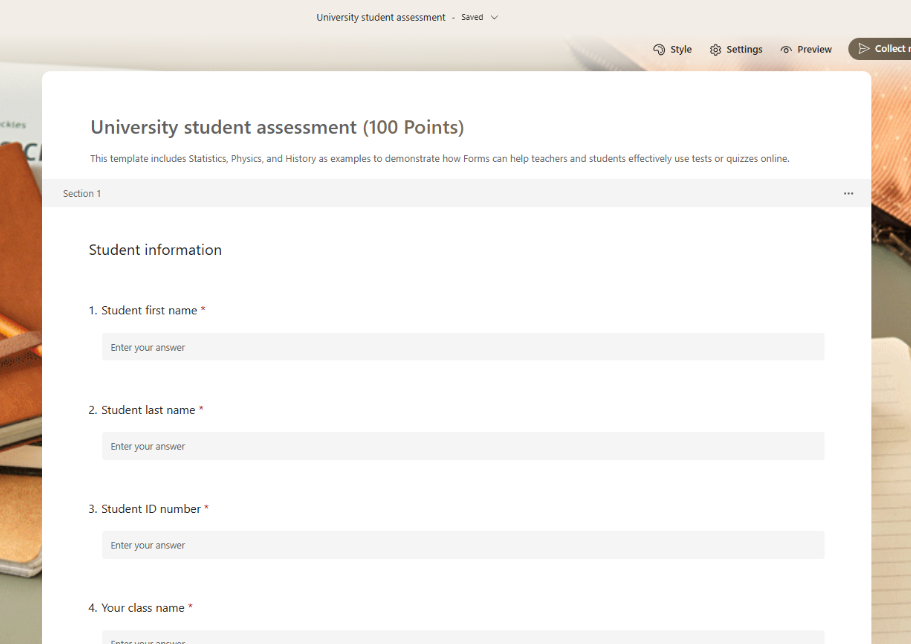
9. University Student Assessment
Used by higher-ed institutions to review academic performance or grant eligibility.
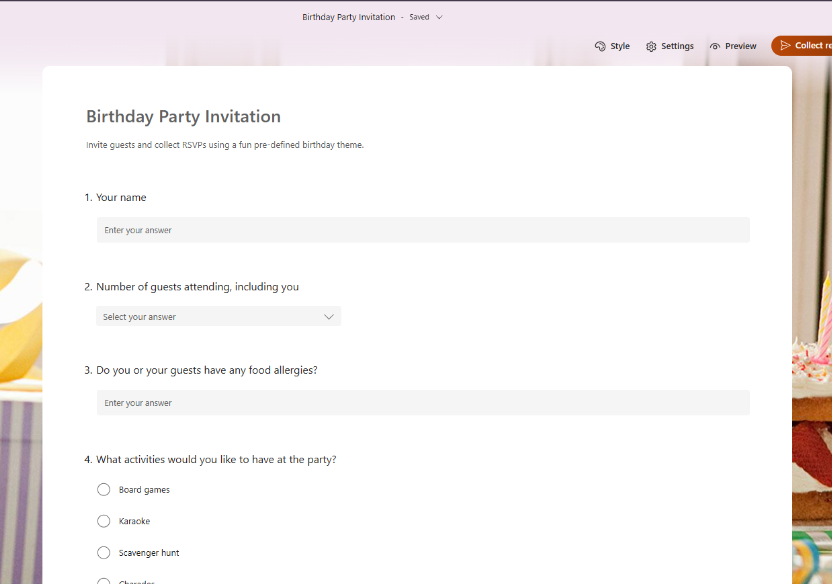
10. Birthday or Event Invitation
Informal but fun—send digital invites for parties or personal events with RSVP tracking.
Limitations of Microsoft Forms Templates
- ❌ Limited customization: You can’t use custom CSS, HTML, or advanced visuals.
- ❌ No partial saves: Respondents must complete the form in one go.
- ❌ No logic jumps or branching in templates (you must manually add logic).
- ❌ Minimal integrations outside Microsoft tools (e.g., hard to sync with CRMs).
- ❌ No mobile app for on-the-go form building.
- ❌ No folder organization—messy if you have many forms running at once.
That said, for quick, clean data collection—especially within the Microsoft ecosystem—these templates work well.
Pro Tips for Using Templates Better
- Tweak questions to your voice: Don’t use the default wording—make it sound like you.
- Add sections to break up long forms for a better user experience.
- Use “Response Validation” to ensure cleaner data (e.g., email format, number range).
- Send automatic email notifications using Power Automate (requires Microsoft 365).
- Connect to Excel for deeper analysis of survey results.
FAQs About Templates in Microsoft Forms
Q1. Are Microsoft Forms templates free?
Yes, all templates in the gallery are 100% free with a Microsoft account.
Q2. Can I edit the questions in a template?
Absolutely! You can delete, reword, or add any questions you want.
Q3. How many templates does Microsoft Forms offer?
There are over 27 categorized templates available as of 2024.
Q4. Can I use logic jumps in templates?
Not by default. You’ll need to manually add branching logic using the “Add branching” feature.
Q5. Do responses from templates show up in Excel?
Yes. You can link any form to a Google Sheet or Excel file to manage and analyze responses.