
How to Add a Hyperlink to Google Forms (Step-by-Step Guide)
Fast navigation
- Where Can You Add a Hyperlink in Google Forms?//
- Where You Can’t Add Hyperlinks to Google Forms//
- Step 1: Open Google Forms//
- Step 2: Add Text Where Hyperlink Will Go (Title, Description, or Question)//
- Step 3: Highlight the Text You Want to Link//
- Step 4: Click the “Insert Link” Button//
- Step 5: Paste Your Destination Link//
- Step 6: Preview and Test the Link//
- Step 7: Publish Your Form//
- Why Add Hyperlinks to Google Forms?//
- Pro Tip: Use Link Shorteners//
- FAQs: Adding Hyperlinks to Google Forms
Want to make your Google Form more interactive and useful?
Adding a hyperlink to Google Forms lets you provide extra resources, references, or instructions for your respondents. Whether it’s a terms & conditions page, product catalog, research data, or even a social media profile, hyperlinks can guide users to the right place without cluttering your form.
In this guide, I’ll break down the step-by-step process of adding a hyperlink to Google Forms, along with where you can place links and why it’s worth using them.
Let’s dive in!
Steps:
- Open Google Forms (create new or edit existing form)
- Add text where hyperlink will go (title, description, or question)
- Highlight the text you want to link
- Insert the link (click chain icon in toolbar)
- Paste your destination URL & adjust display text
- Preview and test link (eye icon)
- Publish Your Form
Where Can You Add a Hyperlink in Google Forms?
Before we go into the steps, it’s important to know where links actually work in Google Forms. You can’t hyperlink text everywhere. Here are the supported places:
- Form title – The very first thing respondents see can be clickable.
- Form description – A great place to add instructions, FAQs, or reference links.
- Question text – Add context or external references to your questions.
- Section titles and descriptions – Perfect for linking to supporting material.
- Image titles – You can’t link the image itself, but you can hyperlink the image caption/title.
- Video titles – Videos link to YouTube by default, but their titles can hold extra links.
Where You Can’t Add Hyperlinks to Google Forms
While you can add links in many places, there are a few spots where Google Forms doesn’t support hyperlinks:
- Dropdown options – Selecting from a dropdown is meant to choose an answer, not open a link.
- Multiple-choice and checkbox options – You can paste a raw URL here, but it won’t display as clickable text (only the plain link).
- Image hover text – Hover text is temporary and not clickable, so you can’t attach a working hyperlink.
Knowing these limits saves you time and helps you design your form with hyperlinks that actually work.
Step 1: Open Google Forms
Go to Google Forms and create a new blank form by clicking the “+” button under Start a new form.
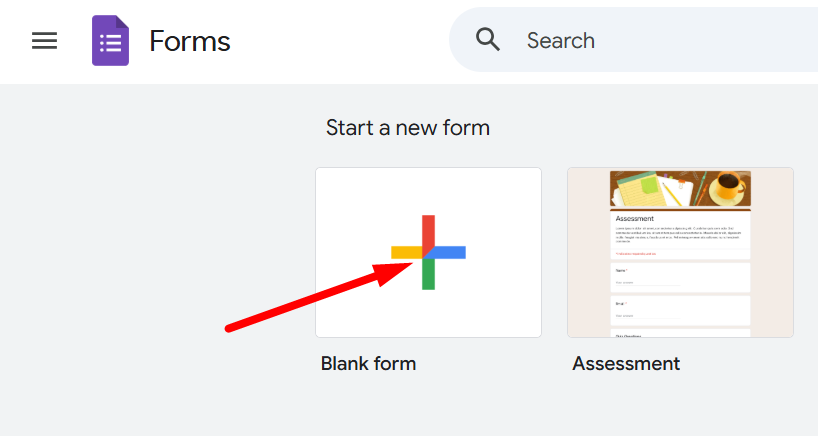
Step 2: Add Text Where Hyperlink Will Go (Title, Description, or Question)
Click into the text area where you want the hyperlink. It could be the form title, description, or a question field. For example, I want to add a hyperlink to the question, that's why I click on the question field. Check the screenshot below⬇️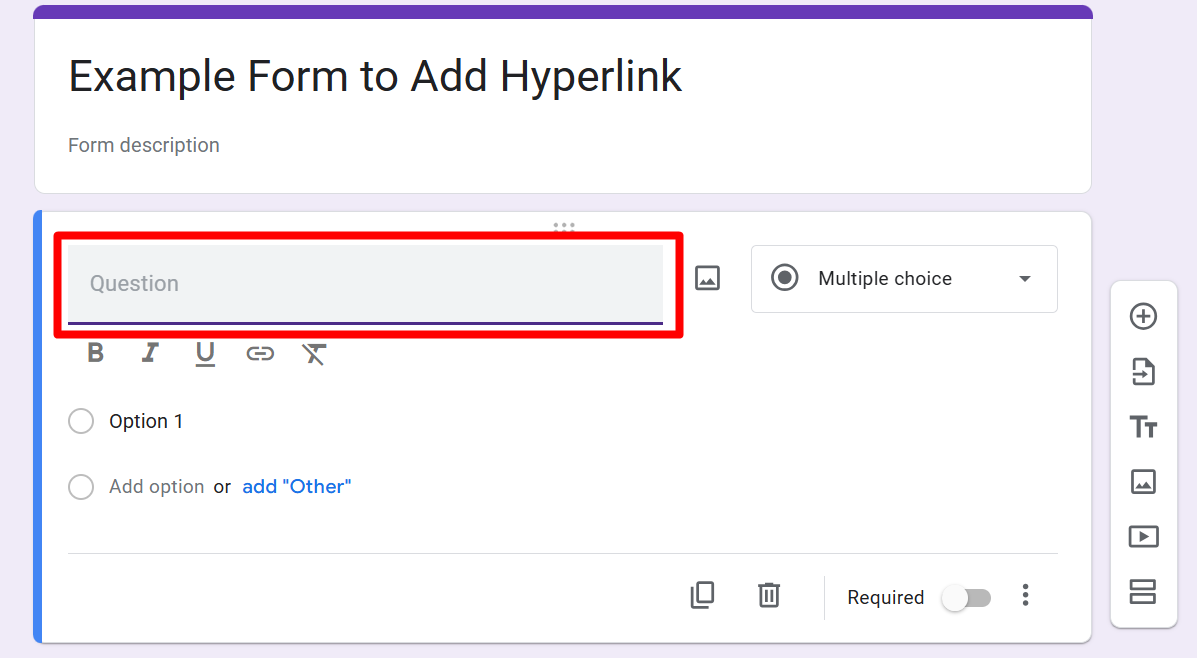
Step 3: Highlight the Text You Want to Link
Type the text you want to turn into a hyperlink. For example:
- “Click here for our privacy policy”
- “View full product list here”
Highlight this text with your cursor.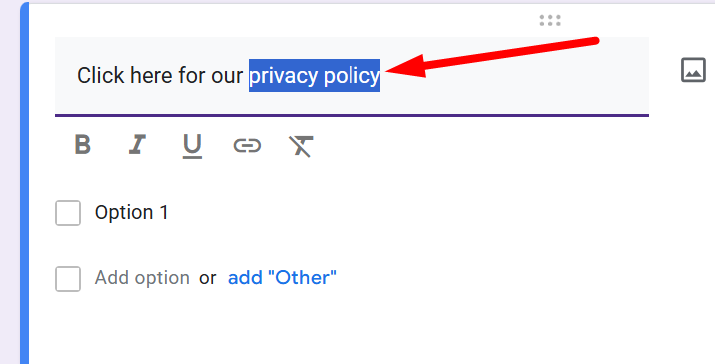
Step 4: Click the “Insert Link” Button
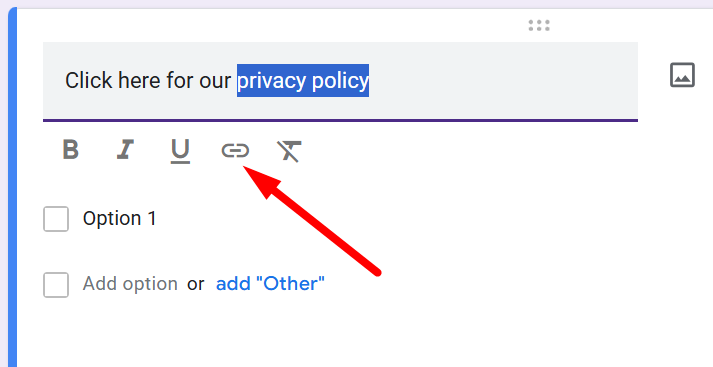
After highlighting, look at the formatting toolbar that appears beneath the text field. Click the link icon (it looks like a chain link).
Step 5: Paste Your Destination Link
A pop-up window will appear.
- In the Text to display field, confirm or edit the anchor text.
- In the Link field, paste your URL.
Click Apply (or OK).
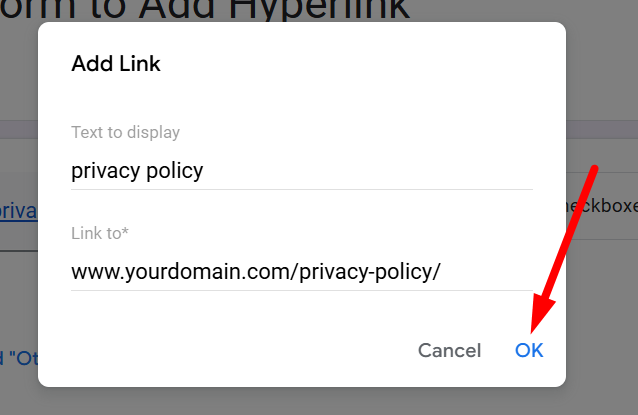
Your text is now hyperlinked!
Step 6: Preview and Test the Link
Before sharing, test your form to make sure the hyperlink works correctly.
Click the eye icon (Preview) at the top right.
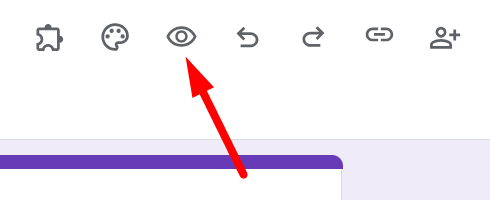
When the form opens in preview mode, click on the hyperlink to verify that it takes you to the correct destination.
Step 7: Publish Your Form
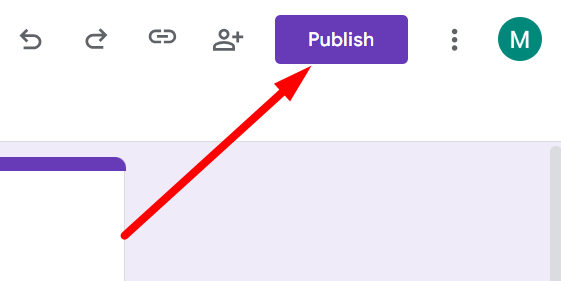
Once everything looks good, click the Publish button in the top-right corner.
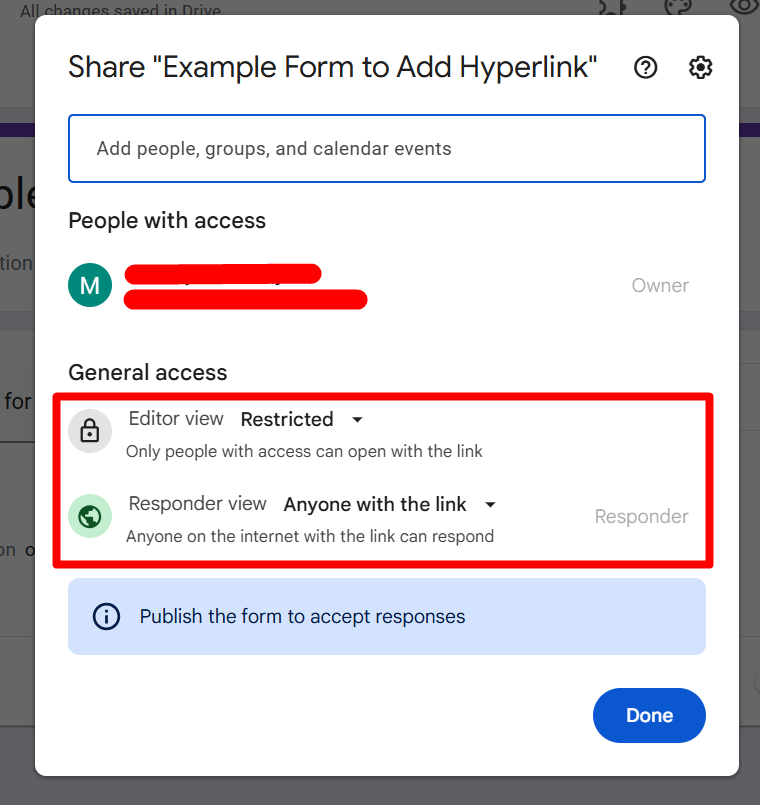
Then, you can see a pop-up where you can set the permissions for the editors and the responders. Click on ‘Done’.
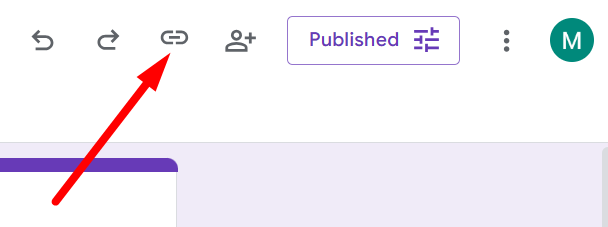
Now you can send the responder link by copying the responder link. To do it, click on the link icon in the top right corner of the form.
Why Add Hyperlinks to Google Forms?
Hyperlinks aren’t just about convenience — they make your form more powerful.
- Provide additional info: Link to terms, FAQs, or background resources.
- Improve clarity: Add context to tricky questions without overloading the form.
- Drive engagement: Direct users to websites, product pages, or event registrations.
- Smooth user experience: Avoid long instructions in the form by linking out.
- Encourage actions: Send respondents to sign-up pages, downloads, or social channels.
Example: If you’re running an event registration form, you can add a hyperlink in the description that directs users to your full event agenda.
Pro Tip: Use Link Shorteners
Sometimes long URLs can look messy in forms. If Google Forms doesn’t recognize your pasted link correctly, use a shortener like bit.ly or TinyURL for a cleaner experience.
FAQs: Adding Hyperlinks to Google Forms
Q1. Can I add a hyperlink to multiple-choice options in Google Forms?
You can paste a URL directly into the answer options, but it will only display as a raw link, not as clickable text.
Q2. Can I hyperlink dropdown options in Google Forms?
No. Dropdowns can’t be hyperlinked since selecting them is meant to choose an option, not open a link.
Q3. Can I make images clickable with a link?
Not directly. You can’t hyperlink an image itself, but you can add a link to the image title or description.
Q4. How do I test a hyperlink before sharing my Google Form?
Click the Preview (eye icon) in the top-right corner, then click on your hyperlink to ensure it leads to the right page.
Q5. Why should I use hyperlinks in my form?
Hyperlinks let you provide more information without cluttering your form. They improve clarity, add resources, and can even drive traffic to websites or event pages.