How To Wrap Text In Excel
Using Wrap Text Button In The Ribbon
There are multiple ways to wrap text. The quickest way is using the ribbon at the top of the workbook. You can also use keyboard shortcut in Windows. Press ALT+H+W simultaneously to instantly wrap text. For Mac users, this shortcut will not work. Therefore, the easiest way in any system that supports excel is to use the following steps.
Step 1 - Select The Cell With Long Text


Step 3 - Click The Wrap Text Button
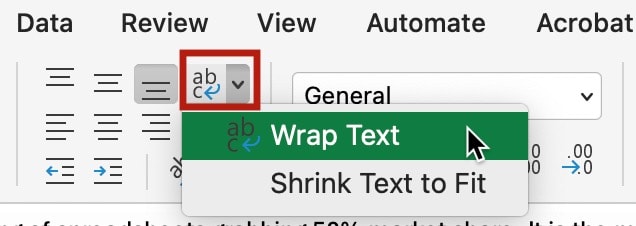
The Wrap Text button is visible in the Alignment section in Windows. For Excel in Mac OS, find the icon with ab written. Click the drop-down menu and press wrap text.
You can see that the text is wrapped neatly.

Finished!
Use The Right-Click Context Menu To Wrap Text
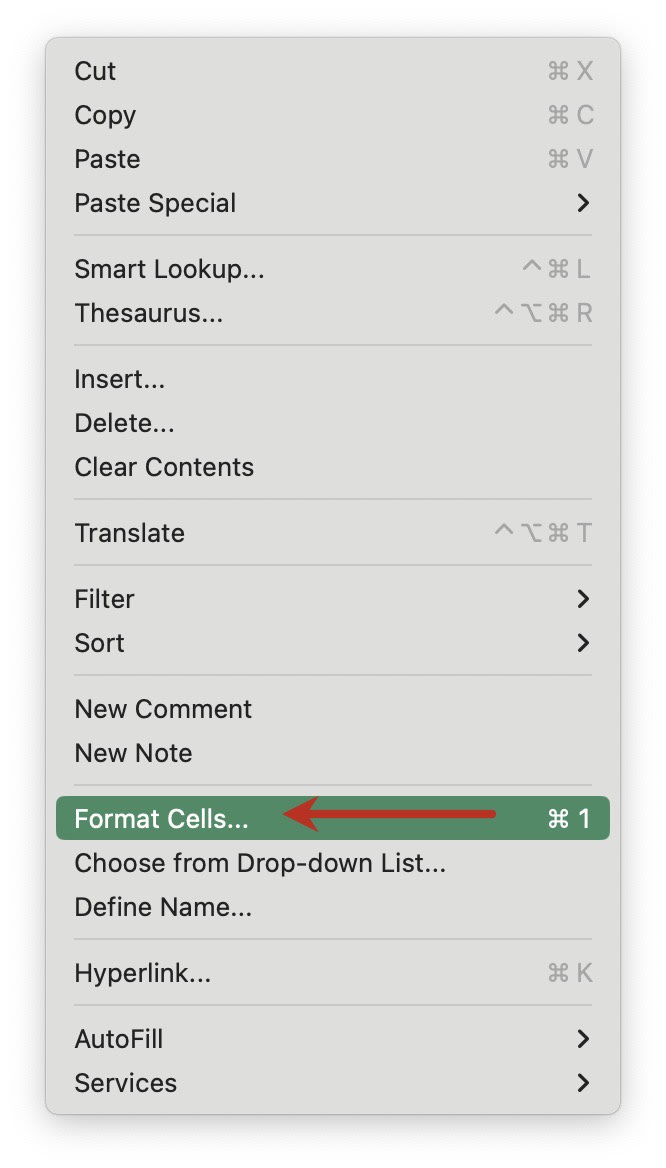
Another way is to right-click the cell to wrap text and select format cells. Here are the steps to wrap text through context menu.
Step 1 - Right-click The Cell To Launch Context Menu
Select the cell with long text and right-click it to launch its context menu.

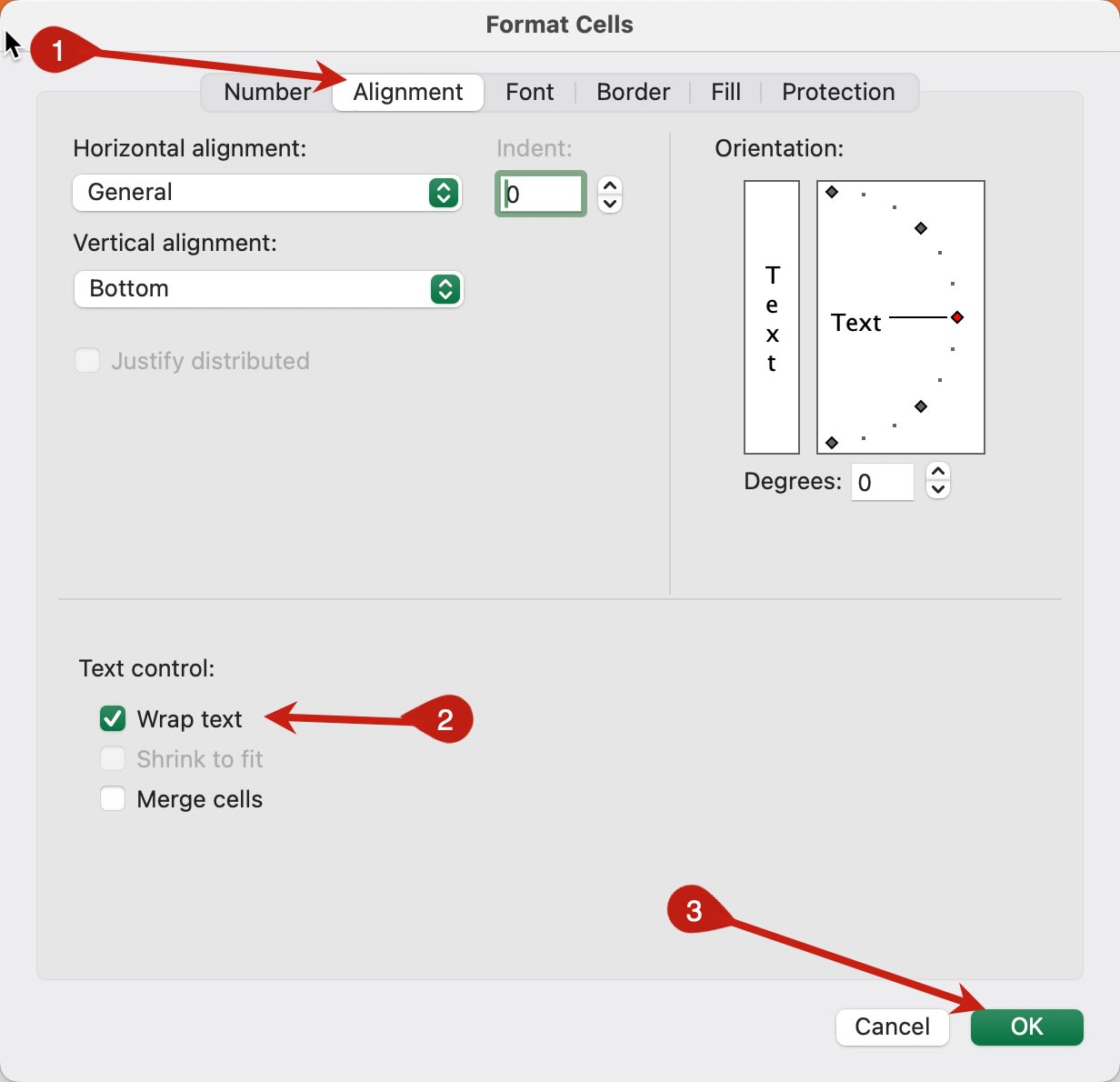
Step 3 - Go To The Alignment Tab And Click Wrap Text CheckBox
Select the alignment tab in the format cells window and find the wrap text checkbox. Click the checkbox and click OK.
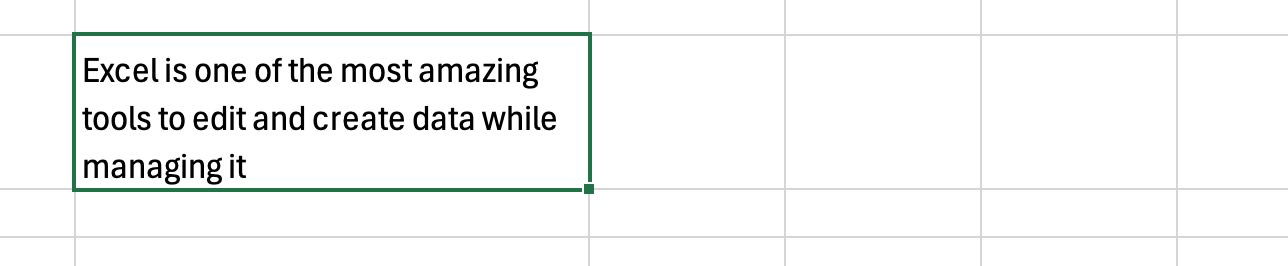
The text is wrapped in the cell.
Finished!