How to Sort Columns in Excel Without Mixing Data
Fast navigation
In 4 simple methods, this guide will show you how to sort columns in Excel without mixing data.
Organizing your data correctly is crucial for effective analysis and presentation, so let’s dive in and ensure your data remains intact and well-organized!
Methods:
- Sort Single Column
- Sort Multiple Columns
- Sorting by Color
- Sorting by Custom List
Method 1: Sort Single Column
Step 1. Select Your Data Range
To begin, highlight the entire range of data you want to sort. Click and drag your mouse over the cells, or press Ctrl + A to select all the data in your worksheet.

Step 2. Sort Your Data
Next, navigate to the ‘Data’ tab in the Excel menu bar. Click on the sorting order: either “A to Z” for ascending order or "Z to A" for descending order.

You can also right-click on the selected data, choose ‘Sort’, and then select your preferred sort option.

Finished!
Method 2: Sort Multiple Columns
Step 1. Select Your Data Range
As before, highlight the entire range of data you want to sort.

Step 3. Choose Your Primary Sorting Criteria
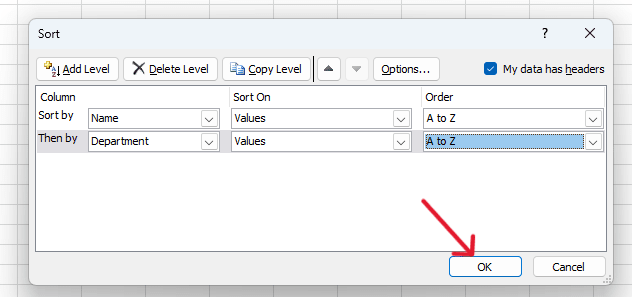
In the Sort dialog box, you will see a drop-down menu under the ‘Column’ heading. Select the primary column you want to sort by. Then, choose the sorting order: either "A to Z" for ascending order or "Z to A" for descending order.

Step 4. Add Sorting Levels

Step 5. Finalize the Sort
Once you have set up your sorting criteria and levels, click the ‘OK’ button to apply the sort.

Excel will sort the data based on the criteria you specified, keeping the integrity of your data intact.

Finished!
Method 3: Sorting by Color
Step 1. Select Your Data Range
Highlight the entire range of data you want to sort.

Step 4. Add Levels for Multiple Colors

Step 5. Finalize the Sort
Once you have set up your color sorting criteria and levels, click the ‘OK’ button to apply the sort.
Excel will sort the data based on the color criteria you specified, keeping the integrity of your data intact.

Finished!
Method 4: Sorting by Custom List
Step 1. Select Your Data Range
Highlight the entire range of data you want to sort.


Step 5. Apply the Custom List Sort
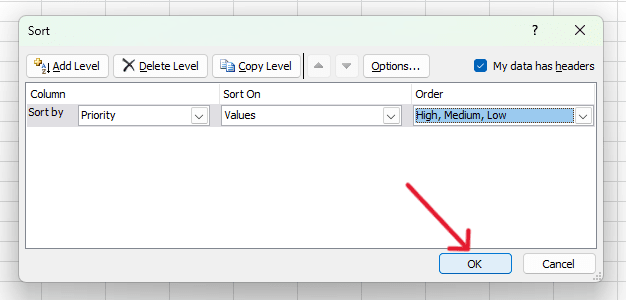
After selecting or creating your custom list, click ‘OK’ in the Custom Lists dialog box.

Then, click ‘OK’ again in the Sort dialog box to apply the custom list sort.
Excel will sort the data based on your custom list, keeping the integrity of your data intact.

Finished!
Ensuring Data Integrity
To ensure your data remains intact while sorting:
- Always select the entire data range, including headers, before sorting.
- Use the "Expand the selection" option in the Sort dialog box.
- Double-check your data after sorting to ensure everything is in the correct order.
Conclusion
Sorting columns in Excel without mixing data is essential for maintaining data integrity and clarity.
By following these steps, you can confidently sort your data without worrying about losing or mixing up important information.
Whether you're sorting by a single column, multiple columns, by color, or using a custom list, Excel's powerful sorting features make data management a breeze.