How to Calculate Age in Google Sheets
Fast navigation
In 4 simple steps, this guide will show you how to calculate age in Google Sheets.
Follow these straightforward methods to get accurate age calculations from birth dates.
So let’s dive in and calculate age in Google Sheets from birth dates!
Steps:
- Prepare Your Data
- Enter the DATEDIF Formula
- Autofill the Formula
- Validate Your Results
Step 1: Prepare Your Data
{"_uid":"f452fdc3-504a-426b-9628-658dbad0bc22","content":[{"_uid":"162659e5-6c18-4af1-9154-b431454210b0","link":"","text":"Open your Google Sheet.","type":"","anchor":"#","isLink":false,"leader":"","component":"typography","matchText":""},{"_uid":"17691439-7a46-4900-af73-ed63ccdcc4c4","link":"","text":"Ensure you have a column with names and a column with birthdates.","type":"","anchor":"#","isLink":false,"leader":"","component":"typography","matchText":""}],"component":"textList","numbering_type":"numbered-indented"}

Step 2: Enter the DATEDIF Formula
{"_uid":"f5d2c04f-1e14-4a53-ac92-9d2c9c119634","content":[{"_uid":"068f8dff-da35-44fd-93e7-b266ed707dcc","link":"","text":"Click on the cell where you want to display the age (e.g., C2).","type":"","anchor":"#","isLink":false,"leader":"","component":"typography","matchText":""},{"_uid":"524d3476-ea40-4b44-8086-e5a60625a18d","link":"","text":"Type the following formula:","type":"","anchor":"#","isLink":false,"leader":"","component":"typography","matchText":""}],"component":"textList","numbering_type":"numbered-indented"}
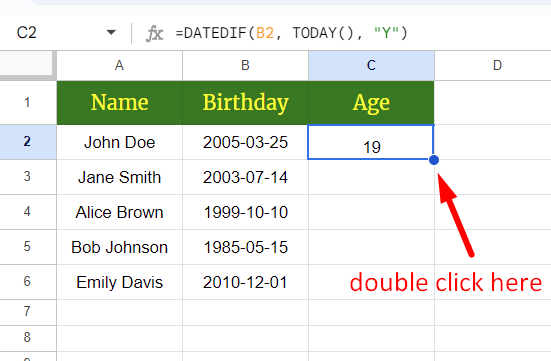
=DATEDIF(B2, TODAY(), "Y") Text...

Press Enter. This will calculate the age in years based on the birthdate in cell B2 and today's date.

Step 3: Autofill the Formula
{"_uid":"4f48303a-9189-45a8-891b-d91a1ae30477","content":[{"_uid":"ebc2f62b-7dbb-4bfb-bc0b-d88fea46d1d6","link":"","text":"Click on the cell with the age calculation (C2).","type":"","anchor":"#","isLink":false,"leader":"","component":"typography","matchText":""},{"_uid":"80eca9ab-7938-483d-a5f1-a9cea900b1f7","link":"","text":"Double-click the fill handle (small square at the bottom-right corner of the cell) to automatically copy the formula down the column.","type":"","anchor":"#","isLink":false,"leader":"","component":"typography","matchText":""}],"component":"textList","numbering_type":"numbered-indented"}
Step 4: Validate Your Results
{"_uid":"012803c9-4ff6-4b33-a0f9-2121eaacf18f","content":[{"_uid":"fefd65a7-50cc-48e0-aed5-965259489e80","link":"","text":"Check a few entries to ensure the age calculations are correct.","type":"","anchor":"#","isLink":false,"leader":"","component":"typography","matchText":""},{"_uid":"5ecec02d-4877-4a01-8f70-54a191e06f10","link":"","text":"Confirm the formula adapts correctly to different birthdates.","type":"","anchor":"#","isLink":false,"leader":"","component":"typography","matchText":""}],"component":"textList","numbering_type":"numbered-indented"}
Example Text...
After completing these steps, your data should look like this:

That's it! You've successfully calculated ages in Google Sheets.
Now, try it out with your data and make sure everything works as expected.
Back
Finished!