How to Add Checkbox Grid In Google Form (7 Steps)
Fast navigation
Creating a Checkbox Grid in Google Forms is super easy. In 8 simple steps, let us show you how to add a checkbox grid question In Google Forms.
Steps:
- Open Your Google Form
- Add a New Question
- Select Checkbox Grid From Question Types
- Configure Rows and Columns
- Customize Grid Settings
- Preview and Test Your Form
- Share Your Form
Step 1: Open Your Google Form
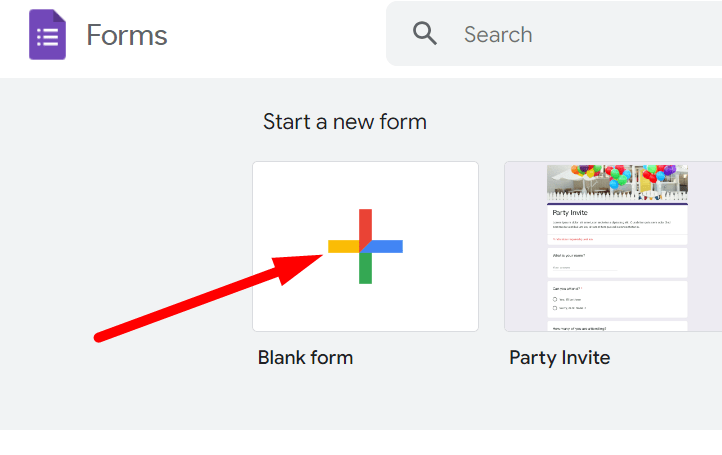
Open Google Forms. Click the “+” icon to create a new form.

Step 3: Select Checkbox Grid From Question Types
Click on the dropdown arrow to dropdown menu where it defaults to “Multiple choice”.

Select ‘Checkbox grid’ from the list of options. This changes the format of your question to a grid layout where multiple responses can be selected per row.

Step 4: Configure Rows and Columns
Enter Row Labels: These are the items or questions that respondents will evaluate. Click on the “Row 1” field to start adding your items/questions.

Enter Column Labels: These represent the possible choices for each row item. Click on “Column 1” box to add options.

Ensure each label is clear and concise for the best respondent understanding.
Step 5: Customize Grid Settings
If you need responses in every row to ensure complete data collection, check the box labeled “Require a response in each row”.

If applicable, click on three dots in the bottom right corner and Shuffle Rows.
Select the “Shuffle row order” to randomize the order of rows for each respondent, which can help in reducing bias.


Step 7: Share Your Form
If you're satisfied with the form, Click on the Send Button at the top right of the form editor.

You can choose to send your form via email, a link, or even embed it on a website.

Hope our guide helped you to create a Google Form with Checkbox Grid questions.
Finished!